
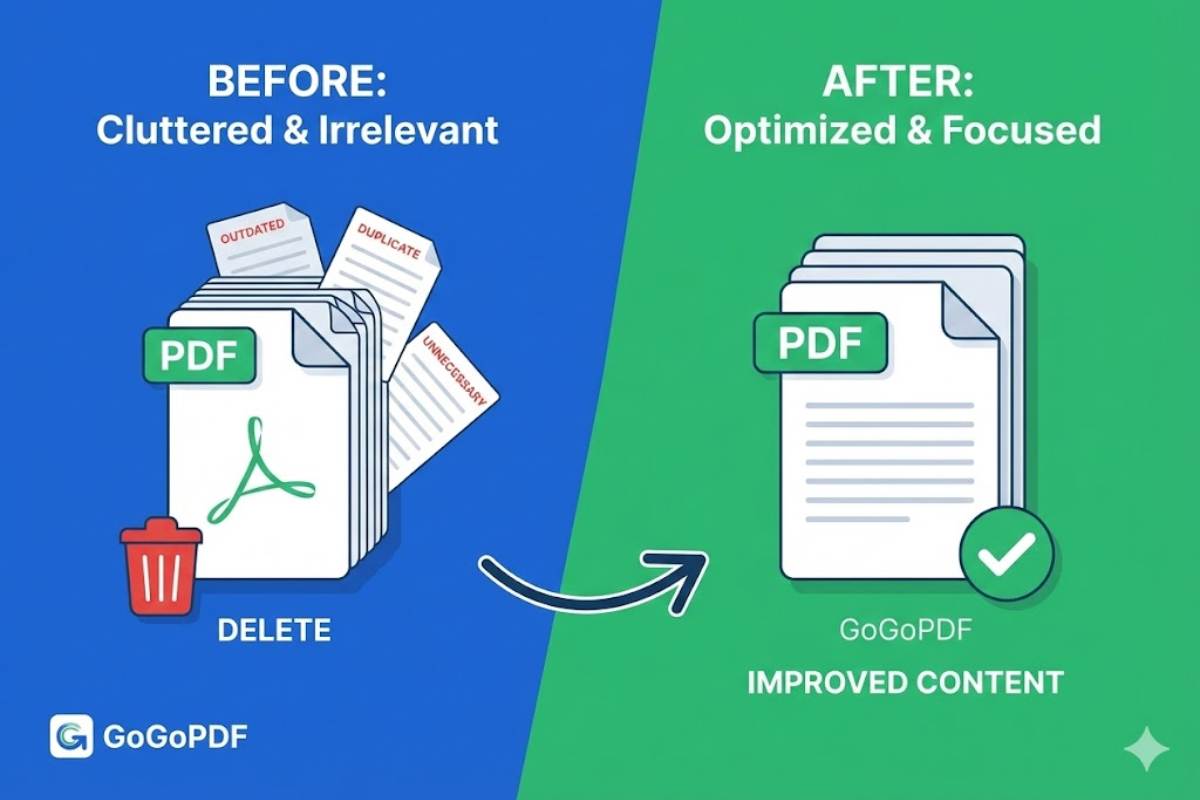
You poured time into your PDF, but something still feels off. It’s bloated, slow, and people drop off before they reach the good stuff. Deep down, you know the problem: most of those pages don’t need to be there.
This guide walks through how to improve PDF content by cutting irrelevant pages with GoGoPDF, so your document loads faster, reads better, and stands a stronger chance of performing in search — just like any other well‑optimised digital tools workflow on your site.
Table of Contents
Why “Bloat” Kills PDF Performance
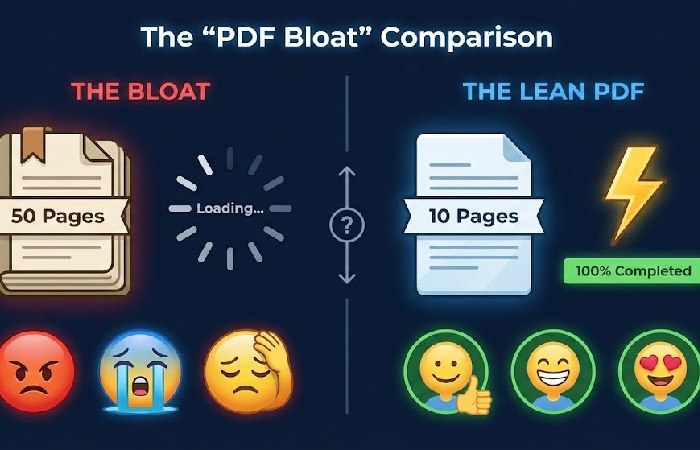
Think about the last time you opened a long PDF on your phone. You scroll, scroll, scroll… and never quite land on the answer you wanted. That’s exactly what your readers experience when a 50‑page document only has a fraction of pages with real value.
Here’s what excess pages quietly do to your content:
-
Readers lose patience and exit early because finding the “gold” feels like work.
-
The file is heavier, which can slow loading and make mobile viewing painful.
-
The main topic gets diluted by fluff, outdated data, and off‑topic sections.
In 2025, attention is a scarce currency. Improving PDF content is less about adding more and more about cutting what doesn’t help the reader.
According to Adobe’s official guidance on optimizing PDFs for web performance, oversized PDFs increase load times and can cause readers to abandon documents mid-way. A smaller, more focused file leads to better usability and faster access — both critical for mobile users.
What Searchers Actually Want
When someone types “improve PDF content remove pages” or “GoGoPDF delete pages,” their intent is usually pretty simple:
-
Use a browser‑based tool to remove pages without installing heavy software.
-
Clean up a messy or outdated PDF so only the useful pages remain.
-
End up with a lighter, sharper PDF that’s easier for humans to read and easier for search engines to understand.
Most guides show which button to click but never explain which pages to delete, or how that connects to user experience and SEO. That’s the gap this guide fills.
How Trimming Pages Helps UX and SEO
Deleting irrelevant pages doesn’t magically “hack” Google, but it does improve several things that matter for performance.
User experience benefits
-
Readers find answers faster, especially on mobile, which reduces exits and keeps them engaged.
-
Shorter, more focused PDFs are easier to skim, share, and refer back to.
Technical and SEO‑related benefits
-
Smaller file size usually means faster load times, which is a known UX and ranking consideration.
-
A tighter document with a clear topic and supporting sections makes it easier for search engines to interpret relevance, especially when paired with good metadata and internal linking.
The real win isn’t “more pages.” It’s the right pages, in the right order, serving one clear purpose.
Step 1: Audit the “Dead Weight” Before You Open GoGoPDF
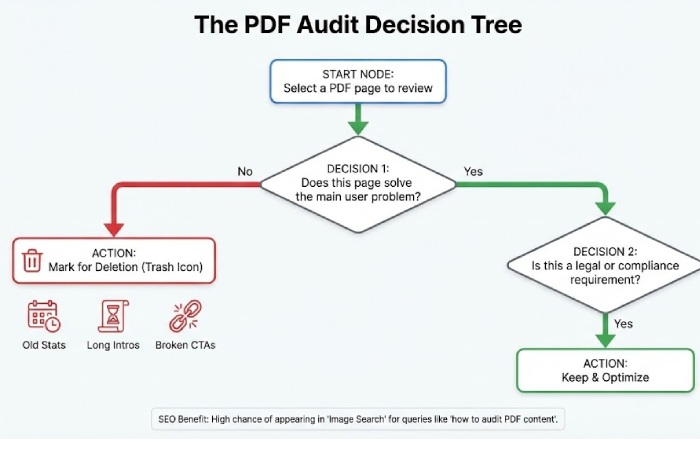
Don’t open any tool yet. First, figure out what needs to go. Go through your PDF with a critical eye and mark pages that are dragging the document down.
Look for:
-
Long intros no one reads
-
Multi‑page company history.
-
Over‑explained context before the actual solution.
-
-
Outdated or weak content
-
Statistics from years ago that no longer reflect reality.
-
Old screenshots or workflows that no longer match your product or process.
-
-
Broken or irrelevant CTAs
-
Pages pointing to dead links, expired offers, or irrelevant landing pages.
-
Calls to action that don’t match the current goal of the file.
-
-
Ghost pages and filler
-
Blank or near‑blank pages that only add to file size.
-
Repetitive appendices or boilerplate content no one needs in this context.
-
As you review each page, ask a simple question: “Does this page help the reader solve the main problem this PDF is supposed to address?” If the honest answer is no, it’s a candidate for removal.
Well‑structured PDFs with only relevant pages align with accessibility and clarity standards such as those outlined by the W3C Web Accessibility Initiative, which emphasize direct, concise content for digital readability.
Step 2: Clean Up Pages with GoGoPDF
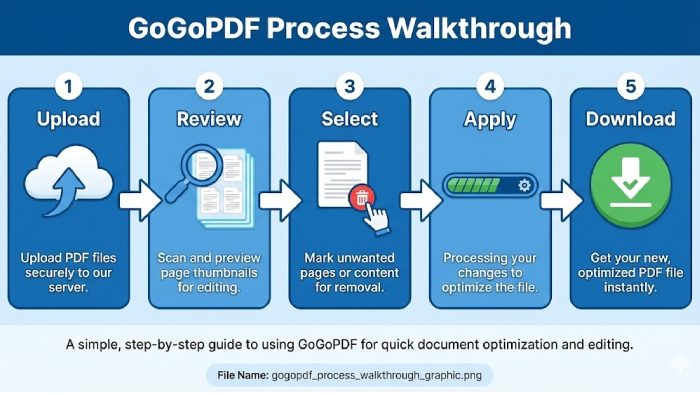
Once you know what needs to go, you can use GoGoPDF’s delete pages tool (or a similar online PDF page remover) to execute quickly.
Here’s the general flow:
-
Open the PDF delete pages tool
-
Go to the GoGoPDF Delete Pages tool in your browser.
-
Tools in this category work on any modern device and don’t require installation.
-
-
Upload your PDF
-
Drag and drop the file into the upload area, or click to select it from your device or cloud storage.
-
The processing happens online, so you don’t need a powerful computer.
-
-
Review the page thumbnails
-
Scroll through the visual thumbnails of each page.
-
Match them against your earlier audit: intros, outdated sections, broken CTAs, and obvious fluff.
-
-
Select and delete irrelevant pages
-
Click the trash/bin icon on each page you want to remove, or select a range of pages where supported.
-
Double‑check you’re not deleting necessary context or key explanations.
-
-
Apply changes and download the new PDF
-
Confirm your selection and apply the deletion.
-
Download the updated, leaner version of your PDF to your device.
-
Many page‑removal tools also allow basic reordering, which is helpful if you want to bring your most valuable content closer to the front.
Step 3: Make “Speed to Value” Your New Rule
You want people to hit your PDF and reach value fast. That means your “money page” — the page that actually answers the core question or delivers the promised solution — should be near the top.
Practical ways to do this:
-
Move the main solution or framework into the first 2–3 pages, then keep supporting detail after that for readers who want more depth.
-
Strip back long scene‑setting and keep only the context needed to make the solution understandable.
-
If you find yourself needing dozens of pages for different topics, consider turning some of that content into separate web pages instead of one monolithic PDF.
This shift doesn’t just help readers; it also aligns with search engines’ preference for content that surfaces answers quickly and clearly.
Step 4: Re‑Optimize the PDF’s Metadata and Structure
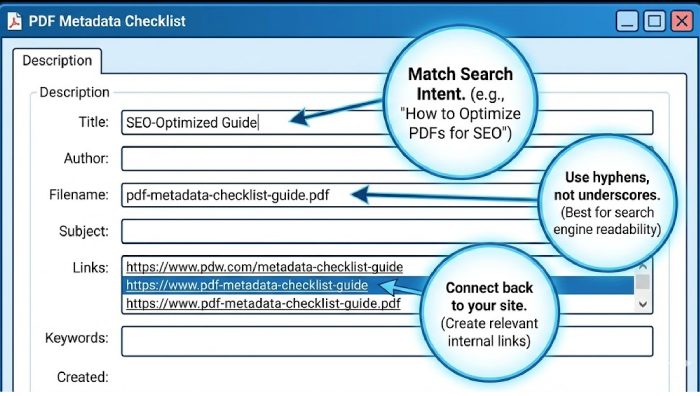
Once you’ve trimmed the file, make sure the metadata and internal structure reflect the new, tighter focus.
Key steps
-
Title and subject
-
Set a clear, descriptive title that matches real search intent (for example: “How to Remove Irrelevant Pages from a PDF with GoGoPDF”).
-
Use the Subject field to summarize the main topic in natural language, weaving in your primary keyword where it fits naturally.
-
-
File name
-
Rename the file to something readable and keyword‑aware, like
improve-pdf-content-remove-pages.pdfrather thandoc_final_v8.pdf.
-
-
Headings and structure
-
Use meaningful headings and subheadings within the PDF so users and crawlers can skim the content easily.
-
Add a simple table of contents for longer documents to improve navigation and orientation.
-
-
Links
-
Add internal links from your website to the PDF and, where relevant, links from the PDF back to related pages. This supports discovery and gives users clear next steps.
-
A slim, well‑structured PDF with accurate metadata is more likely to be understood and indexed appropriately than a long, unfocused file. The U.S. Digital.gov guide on SEO for PDFs and your own insights on SEO for PDFs and long‑form content both highlight how proper metadata, structure, and accessibility tags improve discoverability and performance.
Extra Tips for Better PDF Content

To make sure the clean‑up does more good than harm, keep a few safety checks in place.
Before deleting pages
-
Always keep a backup of the original file. Once pages are deleted and the new PDF is saved, most tools can’t “undo” that edit.
-
Check whether any “boring” pages actually support a key argument, legal requirement, or compliance need.
-
Consider whether a section is better updated than removed, especially if it contains important but outdated information.
After cleaning
-
Review the flow from page 1 onwards: does the story still make sense from a reader’s perspective?
-
Compress the file if needed, using a PDF compressor that preserves readability and searchability.
-
Make sure key charts, tables, and examples are still present where they add real value.
Is GoGoPDF Safe for Sensitive Files?
Online PDF tools typically emphasize encryption and time‑limited storage, and many delete files automatically after a short window. GoGoPDF is positioned similarly in third‑party overviews, but for truly sensitive data you should check its specific privacy policy and security documentation before uploading anything critical.
Basic guidelines:
-
Avoid uploading highly confidential material unless you’ve verified the tool’s security and retention policies.
-
If in doubt, handle sensitive edits with trusted desktop software or in a controlled environment.
FAQs: PDF Content Trimming and SEO
Can I undo deleted pages later?
Not usually. Once you delete pages and save the new file, those pages are gone from that version. The only reliable “undo” is the original backup.
Will deleting pages help my SEO?
Deleting irrelevant pages can help indirectly: it often leads to a smaller file, clearer focus, and better user experience, all of which support SEO when combined with good metadata, internal linking, and genuinely useful content.
Does replacing the PDF change my URL?
If you upload the new, cleaned‑up PDF over the old one using the same file path and name, the URL typically stays the same on your site, so any existing links continue to work.
How many pages are “too many”?
There’s no official page‑count rule from Google. For lead magnets, many marketers aim for something in the single‑digit to low‑double‑digit range; for technical whitepapers, longer is fine if every section earns its place. The real test is whether each page helps the reader get value, not the absolute number.
Improving PDF content isn’t about adding more. It’s about being ruthless with what no longer serves your reader, using tools like GoGoPDF to remove the dead weight, then tightening structure and metadata so every remaining page works hard for both users and search.
Disclosure: This content was created using a combination of expert sources, reputable references, and AI assistance to help compile, organise and clarify information. A human author reviewed, verified, and edited the content for accuracy, relevance and context.
About the Technologyford:
Technologyford publishes practical, easy-to-understand content on health, technology, business, marketing, and lifestyle. Articles are based mainly on reputable, publicly available information, with AI tools used only to help research, organise, and explain topics more clearly so the focus stays on real‑world usefulness rather than jargon or unnecessary complexity.