
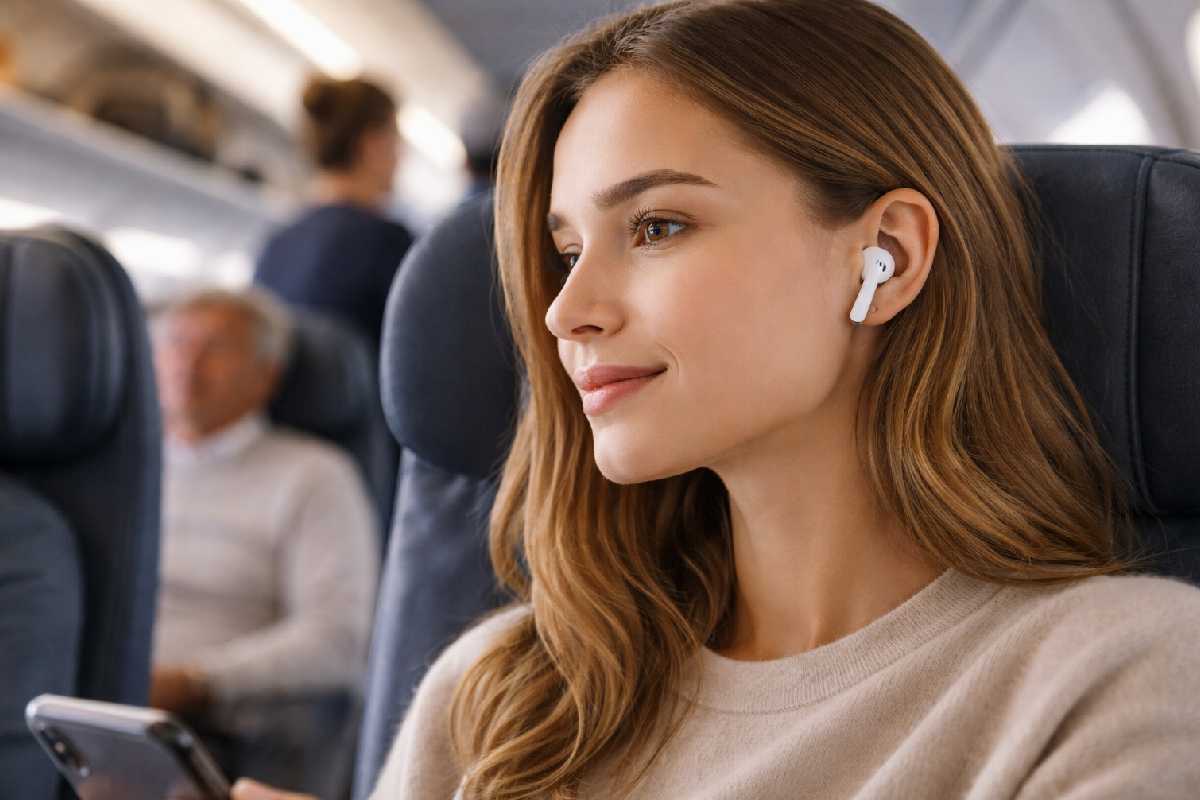
So you spent good money on AirPods with noise cancellation. But the world around you? Still loud. You pressed the stem, heard a chime — and honestly, you’re not even sure what mode you just switched to. Noise Cancellation? Transparency? Something called Adaptive Audio?
Whether you bought your AirPods in São Paulo, Rio, or online, these steps show you exactly how to turn on and use Active Noise Cancellation.
Yeah it‘s confusing, Apple doesn‘t exactly make this obvious out of the box.
This guide walks you through every single way to turn on noise cancellation on AirPods — using the stem, your iPhone’s Control Center, the Settings app, Siri, your Apple Watch, your Mac, and even if you’re on Android. This applies to the AirPods Pro (all generations), AirPods 4 with Noise Cancellation (ANC), and the two variants of AirPods Max..
Table of Contents
Key Takeaways
- Fastest way to turn on ANC? Press and hold the stem on your AirPods Pro or AirPods 4 — wait for the chime.
- Which models have it? AirPods Pro (all gens), AirPods 4 with ANC, AirPods Max. That’s it.
- On Android? You can only use the stem. No settings app available.
- ANC feels weak? Your ear tips probably don’t fit right. Run the Ear Tip Fit Test in Settings.
- Annoyed by cycling through too many modes? You can remove modes from the stem cycle — check the customization section below.
What Is Active Noise Cancellation on AirPods?
Active Noise Cancellation, or “ANC” for short, employs small microphones on the outside of your AirPods to detect loud noise. Once it detects the noise, your AirPods produce a counteracting sound wave known as “anti-noise” that mostly cancels out the background noise before it ever reaches your eardrum, with the help of a microphone in your ear canal.
Your outward-facing microphones on your AirPods are always listening in the background. When they pick up a sound wave a humming airplane engine or a blaring air conditioner the internal H1 or H2 chip immediately creates an identically symmetrical soundwave. This “anti-noise” cancels out the external noise.
Beyond simply improving your music quality, this technology can help you listen at lower volumes in noisy environments, which supports the kind of hearing‑loss prevention advice described by the Centers for Disease Control and Prevention’s research on hearing loss prevention.
The practical effect? A significant drop in steady ambient noise. Airplane cabin drone, HVAC hum, that coworker who won’t stop typing — all of it gets noticeably quieter.
But here’s what ANC won’t do: it won’t silence everything. Sudden, sharp sounds — a door slam, a car honking, someone yelling your name — still get through, at least partially. That’s not a flaw in your AirPods. That’s just how the physics of active noise cancellation works across every brand, not just Apple.
And one thing that trips people up constantly: ANC depends heavily on a tight seal between the ear tips and your ear canal. Loose fit = sound leaks in = ANC barely works. More on how to check that later.
Which AirPods Models Support Noise Cancellation?
Not all AirPods have ANC. Here’s a quick reference:
| Model | Active Noise Cancellation | Transparency Mode | Adaptive Audio |
|---|---|---|---|
| AirPods Pro (1st Gen) | Yes | Yes | No |
| AirPods Pro (2nd Gen / USB-C) | Yes | Yes | Yes |
| AirPods Pro 3 | Yes | Yes | Yes |
| AirPods 4 (standard) | No | No | No |
| AirPods 4 (with ANC) | Yes | Yes | Yes |
| AirPods Max (1st Gen) | Yes | Yes | No |
| AirPods Max 2 | Yes | Yes | Yes |
| AirPods (1st, 2nd, 3rd Gen) | No | No | No |
Note: If you have standard Air Pods (those not having the“with ANC” on the side of the charging case) or Air Pod 3rd gen, your model does not have noise cancelling.
The one that catches people off guard: AirPods 4 come in two versions. One has ANC, one doesn’t. The box and product name specify “with Active Noise Cancellation” if yours has it. If it doesn’t say that — you don’t have it.
Standard AirPods (any kind, 3rd gen included) can‘t do noise suppression to save their lives no hidden menu option, no updatable jack.
How to Turn On Noise Cancellation on AirPods
Using the Stem (Force Sensor) — AirPods Pro and AirPods 4
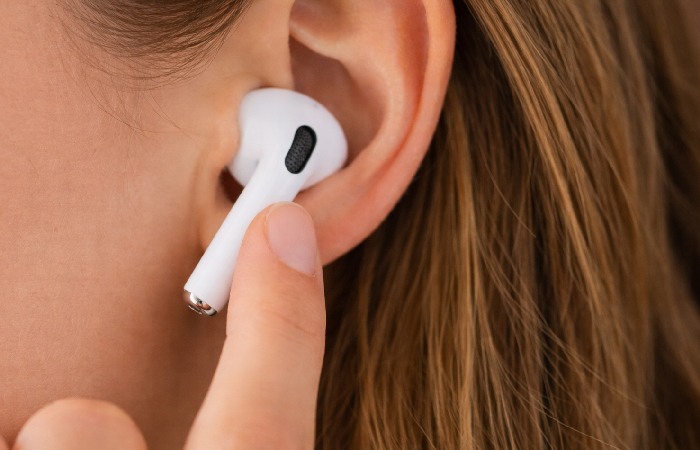
Quickest method. Works even when your phone is across the room.
- Put both AirPods in your ears.
- Find the flat area on the stem of either AirPod — that’s the force sensor.
- Press and hold it. Don’t tap — press firmly and hold.
- You’ll hear a chime. That means the mode just changed.
- Let go.
One press-and-hold cycles you to the next mode in your rotation: Noise Cancellation → Transparency → Off (and Adaptive Audio, if your model supports it and you haven’t removed it from the cycle).
Here’s the thing though — cycling through three or four modes every time can get annoying fast. If you only ever want Noise Cancellation and Transparency, you can remove the others. I’ll cover that in the customization section.
Using Control Center on iPhone or iPad
Good option when you want to see which mode is currently active before switching.
Works on any recent iPhone or iPad.
- Swipe down from the top-right corner of your screen. That opens Control Center.
- Find the volume slider. Press and hold it — don’t just tap.
- The slider expands. Look at the bottom-left corner.
- You’ll see a Listening Mode button. Tap it.
- Select Noise Cancellation.
Done. Your AirPods switch immediately. The icon changes to confirm which mode you’re in.
Using the Settings App
A bit slower, but gets you into anything – me switching between modes, customization, info about your Firmware, etc.
- Open Settings in your iPhone or iPad.
-
On the near top of the screen should be the name of your AirPods (if you‘re connected). Tap it.
- Click on Noise Control and select the Tap Noise Cancellation.
Using Siri
Hands full? Just say it.
“Hey Siri, turn on noise cancellation.”
That’s the whole process. Works from any connected device. You can also say “switch to transparency mode” or “turn off noise cancellation” — Siri handles all three commands.
Not the most reliable in loud environments, ironically. But when it works, it’s the fastest option.
Using Apple Watch
Only useful if your Airpods are directly connected to your Watch, not when they are connected via your iPhone.
- Press the side button on the Apple Watch. This will bring up the Control Center.
- Tap the AirPods icon.
- Pick your listening mode.
Pretty straightforward. Useful during workouts when your phone isn’t nearby —
especially if you’re pairing them with an Apple Watch SE.
Using a Mac
- Click on the Control Center icon in the menu bar and then click Sound or Bluetooth (depending on your AirPods) and then select your AirPods choose Off, Noise Cancellation or Transparency.
- For more control, go to System Settings, click your AirPods name, and you’ll find the same customization options available on iPhone — including which modes the stem cycles through.
Using AirPods with Android
This is the frustrating one. There’s no Apple settings app on Android. No Control Center equivalent. No way to tweak settings at all.
Your only option for switching noise control modes: the physical stem. Press and hold the force sensor → hear the chime → mode changes. That’s it.
And here’s the kicker — you can’t even customize which modes the stem cycles through from Android. In the end you‘re locked with whatever cycle the apple device was last set to. If you need to change, perhaps for another device, then you‘ll need to borrow an iPhone, iPad or Mac for a short while.
How to Turn On Noise Cancellation on AirPods Max
Different hardware, slightly different process. AirPods Max don’t have stems — they use a button.
- Put on your AirPods Max.
- On the right ear cup, find the noise control button — it’s the flat, elongated one opposite the Digital Crown.
- Press it. One press toggles between Noise Cancellation and Transparency.
- If you have AirPods Max 2, Adaptive Audio is in the rotation too.
All the rest: Control Center, Settings, Siri, Apple Watch, Mac… works just like described once you‘ve connected your AirPods Max. The only difference is that first physical button method.
AirPods Listening Modes Explained
ANC has three (or four) listening modes with airpods this knowledge can help you choose the right one for your activity.
| Mode | What It Does | Best For |
|---|---|---|
| Noise Cancellation | Blocks external sound using anti-noise technology | Flights, noisy offices, commuting, focused work |
| Transparency | Pipes outside sound through the microphones so you can hear your surroundings | Conversations, walking outdoors, waiting for announcements |
| Adaptive Audio | Dynamically blends ANC and Transparency based on your environment in real time | Everyday use with changing noise levels (commute → office → street) |
| Off | Disables all listening mode processing | Preserving battery, minimal audio processing |
Note: Only AirPods with “Pro”, “Max”, or the “with ANC” AirPods 4 model support Active Noise Cancellation. Standard AirPods (1st, 2nd, 3rd gen and non‑ANC AirPods 4) cannot use ANC.
About Adaptive Audio — it’s clever, but it has a quirk that confuses a lot of people. Because it adjusts dynamically, it often doesn’t feel as strong as full Noise Cancellation. You’re on a noisy train and it’s letting some sound through on purpose. That doesn’t mean ANC is broken. It means Adaptive Audio decided you needed some awareness.
If you’re somewhere genuinely loud and want maximum silence — a flight, a construction zone, a packed cafe — switch to full Noise Cancellation manually. Don’t rely on Adaptive Audio in those situations.
How to Customize Noise Control Settings
A few settings here that most AirPods owners never find. All of them are worth knowing about.
Choose Which Modes the Stem Cycles Through
By default, pressing the stem cycles through every available mode — Noise Cancellation, Transparency, Adaptive Audio, Off. Four modes. That means three press-and-holds to get back to where you started if you overshoot.
You can trim this down.
- Open Settings > [Your AirPods Name] on your iPhone or iPad.
- Scroll to Button Cycles Between (some versions say “Press and Hold”).
- Uncheck any mode you don’t use regularly.
Most people only require two of them: Noise Cancellation and Transparency. If you eliminate Off and Adaptive Audio from the cycle, now all it takes is one press and hold to switch between your two favorites. Small change, big quality-of-life improvement.
Enable Noise Cancellation with One AirPod
Remove one AirPod from your ear ANC turns off. This is the default settings, and it confuses many people. They will be on a phone call with only one AirPod in their ear, and start to wonder why things are louder.
There’s a fix, but it’s buried in Accessibility settings.
- Go to Settings > Accessibility > AirPods.
- Toggle on Noise Cancellation with One AirPod.
Now ANC stays active even with just one bud in. Useful during phone calls or when you’re keeping one ear open intentionally.
Conversation Awareness
Can be used on AirPod Pro 2, Pro 3, and AirPod Max 2. When enabled, your AirPod will sense when you start to speak and will sequentially raise ambient voice and reduce media volume. It might also shift your listening mode without you asking.
Sounds great in theory. In practice? If you‘re a hummer, a choursinger and, let‘s just be fair with the self-talking, I find that task is activitated all the time and are very distracting.
Noise Cancellation Not Working? Troubleshooting Checklist
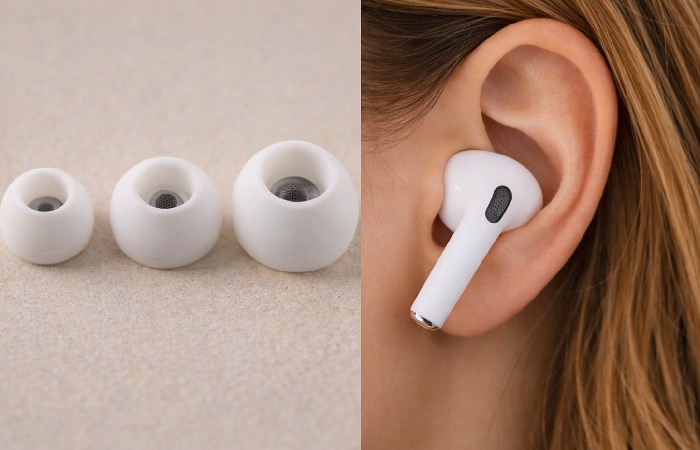
ANC feels weak, cuts in and out, or seems like it’s doing nothing? Run through these steps before contacting Apple.
- Confirm you’re actually in Noise Cancellation mode. Open Control Center, long-press the volume slider, and check. You might be in Transparency or Adaptive Audio without realizing it — they can feel similar in quiet environments.
- Run the Ear Tip Fit Test. Go to Settings > [Your AirPods Name] > Ear Tip Fit Test. This tells you whether you have a good seal. If the result says “adjust or try a different tip” — do it. A bad seal is responsible for the majority of weak-ANC complaints. Seriously. Apple has a detailed walkthrough in their Ear Tip Fit Test guide.
- Clean the microphone meshes. Look at your AirPods closely. Those tiny mesh openings near the speaker and on the outside of the stem? Earwax and pocket lint accumulate there over time. And when those meshes get clogged, ANC performance degrades — sometimes dramatically. A dry, soft-bristled brush works. Don’t use anything wet or sharp.
- Look for firmware updates. Head toSettings > [Your AirPods Name] > About to find the current firmware version. AirPods upgrade to the latest firmware version automatically on a charge in their case while being near a connected device, but that can sometimes be a wait of a few days. Old firmware has been associated with the ANC glitches.
- Update your iPhone or iPad. Settings > General > Software Update. Some ANC improvements ship as part of iOS or iPadOS updates, not just AirPods firmware.
- Reset your AirPods entirely. Sometimes nothing else works and you need a clean start.
- In the Settings > Bluetooth, then tap (i) next to your AirPods. .
- Tap Forget This. .
- Drop your AirPods into the case (Force them to go all the way down) close the lid and don‘t touch for 30 seconds..
- Open the lid, press the button on the back of the case until the light flashes white..
-
Re-pair with your device.
- Try a different device. Connect to another iPhone or Mac. If ANC works fine there, problem is with your device‘s software or settings. If still doesn‘t work – may be it‘s a hardware issue, and you should call to Apple Support.
Full official troubleshooting documentation is available on Apple’s ANC support page.
Common Mistakes When Using AirPods Noise Cancellation
- These come up over and over in support forums and Reddit threads. Worth scanning even if you think you’ve got everything set up correctly.
- Using the wrong ear tip size. Number one mistake, and it’s not close. Tips that are too small let sound leak in around the edges. Tips that are too big don’t seat properly in your ear canal. Either way, ANC suffers. The Ear Tip Fit Test exists specifically for this — use it.
- Thinking Adaptive Audio is the same as full ANC. It isn’t. Now, Adaptive Audio will selectively pass through a little sound if it thinks you need a little more Situational Awareness… So, if you‘re in a noisy environment, and you find Noise Cancellation to be “weak” make sure you‘re not actually in full Noise Cancellation mode (and Adaptive Audio is doing its thing).
- Never cleaning the microphone meshes. This one sneaks up on you. Your ANC might have been great when the AirPods were new and slowly gotten worse over months. Usually it’s just buildup on the microphone openings. Five minutes with a dry brush can bring performance back.
- Taking one AirPod out and losing ANC. That’s the default — ANC requires both AirPods unless you’ve turned on the one-AirPod setting in Accessibility. A lot of people discover this mid-phone-call when they pull one bud out to hear someone and everything gets louder.
- Expecting ANC to create total silence. No active noise cancellation system on any product eliminates all sound completely. ANC targets steady, lower-frequency noise effectively. Voices and sudden sounds get reduced, but not eliminated. Setting realistic expectations helps.
When to Use (and Not Use) Noise Cancellation
Works great for:
- Long flights — this is ANC’s best-case scenario
- Open-plan offices with constant background chatter and HVAC drone
- Train and bus commutes
- Studying or deep-focus work at home
- Noisy gyms (though sweat can affect ear tip seal over time)
Switch to Transparency or turn it off when:
- Walking or cycling near traffic — you need to hear vehicles
- Running outdoors where other people share the path
- Waiting for gate announcements at an airport
- Any situation where missing an alert or alarm could be a safety issue
One practical note: ANC uses more battery than Transparency or Off. If you’re on a long listening day and don’t need full isolation the entire time, switching to Transparency during quieter stretches will give you more playtime before your AirPods die.
When You Should Avoid Using ANC
While acoustic isolation is excellent for focus, leaving ANC running constantly has distinct drawbacks.
- Battery Drain: Anti-noise requires a constant flow of processing power. Keeping ANC enabled will drain your battery life by up to 15 to 20% on each charge. If you‘re on a long flight and your battery level drops below 10%, flip your noise control mode to “Off” for normal operation of the earbuds and get an additional hour of battery life.
- Safety Risks: Always remember to revert to Transparency mode when walking near busy traffic, cycling or running at night. A study undertaken by Harvard Medical School about acoustic awareness highlights that full environmental concealment encountered in cities tracks a heightened of accident severity which could be avoided.
Frequently Asked Questions
Q: How do I use AirPods as noise cancelling?
A: Press and hold the force sensor on the stem of either AirPod until you hear a chime. That switches to Noise Cancellation mode. Switching modes other ways is just as easy in Control Center, the Settings app, or even with Siri.
Q: Can I use noise cancellation with only one AirPod in?
A: Not unless you need to turn it on somehow. Head to Settings > Accessibility > AirPods and switch on “Noise Cancellation with One AirPod”. Then ANC will keep work with 1 AirPod.
Q: Do AirPods 3 have noise cancellation?
A: No, 3rd-generation AirPods do not havebuilt-inANC. You need Airpods 4 with ANC to be enabled, but not the base Airpods 4.
Q: Is it better to have ANC on or off?
A: Totally depends on your situation. In a noisy or busy background, ANC helps you tune out and isolate your audio. In a quiet environment or one when you need ambient awareness (walking by the street), Transparency or Off make more sense. ANC drains a little more battery.
Q: How do I turn on noise cancellation on AirPods with Android?
Q: What is Adaptive Audio on AirPods?
A: It‘s a feature that newer AirPods models have (AirPods Pro 2/3, AirPods 4 ANC, AirPods Max 2). It‘s a mixture of Noise Cancellation/Transparency that is blended automatically. Your AirPods will analyze the ambient noise around you and automatically adapt in real-time – louder environments will have more cancelling, quieter environments will have more transparency. Handy for daily use, but less aggressive than a dedicated Noise Cancellation mode.
DISCLAIMER: This document is a compilation of what was known about Apple Air Pods on (date go here). As such it is used here for discussion and educational purposes and is not official medical or Apple documentation. It should not be relied upon as medical advice and you should always seek medical advice from a hearing care professional regarding issues with health.
About the Author:
Abdul Rahman, has more than 4 years experience writing about consumer electronics, laptops and IT support solutions in Ireland and the UK. He simplifies complicated repair terms into easy, useful advice so you can be sure of your buying decisions.
Published by: www.technologyford.com a convenient source of content on business, health, technology and lifestyle that strives for relevance and use rather than sophisticated implementations and complex concepts.