
The demand for video content has never been higher. From TikTok creators churning out daily short-form clips to filmmakers producing feature-length documentaries, video editing tools sit at the center of every visual story told online.
But here’s the real challenge. The market is flooded with options — free editors, AI-powered platforms, professional-grade suites — and each one claims to be the best. Choosing wrong means wasted money, wasted hours learning the wrong interface, or worse, software that can’t keep up with your ambitions.
This guide breaks down the best video editing tools available in 2026 across every skill level, budget, and use case. You’ll find honest assessments with real limitations, a comparison table you can scan in 60 seconds, and a decision framework that matches the right tool to your specific situation.
Whether you’re a complete beginner, a social media manager, or a working professional, this guide is built to help you stop researching and start editing.
Table of Contents
Quick Answers:
- Best overall professional tool → Adobe Premiere Pro (industry standard, deep AI integration)
- Best free professional tool → DaVinci Resolve (near-full pro feature set at zero cost)
- Best for social media creators → CapCut (fast, AI-rich, built for short-form)
- Best for total beginners → iMovie (Mac) / Clipchamp (Windows)
- Best AI-first editor → Descript (edit video by editing text)
What Are Video Editing Tools?
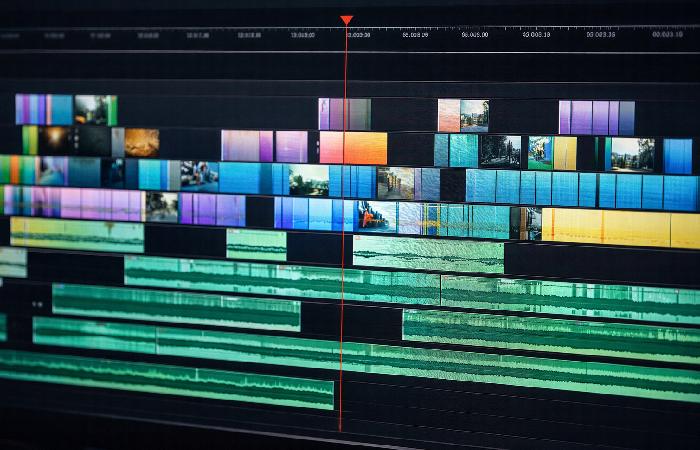
Video editing tools are software applications that allow users to import, arrange, trim, enhance, and export video footage into polished final productions. They work by loading raw video files into a visual timeline where you can cut clips, adjust timing, add transitions, overlay text and graphics, correct color, mix audio, and render the finished product in your desired format.
These tools range from simple drag-and-drop mobile apps designed for quick social media posts to professional-grade desktop suites offering multi-track timelines, advanced color grading via node-based systems, motion graphics integration, and AI-powered automation. According to Cisco’s Visual Networking Index, analysts projected that by 2022, video would account for about 82% of all IP traffic — which helps explain why selecting the right editing tool has become so critical for online creators.
The core mechanism behind most modern editors is non-linear editing (NLE). Unlike older tape-based systems where you had to edit footage in sequence, NLE technology lets you jump to any point in your timeline instantly, rearrange clips freely, and stack multiple video and audio tracks without destroying original files.
Best Professional Video Editing Tools
These tools offer maximum creative control, advanced workflows, and the depth required for commercial, broadcast, and cinematic production.
Adobe Premiere Pro — Industry Standard for Creative Workflows
Adobe Premiere Pro remains the most widely used professional video editing software in 2026. Its strength lies in seamless integration with the Adobe Creative Cloud ecosystem — After Effects for motion graphics, Photoshop for frame editing, Audition for audio, and Adobe Firefly for generative AI features.
Recent AI additions include text-based video editing (edit spoken words like a document and the video cuts automatically), AI-powered auto-captioning with real-time translation, and generative scene extension that intelligently fills gaps in footage.
Best for: Professional editors, agencies, and teams already using Adobe products.
Honest limitation: The subscription model adds up. Adobe charges a recurring monthly fee for Premiere Pro, and full Creative Cloud bundles are significantly more expensive over a few years than one‑time purchase alternatives. And the software demands a capable machine to run smoothly with AI features enabled.
DaVinci Resolve — Professional Power at Zero Cost
DaVinci Resolve from Blackmagic Design is arguably the most disruptive force in video editing. Its free version includes features that rival paid competitors — a full NLE timeline, industry-leading color grading (the Resolve color page is used on Hollywood films), Fairlight audio suite, and Fusion visual effects.
The paid Studio version ($295 one-time purchase) unlocks GPU-accelerated AI tools, HDR grading, collaborative multi-user workflows, and neural engine-powered features. But the free tier alone covers the vast majority of what most editors need in day‑to‑day work.
Best for: Colorists, independent filmmakers, and budget-conscious professionals who want zero ongoing costs.
Honest limitation: DaVinci Resolve’s power comes at a hardware cost. The software is GPU-intensive — users with older machines or integrated graphics will experience timeline lag, long export times, and crashes on complex projects. Minimum 16GB RAM and a dedicated GPU are essential, and 32GB RAM is recommended for 4K workflows.
Final Cut Pro — Peak Performance for Mac Editors
Apple’s Final Cut Pro is a one-time purchase ($299.99) that delivers exceptional editing performance optimized specifically for Mac hardware. Its hallmark is the “magnetic timeline” — a trackless editing system where clips automatically snap into position, eliminating sync issues and empty gaps.
With native Apple Silicon optimization, Final Cut Pro renders and exports faster than any competitor on modern MacBooks and Mac Studios. AI-assisted features include automatic color matching, smart conforming for multi-format projects, and scene detection.
Best for: Mac-exclusive editors who value speed, efficiency, and a one-time purchase model.
Honest limitation: Mac-only. If you collaborate with Windows users or might switch platforms, Final Cut Pro locks you into the Apple ecosystem. Project files don’t transfer to other NLEs without conversion headaches.
Avid Media Composer — The Hollywood Standard
Avid Media Composer is the legacy powerhouse behind major Hollywood productions and broadcast television. Its bin-and-project architecture handles massive multi-user collaborative projects — the kind where dozens of editors work on the same feature film simultaneously.
Best for: Broadcast professionals, feature film post-production houses, and teams requiring enterprise-level collaboration.
Honest limitation: The steepest learning curve of any editor on this list. The interface prioritizes function over modern design, and it’s overkill for independent creators or small teams. The subscription starts at $23.99/month.
Best Video Editing Tools for Beginners
If you’re new to editing, these tools prioritize simplicity without sacrificing the ability to create polished content.
iMovie — The Perfect Starting Point for Mac Users
iMovie comes pre-installed on every Mac, iPad, and iPhone. It offers a clean, intuitive interface with drag-and-drop editing, built-in templates, basic color correction, and a music library. Projects can be exported directly to YouTube or upgraded to Final Cut Pro when you’re ready.
Best for: Mac users who want a genuinely free, zero-learning-curve starting point.
Honest limitation: Limited to two video tracks, no advanced color grading, and no third-party plugin support. You’ll outgrow it quickly if you edit regularly.
Clipchamp — Free Editing Built Into Windows
Microsoft’s Clipchamp is now integrated directly into Windows 11, making it the default free editor for the world’s largest desktop OS. It’s browser-based with a desktop app, supports screen recording, offers stock media libraries, and includes AI-generated captions.
Best for: Windows users who need quick edits without installing anything new.
Honest limitation: Export quality is capped at 1080p on the free tier. There are no advanced timeline features, and it struggles with projects longer than 15–20 minutes.
Filmora — The Bridge Between Simple and Powerful
Wondershare Filmora occupies the middle ground between beginner simplicity and enthusiast capability. Its interface uses a familiar drag-and-drop approach, but underneath it offers motion tracking, keyframing, speed ramping, and an AI-powered smart cutout tool.
Best for: Creators who’ve outgrown iMovie/Clipchamp but aren’t ready for Premiere Pro or Resolve.
Honest limitation: The free version adds a watermark to exports. The paid plan ($49.99/year or $79.99 lifetime) is reasonable, but the massive library of effects and transitions can encourage over-reliance on templates rather than developing original editing skills.
Adobe Premiere Elements — Guided Editing for Hobbyists
Premiere Elements is Adobe’s consumer-friendly editor ($99.99 one-time purchase). Its standout feature is “Guided Edits” — step-by-step tutorials built directly into the interface that teach you techniques while you apply them to your own footage.
Best for: Hobbyists and family video editors who want to learn as they create, without a subscription commitment.
Honest limitation: It lacks the depth and AI sophistication of Premiere Pro. Updates are infrequent compared to subscription software.
Best Video Editing Tools for Social Media Creators
Speed, trend-awareness, and platform-specific output matter most in social content creation.
CapCut — Built for Short-Form Content
CapCut has evolved from a simple mobile app into a full-featured desktop and web editing platform. Owned by ByteDance (TikTok’s parent company), it understands short-form content at a fundamental level — offering trend-driven templates, auto-captioning, speed ramps, chroma key, and extensive effects libraries.
The AI capabilities are impressive. Auto-caption with styled text overlays, background removal, face tracking, and one-click long-to-short video conversion — all free. The Pro subscription unlocks higher resolution exports and premium assets.
Best for: TikTok, Instagram Reels, and YouTube Shorts creators who need high volume output.
Honest limitation: The desktop version still lacks the timeline depth for projects over 10 minutes. And because everyone uses the same templates and effects, CapCut-edited videos often look identical — creating a creative homogeneity problem for creators trying to stand out.
Descript — Edit Video Like a Text Document
Descript approaches editing from a radically different angle. Import a video, and Descript transcribes all spoken audio into text. Edit the text — delete a sentence, rearrange paragraphs, remove filler words — and the video cuts automatically to match. This makes it extraordinarily fast for podcasts, interviews, talking-head videos, and educational content.
Additional AI features include Studio Sound (makes any room sound like a recording studio), eye contact correction, green screen replacement, and automatic filler word removal.
Best for: Podcasters, educators, and talking-head content creators who prioritize speed over cinematic control.
Honest limitation: Descript is optimized for spoken-word content. It’s not built for multi-cam shoots, complex B-roll sequences, or music-driven edits. Think of it as a specialized tool, not a general-purpose editor.
InVideo — AI-Powered Video from Scripts
InVideo AI converts text prompts and scripts into draft videos using stock footage, AI narration, and automated editing. It’s designed for marketers and businesses who need volume without a dedicated video team.
You can get started directly with the web-based editor at InVideo, which lets you generate and customize marketing videos from templates and scripts without installing desktop software.
Best for: Marketing teams producing ads, explainers, and social content at scale.
Honest limitation: Output quality depends heavily on stock footage quality. The “AI-generated” aesthetic is recognizable and may not meet brand standards for premium content.
Best AI Video Editing Tools in 2026
AI has moved from novelty to necessity. In 2026, the distinction isn’t whether a tool has AI — it’s how deeply AI is integrated into the creative workflow.
Key AI Features Transforming Video Editing
- Auto-captioning with styled overlays — Speech-to-text generates synchronized captions; styling matches brand templates
- Smart cut / silence removal — AI detects and removes dead air, pauses, and filler words automatically
- Long-to-short repurposing — AI identifies highlight moments from long videos and reformats them for vertical social platforms
- Predictive clipping — Advanced tools analyze engagement patterns to suggest which segments are most likely to perform well
- Generative scene extension — AI fills gaps in footage by generating matching visual content
- Auto-reframing — Converts horizontal video to vertical (and vice versa) by intelligently tracking the subject
Runway — Generative AI Meets Video Production
Runway is one of the leading generative AI video platforms, offering cutting‑edge text‑to‑video and video editing models. Unlike traditional editors, Runway lets you create and modify video using text prompts, image references, and natural language direction. According to MIT Technology Review’s analysis of AI-assisted creativity, tools like Runway represent a fundamental shift in how visual content is produced — blurring the line between production and post-production.
Best for: Visual effects artists, experimental creators, and teams needing AI-generated B-roll or scene elements.
Honest limitation: Generative video still lacks the consistency and control of real footage. Character consistency across long sequences remains imperfect. Runway is a powerful supplement to traditional editing, not a replacement.
Top AI Features by Tool
| Tool | Auto-Captions | Smart Cut | Long-to-Short | Generative AI | Auto-Reframe |
|---|---|---|---|---|---|
| Adobe Premiere Pro | ✅ | ✅ | ✅ | ✅ (Firefly) | ✅ |
| DaVinci Resolve | ✅ | ✅ | ❌ | ❌ | ✅ |
| CapCut | ✅ | ✅ | ✅ | ❌ | ✅ |
| Descript | ✅ | ✅ | ✅ | ❌ | ✅ |
| Runway | ❌ | ❌ | ❌ | ✅ (Gen-5) | ❌ |
| Filmora | ✅ | ✅ | ❌ | ❌ | ✅ |
Video Editing Tools Comparison Table
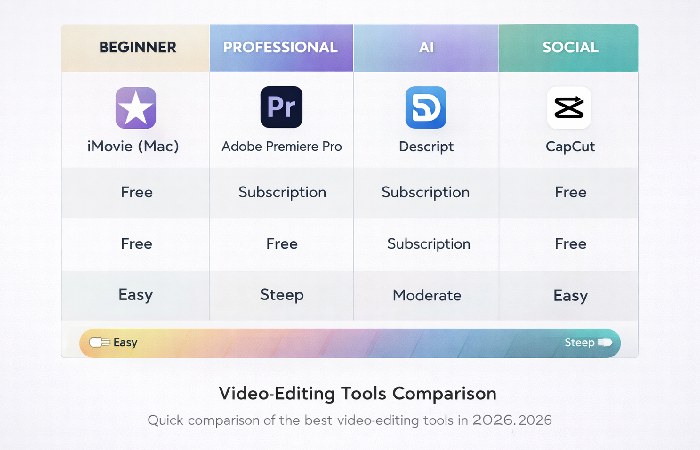
| Tool | Price | Best For | Learning Curve | Platform | Key Strength |
|---|---|---|---|---|---|
| Adobe Premiere Pro | ~$23/mo | Professional workflows | Steep | Win/Mac | Industry standard, full ecosystem |
| DaVinci Resolve | Free / $295 Studio | Colorists, filmmakers | Steep | Win/Mac/Linux | Best free professional editor |
| Final Cut Pro | $299.99 one-time | Mac professionals | Moderate | Mac only | Fastest rendering on Apple hardware |
| Avid Media Composer | ~$24/mo | Broadcast, Hollywood | Very Steep | Win/Mac | Enterprise-scale collaboration |
| CapCut | Free / Pro tier | Social media creators | Easy | Win/Mac/Web/Mobile | Best for short-form content |
| Descript | Free / paid plans from around $20–$25/mo | Podcasters, educators | Easy | Win/Mac | Text-based video editing |
| Filmora | $50/yr or $80 lifetime | Enthusiast creators | Easy | Win/Mac | Best beginner-to-intermediate bridge |
| iMovie | Free | Mac beginners | Very Easy | Mac/iOS | Zero-cost starting point |
| Clipchamp | Free / Premium | Windows beginners | Very Easy | Win/Web | Built into Windows |
| Premiere Elements | $99.99 one-time | Hobbyists | Easy | Win/Mac | Guided learning built-in |
| InVideo | Free / paid plans from around $25/mo | Marketing teams | Easy | Web | AI script-to-video creation |
| Runway | Free / $12/mo+ | VFX, generative content | Moderate | Web | Leading generative AI video |
How to Choose the Right Video Editing Tool
Choosing the right software matters more than most creators realize. The wrong tool doesn’t just slow you down — it shapes your creative habits, limits your output quality, and can cost hundreds of dollars before you switch.
Match Your Skill Level to the Right Category
Total beginner (first-time editor): Start with iMovie (Mac) or Clipchamp (Windows). Learn the fundamentals — cuts, transitions, pacing — without paying anything or fighting a complex interface.
Growing creator (comfortable with basics): Move to Filmora or CapCut Desktop. You’ll get more control, AI-assisted features, and enough depth to produce professional-looking content.
Professional or career-focused editor: Invest time in Adobe Premiere Pro or DaVinci Resolve. The learning curve is steeper, but these are the tools used in real production environments. Skills transfer directly to agency, studio, and freelance work.
Budget Considerations — Free vs Subscription vs One-Time Purchase
Here’s what most “best of” lists don’t show you — the real cost over time:
| Model | Example | Year 1 | Year 3 | Year 5 |
|---|---|---|---|---|
| Free | DaVinci Resolve | $0 | $0 | $0 |
| One-time | Final Cut Pro | $300 | $300 | $300 |
| Subscription | Premiere Pro | $276 | $828 | $1,380 |
Note: These figures are approximations based on typical individual plan pricing and can vary by region, promotions, and plan type.
DaVinci Resolve’s free tier offers most of the features editors need. Over five years, a typical Premiere Pro subscription can easily exceed $1,000, compared to $0 for Resolve’s free tier and a few hundred dollars one‑time for Final Cut Pro. The subscription model makes sense if you need Adobe ecosystem integration — but go in with eyes open about cumulative cost.
Hardware Requirements You Can’t Ignore
Your hardware matters more than your software choice. Here’s the reality:
- Basic editing (1080p, simple cuts): Any modern computer with 8GB RAM works fine
- Intermediate editing (4K, effects, color grading): 16GB RAM, dedicated GPU (GTX 1660 / M1 Mac or better), SSD storage
- Professional editing (multi-cam, heavy VFX, AI features): 32GB+ RAM, high-end GPU (RTX 4060+ / M2 Pro or better), NVMe SSD
Running DaVinci Resolve or Premiere Pro on a laptop with 8GB RAM and integrated graphics will result in stuttering timelines, freezes, and export times that consume your entire afternoon. Match your hardware to your software before purchasing. If you’re unsure what to buy, this breakdown of the best computer for video editing can help you match CPUs, GPUs, and storage options to your editing workload.
The Video Editing Decision Matrix
| Budget: Free | Budget: Paid | |
|---|---|---|
| Beginner | iMovie / Clipchamp / CapCut | Filmora / Premiere Elements |
| Professional | DaVinci Resolve (Free) | Premiere Pro / Final Cut Pro / DaVinci Studio |
Use this matrix as your starting point. Find your quadrant, then narrow based on platform (Mac vs Windows), content type (short-form vs long-form), and whether you need AI automation.
Common Mistakes When Choosing Video Editing Software
1. Buying professional software before learning basics. Starting with Premiere Pro or DaVinci Resolve as a complete beginner is like learning to drive in a race car. Begin with iMovie or Clipchamp, understand timeline fundamentals, then upgrade when you’ve hit actual limitations.
2. Ignoring hardware requirements. The most common complaint about DaVinci Resolve isn’t the software — it’s that people run it on machines that can’t handle it. Check minimum specs before downloading.
3. Paying subscriptions you don’t need. If you edit occasionally for social media, a $23/month Premiere Pro subscription is wasteful when CapCut or DaVinci Resolve does the job for free.
4. Choosing based on YouTube recommendations alone. Many “best editor” videos are affiliate-driven. A creator’s recommendation tells you what works for their workflow — not yours. Match tools to your own content type and skill level.
5. Overlooking the tools you already have. Clipchamp comes with Windows. iMovie comes with Mac. CapCut is free. Before paying for anything, exhaust what’s already available on your device.
6. Assuming AI editing replaces the need to learn fundamentals. AI handles grunt work — captioning, silence removal, reframing. But pacing, storytelling, and editorial judgment are human skills that no tool automates well yet.
Who Should Use Which Video Editing Tool
- Best for professional filmmakers and broadcast editors: Adobe Premiere Pro, DaVinci Resolve, or Avid Media Composer. These tools handle complex multi-track timelines, professional color grading, and collaborative workflows at scale.
- Best for social media creators and influencers: CapCut or Descript. Speed and platform-specific output matter here. Both tools are designed to produce high volumes of polished short-form content efficiently.
- Best for marketers and business teams: InVideo, Canva Video, or Descript. Template-driven tools that produce professional-looking content without requiring dedicated video editing skills on the team.
- Best for students and beginners: iMovie, Clipchamp, or Filmora. Zero-cost or low-cost tools that teach fundamentals without overwhelming you with professional complexity.
Not ideal fits to avoid:
- Don’t use Premiere Pro on a budget laptop — the experience will frustrate you
- Don’t use Avid Media Composer for solo YouTube content — it’s enterprise software for enterprise problems
- Don’t rely solely on InVideo or Canva Video if visual originality matters — template-based tools produce template-looking results
Final Verdict — Our Top Picks for 2026
After analyzing every major video editing tool available in 2026, there’s no single “best” tool — only the best tool for your situation.
If money is no object and you want the industry standard: Adobe Premiere Pro offers unmatched ecosystem depth and AI features, but budget for the subscription.
If you want maximum power with minimum cost: DaVinci Resolve’s free tier is the most generous offer in software. Period. Just ensure your hardware is up to the task.
If you edit daily for social media: CapCut delivers the speed, trends, and AI tools that short-form content demands.
If you’re just starting out: Use what’s already on your computer — iMovie or Clipchamp — and upgrade only when you hit genuine limitations.
The best video editing tool is the one that matches your skill level, runs smoothly on your hardware, fits your budget, and gets out of your way so you can focus on the story you’re trying to tell. Pricing, features, and AI capabilities change quickly, so always double‑check current plans before you commit to a tool.
Frequently Asked Questions
Q: What is the best free video editing software?
A: DaVinci Resolve is widely considered the best free video editing software. Its free version includes professional-grade color grading, a full non-linear editor, visual effects, and audio post-production tools. For simpler needs, iMovie (Mac) and Clipchamp (Windows) are excellent free options with minimal learning curves.
Q: What video editing software do professionals use?
A: Most professional video editors use Adobe Premiere Pro, DaVinci Resolve, or Final Cut Pro. In Hollywood and broadcast television, Avid Media Composer remains the dominant collaborative editing platform. The choice between these depends on workflow requirements, team size, and platform preferences.
Q: Is DaVinci Resolve really free?
A: Yes. DaVinci Resolve offers a genuinely free version that includes approximately 95% of the full feature set — a complete NLE, industry-standard color grading, audio suite, and visual effects tools. The paid Studio version ($295 one-time purchase) adds GPU-accelerated AI tools, multi-user collaboration, HDR grading, and advanced noise reduction.
Q: Can AI replace human video editors?
A: AI cannot replace human editors. AI excels at automating repetitive tasks — auto-captioning, silence removal, background noise reduction, and format reframing. However, creative storytelling, pacing decisions, emotional timing, and editorial judgment remain uniquely human skills that current AI tools cannot replicate.
Q: What computer specs do I need for video editing?
A: For basic 1080p editing, 8GB RAM and any modern processor is sufficient. For 4K editing with effects, you need 16GB RAM, a dedicated GPU (such as NVIDIA GTX 1660 or Apple M1), and SSD storage. Professional workflows with multi-cam, AI features, and VFX require 32GB+ RAM, a high-end GPU, and NVMe SSD storage.
Q: What is the easiest video editing tool for beginners?
A: iMovie (for Mac users) and Clipchamp (for Windows users) are the easiest video editing tools for beginners. Both are free, pre-installed on their respective operating systems, and offer intuitive drag-and-drop interfaces. CapCut is the easiest option for mobile-first social media editing.