
The average person now manages over 100 passwords across online accounts. Remembering unique, strong credentials for each? Impossible. Which is why 65% of people reuse passwords, multiplying their breach risk with every copy-paste.
Here’s the issue: that convenience creates a domino effect. One leaked password compromises every account using it. Password managers break this pattern by generating, storing, and auto-filling cryptographically strong passwords for every account—all encrypted behind a single master password. With 81% of data breaches in 2026 involving compromised credentials, password managers have shifted from “nice to have” to essential infrastructure.
This guide explains how password managers work at the technical level, which options suit different needs, and how to choose based on your risk profile and use case. Whether you’re protecting personal accounts or securing family logins, you’ll learn how to eliminate password reuse without sacrificing convenience.
Table of Contents
Password Managers at a Glance
- What are password managers? → Encrypted vaults that generate, store, and auto-fill unique passwords for every account using zero-knowledge encryption
- Why use one? → 81% of breaches involve weak/reused passwords; managers eliminate this risk for 0−40/year while saving 5-10 hours annually
- Best options for most people? → 1Password (premium features, $35.88/year), Bitwarden (best free/open-source), iCloud Keychain (Apple users)
- Key security features? → Zero-knowledge encryption (provider cannot access your data), multi-factor authentication, third-party security audits
- Passkey future? → Password managers now support passkey storage (FIDO2/WebAuthn); they’re bridges to passwordless authentication, not dead-end technology
⏩ In a hurry? Jump directly to password manager recommendations
What Is a Password Manager?
Definition and Core Functions
A password manager is a software application that generates, stores, and auto-fills unique passwords for all your online accounts using military-grade encryption. It eliminates the need to remember dozens of complex passwords by securing all credentials behind a single master password. Password managers work with every internet provider, whether you have EarthLink, Verizon, MetroNet, or HughesNet Satellite internet.
Modern password managers perform three critical functions:
Password generation – Creates cryptographically random passwords with 256-bit entropy (25+ characters combining uppercase, lowercase, numbers, symbols).
Encrypted storage – Stores credentials in a vault using AES-256 encryption, the same standard used by banks and government agencies.
Autofill automation – Browser extensions and mobile apps automatically populate login fields, eliminating manual password entry and reducing phishing risks.
How Password Managers Work
When you create a new account, the password manager generates a unique strong password and saves it to your encrypted vault. The vault syncs across your devices through cloud storage or remains local-only, depending on your configuration.
The encryption happens on your device before data reaches the cloud. This client-side encryption model, known as zero-knowledge architecture, ensures that even the password manager company cannot access your passwords. Only your master password can decrypt the vault.
When you visit a login page, the browser extension recognizes the site and offers to autofill your credentials. You authenticate once (via master password, biometrics, or hardware key), and the manager handles all subsequent logins.
Browser-Based vs Standalone Password Managers
Browser-based password managers like Chrome Password Manager, Safari Passwords (iCloud Keychain), and Edge Password Manager come pre-installed and sync across devices signed into the same account. They’re free and require zero setup.
Standalone password managers like 1Password, Bitwarden, and Dashlane offer broader platform support, stronger security features, and better control. They work across all browsers, desktop apps, and mobile platforms.
The trade-off: browser-based managers sacrifice cross-browser compatibility and advanced features (family sharing, breach monitoring, emergency access) for convenience. Standalone managers require a subscription (0−60/year) but provide enterprise-grade security and flexibility.
Why You Need a Password Manager (The Data-Driven Case)
The Password Reuse Crisis (2026 Statistics)
Despite decades of security warnings, password hygiene remains terrible:
- 65% of people reuse passwords across multiple accounts
- 21% use the same password for ALL accounts
- 81% of data breaches involve compromised credentials as the initial access vector
- 2.28 billion password records were leaked in U.S. data breaches between 2004-2025
When you reuse passwords, a single breach compromises every account using that credential. That’s the problem—attackers don’t need to hack you twice. They exploit this through credential stuffing attacks, testing leaked username-password combinations across thousands of sites until something unlocks.
Data Breach Costs: Personal vs Business Impact
The financial impact of password-related breaches is staggering:
- For individuals: Identity theft recovery costs average $1,000+ in lost time, legal fees, and credit monitoring services. Victims spend 200+ hours resolving fraudulent accounts and restoring their credit.
- For businesses: According to IBM’s 2025 Cost of Data Breach Report, the average data breach costs organizations 4.88million,withcompromisedcredentialsrankingastheleadingcause.
Smallbusinessesfaceaveragelossesof155,000 per breach—often enough to force closure.
The ROI of Password Managers (Cost-Benefit Analysis)
Compare the annual cost of password managers against breach recovery expenses:
| Scenario | Cost Without Password Manager | With Password Manager | Net Savings |
|---|---|---|---|
| Individual identity theft recovery | $1,000+ | 0−40/year | $960+/year |
| Small business breach (10-50 employees) | $155,000 | $96/year (12-user team plan) | $154,904/year |
| Enterprise breach (500+ employees) | $4.88 million | 4,000/year(500users@8/user) | $4,876,000/year |
Even premium family plans ($64.99/year for 5 users) cost less than a single month of credit monitoring after identity theft.
How Password Managers Work (Technical Deep Dive)
Zero-Knowledge Encryption Explained
Zero-knowledge architecture means the service provider has zero knowledge of your data. Your passwords never leave your device in unencrypted form.
Here’s the process:
- You create a master password on your device
- The password manager uses a key derivation function (PBKDF2 or Argon2) to transform your master password into an encryption key, applying 100,000+ iterations to resist brute-force attacks
- This key encrypts your vault data using AES-256 encryption before syncing to the cloud
- The password manager company stores only the encrypted blob—they can’t decrypt it without your master password, which they don’t have
- When you log in on another device, your master password decrypts the vault locally
This architecture, as defined by NIST’s cryptographic standards, ensures that even if the password manager’s servers are breached, attackers only obtain encrypted data useless without individual master passwords.
The company never sees your actual passwords. Even under subpoena, they can only hand over encrypted data.
Master Password Security (PBKDF2, Argon2 Key Derivation)
Your master password is the single point of failure. To strengthen it, password managers apply key derivation functions that make brute-force attacks computationally impractical.
PBKDF2 (Password-Based Key Derivation Function 2) applies your master password through 100,000-600,000 iterations of a cryptographic hash function. Each iteration makes password guessing exponentially slower for attackers.
Argon2 is a newer standard that resists both CPU and GPU-based cracking by requiring significant memory resources per guess. 1Password and Bitwarden have adopted Argon2 for enhanced protection.
Security Implementation Comparison:
| Password Manager | Key Derivation Function | Iterations | Additional Protections |
|---|---|---|---|
| 1Password | PBKDF2-HMAC-SHA256 | 100,000 (default) | Secret Key (34-character additional entropy) |
| Bitwarden | PBKDF2-SHA256 | 100,000 (default, configurable to 600,000+) | Optional Argon2id support |
| LastPass | PBKDF2-HMAC-SHA256 | 600,000 (post-breach increase from 100,000) | 12-character minimum master password |
| Dashlane | Argon2d | Argon2 memory-hard (GPU-resistant) | Device-based encryption keys |
| Proton Pass | Argon2 | Argon2 memory-hard | Swiss jurisdiction data protection |
Even with these protections, weak master passwords remain vulnerable. Use a passphrase with 20+ characters combining random words, numbers, and symbols.
Password Generation Algorithms (Entropy and Complexity)
Password managers generate passwords using cryptographically secure random number generators (CSPRNG), creating credentials with 256-bit entropy—the same strength as AES-256 encryption keys.
A typical generated password:
- Length: 16-64 characters (user-configurable)
- Character set: Uppercase, lowercase, numbers, symbols (94 possible characters)
- Entropy: ~128-256 bits (2^128 to 2^256 possible combinations)
For context, cracking a 128-bit password would require every computer on Earth working for billions of years. Password managers ensure every account uses unique maximum-strength credentials.
Autofill and Browser Extension Mechanics
Browser extensions inject JavaScript into webpages to detect login forms. When you visit a site, the extension:
- Identifies username and password fields by analyzing HTML form elements
- Matches the domain against your vault entries
- Offers to autofill if credentials exist for that domain
- Populates fields only after you authenticate (master password, biometrics, or hardware key)
This domain-matching prevents phishing attacks. If you visit “paypa1.com” (note the “1” instead of “l”), the extension won’t autofill PayPal credentials because the domains don’t match.
Best Password Managers in 2026 (Segmented Recommendations)
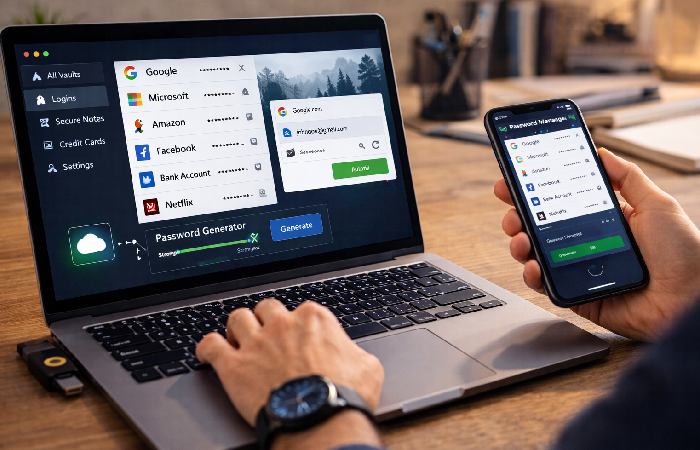
Feature Comparison Matrix
| Feature | 1Password | Bitwarden | Dashlane | iCloud Keychain | Proton Pass |
|---|---|---|---|---|---|
| Free Tier | ❌ | (Unlimited passwords) | ❌ | (Apple users only) | (10 logins) |
| Pricing | $2.99/mo | 0/10/year (Premium) | $4.99/mo | Free | $1.99/mo |
| Zero-Knowledge Encryption | ✅ | ✅ | ✅ | ✅ | ✅ |
| Multi-Factor Authentication | ✅ | ✅ | ✅ | ✅ | ✅ |
| Cross-Platform | ✅ | ✅ | ✅ | (Apple ecosystem only) | ✅ |
| Family Sharing | (5 users, $4.99/mo) | (6 users, $40/year) | (10 users, $7.49/mo) | (iCloud Family Sharing) | (Coming 2026) |
| Dark Web Monitoring | ✅ | ✅ (Premium) | ✅ | ❌ | ✅ |
| Passkey Support | ✅ | ✅ | ✅ | ✅ | ✅ |
| Security Audits | Annual (public reports) | Annual (open-source) | ✅ | (Apple internal) | ✅ |
| Best For | Families, teams | Budget users, open-source advocates | Premium features, VPN bundling | Apple-only users | Privacy-focused users |
Best Overall: 1Password (Premium Features, Family Plans)
1Password dominates the premium market with polished UX and comprehensive security features. At 35.88/yearforindividualsor64.99/year for families (5 users), you get:
- Travel Mode – Temporarily removes sensitive vaults when crossing borders
- Watchtower – Monitors for breached passwords, weak credentials, and 2FA-eligible sites
- 1Password SCIM Bridge – Enterprise directory integration for automated provisioning
1Password has never suffered a breach and publishes annual third-party security audits. The family plan includes shared vaults with granular permissions—ideal for households sharing Netflix, bank, or utility logins.
The catch? No free tier. You’re committing to a paid subscription from day one.
Best Free Option: Bitwarden (Open-Source, Community Audited)
- Bitwarden offers the most generous free tier: unlimited passwords, unlimited devices, and cross-platform sync at zero cost. Premium costs just $10/year, making it the most affordable paid option.
- As an open-source project, Bitwarden’s code is publicly auditable. Security researchers worldwide can inspect for vulnerabilities, and the company publishes annual penetration test results.
- Free tier limitations: No advanced 2FA (hardware keys require premium), no encrypted file attachments (1GB storage premium-only), no emergency access.
Best for: Budget-conscious users, open-source advocates, individuals testing password managers before committing to premium options.
Best for Apple Users: iCloud Keychain (Seamless Integration)
iCloud Keychain comes pre-installed on macOS and iOS devices, syncing passwords via iCloud. It autofills credentials across Safari and third-party apps supporting Apple’s Password AutoFill API.
- Strengths: Zero setup, free, tight integration with Face ID/Touch ID, support for passkeys.
- Weaknesses: Apple ecosystem lock-in (no Windows, Android, or Chrome support), no family sharing of individual passwords (only via iCloud Family Sharing groups), limited breach monitoring.
- Use if: You exclusively use Apple devices and browsers, don’t need cross-platform access, and want a no-cost solution.
Best for Privacy: Proton Pass (Zero-Logs VPN Company)
Proton Pass comes from Proton AG, the Swiss company behind Proton VPN and Proton Mail. The company’s zero-logs policy is audited by third parties, and Swiss privacy laws provide strong legal protections against government data requests.
Proton Pass includes:
- Hide My Email – Generate disposable email aliases to prevent tracking
- Proton VPN integration – Bundle with VPN service for layered privacy
- Swiss jurisdiction – Data stored under strict Swiss privacy laws
Free tier: 10 logins, 2 vaults, limited passkey support. Premium ($23.88/year) adds unlimited logins, dark web monitoring, and 2FA authenticator.
What Happened to LastPass? (Breach Analysis and Lessons)
LastPass still holds 23.3% market share in 2026 despite suffering two major breaches in 2022-2023. Here’s what happened:
- August 2022: Attackers stole source code and proprietary technical information from LastPass development servers.
- November 2022: Attackers used that stolen information to access cloud storage containing encrypted customer vaults. The vaults stayed encrypted, but metadata—URLs, usernames, vault structure—was exposed.
- February 2023: Attackers compromised a LastPass employee’s home computer, stealing corporate vault credentials.
LastPass responded by:
- Requiring 12-character minimum master passwords (up from 8)
- Encrypting URLs and metadata (previously stored in plaintext)
- Increasing PBKDF2 iterations to 600,000 (10x industry standard)
Should you use LastPass? The breaches exposed architectural weaknesses, but the company’s post-incident improvements demonstrate commitment to security. Users with strong master passwords (20+ characters) and MFA enabled face minimal risk from the breaches.
Our recommendation: While LastPass has improved post-breach security, we cannot recommend it as a first choice for new users given superior alternatives like Bitwarden (better free tier, 0−10/year) and 1Password (breach-free track record, $35.88/year) at comparable or lower cost. Existing LastPass users with 20+ character master passwords and MFA enabled face minimal immediate risk but should consider migrating to alternatives during 2026-2027 using our migration playbook below.
Key Features to Evaluate (Decision Criteria)
Zero-Knowledge Architecture (Non-Negotiable)
Never trust a password manager that can access your data. Verify the provider uses client-side encryption before syncing to the cloud.
Red flags: Providers that can “recover” your password if forgotten (true zero-knowledge makes this impossible), closed-source apps without security audits, unclear encryption documentation.
Multi-Factor Authentication Options (TOTP, Hardware Keys)
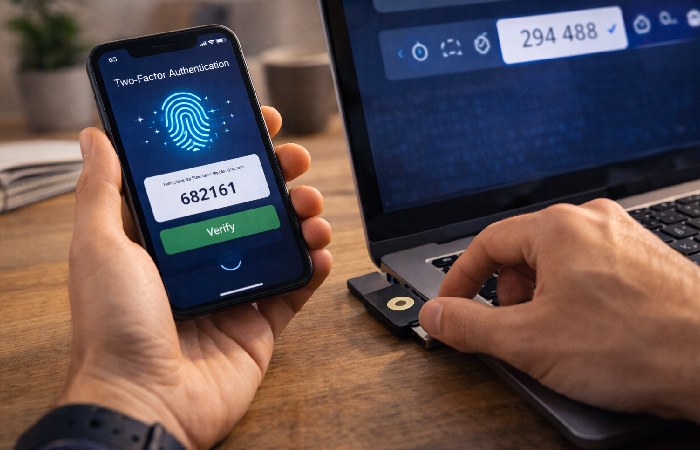
MFA adds a second authentication factor beyond your master password. Options include:
- TOTP authenticators – Time-based one-time passwords from apps like Google Authenticator or Authy (6-digit codes rotating every 30 seconds).
- Hardware security keys – Physical USB/NFC devices (YubiKey, Titan Security Key) that authenticate via cryptographic challenge-response.
- Biometrics – Fingerprint or facial recognition tied to device hardware (Face ID, Touch ID, Windows Hello).
Hardware keys provide the strongest protection. TOTP authenticators offer a good balance of security and convenience. SMS-based 2FA is the weakest option—avoid it.
Cross-Platform Compatibility (Desktop, Mobile, Browser)
Ensure your password manager supports every platform you use:
- Desktop apps: Windows, macOS, Linux
- Mobile apps: iOS, Android
- Browser extensions: Chrome, Safari, Firefox, Edge, Brave
Browser-based managers (Chrome, iCloud Keychain) fail the cross-platform test. Standalone managers work everywhere.
Dark Web Monitoring and Breach Alerts
Dark web monitoring scans underground forums and paste sites for leaked credentials matching your email or usernames. When a breach occurs, you receive alerts to change affected passwords immediately.
1Password’s Watchtower, Bitwarden’s Data Breach Reports, and Dashlane’s Dark Web Monitoring all scan databases like Have I Been Pwned to identify compromised credentials.
Free tiers typically offer limited monitoring. Premium plans provide real-time alerts and detailed breach reports.
Family Sharing and Team Plans
Family plans allow 5-10 users to share a subscription while maintaining separate vaults. Shared vaults enable secure credential sharing (Netflix passwords, Wi-Fi credentials) without exposing personal accounts.
Pricing comparison:
- 1Password Families: 64.99/year(5users)=12.99/user/year
- Bitwarden Families: 40/year(6users)=6.67/user/year
- Dashlane Families: 89.88/year(10users)=8.99/user/year
Family plans cost significantly less per user than individual subscriptions.
Passkey Support (Future-Proofing)
Passkeys, built on the FIDO Alliance’s WebAuthn specification, replace passwords with public-key cryptography. Instead of shared secrets vulnerable to phishing, passkeys use device-based authentication that cannot be stolen remotely.
Apple, Google, and Microsoft committed to passkey adoption across their ecosystems. Services like Amazon, Best Buy, and PayPal now support passkey logins.
Modern password managers store and autofill passkeys alongside passwords, serving as bridges during the multi-year transition to passwordless authentication.
Free vs Paid Password Managers (When to Upgrade)
What You Get with Free Tiers
Free password managers provide core functionality at zero cost:
- Unlimited password storage (Bitwarden, browser-based managers)
- Cross-device sync (cloud-based syncing across unlimited devices)
- Password generator (cryptographically random passwords)
- Basic autofill (browser extensions and mobile apps)
- Basic breach monitoring (limited dark web scans)
Free tiers work well for individuals managing <20 accounts with no family sharing needs.
When Premium Features Justify the Cost
Upgrade to premium (10−60/year) when you need:
- Family sharing – Sharing Netflix, bank, or utility credentials with household members
- Advanced MFA – Hardware security key support (YubiKey, Titan Security Key)
- Priority support – 24/7 customer service vs community forums
- Encrypted file storage – Storing passport scans, 2FA backup codes, software licenses
- Emergency access – Designating trusted contacts to access vault if you’re incapacitated
Total Cost of Ownership Analysis (Annual TCO)
| Plan Type | Annual Cost | Per-User Cost | Best For |
|---|---|---|---|
| Free (Bitwarden, Browser-based) | $0 | $0 | Individuals, <20 accounts, no family sharing |
| Individual Premium (Bitwarden) | $10 | $10 | Power users, hardware key MFA, encrypted storage |
| Individual Premium (1Password) | $35.88 | $35.88 | Premium UX, travel mode, priority support |
| Family Plan (Bitwarden) | $40 | $6.67 (6 users) | Budget-conscious families |
| Family Plan (1Password) | $64.99 | $12.99 (5 users) | Families prioritizing UX and support |
| Business Plan (1Password) | $96/year | $8/user/month (12 users) | Teams, admin controls, SCIM provisioning |
Security Risks and How to Mitigate Them
The Master Password Single Point of Failure
Password managers solve the “too many passwords” problem by creating a new one: your master password becomes the single key to your entire digital life.
If compromised, attackers gain access to every account. That sounds scary—because it is. It’s the fundamental irony competitors rarely mention: password managers concentrate risk rather than distribute it.
Mitigation strategies:
- Use a passphrase, not a password – Combine 5-7 random words with numbers and symbols (e.g., “Turtle!Laptop$Mountain7Breeze#Cloud”). This creates 100+ bit entropy while remaining memorable.
- Enable multi-factor authentication – Require TOTP codes or hardware key in addition to master password.
- Never reuse your master password – It should be unique, never used for any other account.
- Write it down physically – Store in a locked safe, not digitally. Physical security is stronger than you think.
What Happens If Your Password Manager Gets Breached?
The LastPass breaches demonstrated that even zero-knowledge architecture has attack surfaces:
- Encrypted vaults stolen – Attackers can’t decrypt vaults without master passwords, but they can attempt offline brute-force attacks against weak master passwords.
- Metadata exposed – URLs and usernames stored in plaintext (now fixed) revealed which services users accessed.
- Employee compromise – Social engineering or malware targeting employees with privileged access.
Your defense: Strong master passwords with 20+ characters resist brute-force attacks even if vaults are stolen. 1Password estimates cracking a properly configured vault would require “millions of years” with current computing power.
How to Secure Your Master Password (Best Practices)
Follow these guidelines to maximize master password security:
- Length matters most – 20+ characters provides 100+ bit entropy, resisting brute-force attacks.
- Use a passphrase generator – Tools like Diceware create memorable random passphrases (e.g., “correct horse battery staple” with modifications).
- Add complexity layers – Insert numbers, symbols, and capitalization between words.
- Never share it digitally – Don’t store in email, notes apps, or cloud storage.
- Change it if any device is compromised – If you enter your master password on a device later infected with malware, change it immediately from a clean device.
Emergency Access and Recovery Options
Most password managers cannot recover your master password due to zero-knowledge encryption. Plan for emergencies:
- 1Password – Secret Key (34-character code) + master password required for account recovery. Store Secret Key in physical safe.
- Bitwarden – Emergency Access feature allows trusted contacts to request vault access after a configured waiting period (1-30 days).
- Dashlane – Account recovery via trusted mobile device if you forget master password.
- Worst-case scenario: If you lose your master password and have no recovery mechanism, your vault is permanently locked. This is the price of zero-knowledge security.
How to Choose the Right Password Manager (Decision Framework)
Use Case Profiles
Individuals managing <10 accounts:
- → Recommendation: Browser-based password manager (Chrome, iCloud Keychain)
Why: Free, zero setup, sufficient for basic password storage and autofill
Individuals managing 20+ accounts:
- → Recommendation: Bitwarden Free or 1Password
Why: Unlimited cross-platform storage, strong security, breach monitoring
Families sharing credentials (Netflix, utilities, bank):
- → Recommendation: 1Password Families (64.99/year)orBitwardenFamilies(40/year)
Why: Shared vaults with permissions, cost-effective per-user pricing
Privacy-focused users:
- → Recommendation: Proton Pass or Bitwarden (open-source)
Why: Swiss jurisdiction (Proton), community-audited code (Bitwarden), zero-logs policies
Businesses/teams:
- → Recommendation: 1Password Business, Dashlane Business
Why: Admin controls, directory integration (Active Directory, Okta), audit logs, SCIM provisioning
Feature Priority Matrix
Rank your priorities from 1 (highest) to 5 (lowest):
| Priority | Feature Category | If Ranked #1, Choose: |
|---|---|---|
| Security | Zero-knowledge encryption, MFA, audits | Bitwarden (open-source), 1Password (audit history) |
| Privacy | Jurisdiction, data policies, anonymity | Proton Pass (Swiss laws), Bitwarden (self-hosted option) |
| Convenience | Autofill accuracy, UX polish, platform support | 1Password (best UX), iCloud Keychain (Apple users) |
| Budget | Lowest cost, best free tier | Bitwarden Free (best free tier), browser-based (zero cost) |
| Family Sharing | Shared vaults, user management | 1Password Families (polished experience), Bitwarden Families (budget option) |
Budget Considerations
$0/year (Free):
Bitwarden Free, Chrome Password Manager, iCloud Keychain, Proton Pass Free (10 logins)
10−40/year (Individual Premium):
Bitwarden Premium (10),1Password(35.88), Proton Pass ($23.88)
40−90/year (Family Plans):
Bitwarden Families (40),1PasswordFamilies(64.99), Dashlane Families ($89.88)
96+/year(Business/TeamPlans):
1PasswordBusiness(96+ depending on user count), Dashlane Business
How to Migrate to a Password Manager (Step-by-Step Playbook)
Exporting Passwords from Chrome/Safari/Edge
Chrome:
- Open chrome://settings/passwords
- Click three-dot menu next to “Saved Passwords”
- Select “Export passwords”
- Authenticate with system password
- Save CSV file to secure location
Safari (macOS):
- Open Safari → Settings → Passwords
- Authenticate with Touch ID or password
- Select all passwords (Cmd+A)
- File → Export Passwords
- Save CSV file
Edge:
- Open edge://settings/passwords
- Click three-dot menu next to “Saved passwords”
- Select “Export passwords”
- Save CSV file
Security warning: Exported CSV files contain unencrypted passwords in plain text. Delete them immediately after import—this is not the place to forget a cleanup step.
Importing to Your New Password Manager
1Password:
- Open 1Password app → File → Import
- Select source (Chrome, Safari, CSV)
- Browse to exported CSV file
- Review imported entries for duplicates
- Delete CSV file
Bitwarden:
- Open web vault → Tools → Import Data
- Select import format (Chrome CSV, LastPass, etc.)
- Upload CSV file
- Verify import success
- Securely delete CSV file
Switching Between Password Managers Safely
Migrating from one password manager to another requires careful execution:
- Export from old manager – Most support CSV export under Settings → Export
- Import to new manager – Use import wizard, select correct format
- Audit for duplicates – Manually review entries, delete duplicates
- Test autofill – Verify 5-10 critical accounts (bank, email, work) autofill correctly
- Enable MFA – Set up multi-factor authentication immediately
- Delete export files – Securely wipe CSV files from downloads folder
- Run parallel for 7 days – Keep old manager active while confirming new manager works
- Delete old vault – After 7-day verification period, delete old password manager data
Post-Migration Security Checklist
After migrating, complete these security hardening steps:
- Enable multi-factor authentication (TOTP or hardware key)
- Set up emergency access (trusted contact)
- Delete exported CSV files from downloads folder
- Update master password to strong passphrase (20+ characters)
- Enable dark web monitoring and breach alerts
- Review shared vault permissions (family plans)
- Disable autofill in old browser-based password managers
- Test autofill on 3-5 critical accounts (bank, email, work)
- Configure password generator defaults (length, complexity)
- Review account recovery options (emergency access, Secret Key storage)
The Passkey Transition Timeline (2026-2030)
What Are Passkeys? (FIDO2/WebAuthn Explained)
Passkeys eliminate passwords entirely by using public-key cryptography. Instead of sharing a secret (password) with every website, passkeys create unique cryptographic key pairs:
Private key – Stored securely on your device (encrypted by Face ID, Touch ID, or PIN). This never leaves your device.
Public key – Shared with the website during registration. It can’t be used to impersonate you—even if stolen.
When you log in, the website sends a cryptographic challenge. Your device signs it with the private key, proving your identity without transmitting any secrets.
This architecture, built on the FIDO Alliance’s WebAuthn specification, makes phishing impossible. Even if you visit a fake site, it cannot steal your passkey because the private key never leaves your device.
Which Services Support Passkeys in 2026?
Major platforms and services adopted passkey support in 2024-2026:
Operating systems:
Apple (iOS 16+, macOS Ventura+), Google (Android 9+), Microsoft (Windows 10+, Windows 11)
Browsers:
Chrome, Safari, Edge, Firefox, Brave
Services supporting passkey login:
- Amazon (2024)
- Best Buy (2024)
- PayPal (2024)
- Google accounts (2023)
- Microsoft accounts (2023)
- GitHub (2023)
- Shopify (2025)
- eBay (2025)
Adoption is accelerating. By 2027, most major services will support passkey authentication alongside traditional passwords.
How Password Managers Support the Passkey Transition
Password managers now store and sync passkeys across devices, acting as “passkey managers”:
- 1Password – Stores passkeys in vault, syncs via iCloud Keychain or 1Password cloud
- Bitwarden – Passkey storage in premium tier, cross-platform sync
- Dashlane – Full passkey support with biometric unlock
- iCloud Keychain – Native passkey storage for Apple ecosystem
This means your password manager investment is future-proof. As services migrate from passwords to passkeys, your manager adapts seamlessly.
When Should You Start Using Passkeys?
- 2026: Early adopter phase. Enable passkeys for high-security accounts (Google, Microsoft, GitHub, PayPal). Keep passwords as backup in case of device loss.
- 2027-2028: Mainstream adoption. Most major services support passkeys. Begin transitioning medium-security accounts (shopping, streaming).
- 2029-2030: Passwordless majority. Passkeys become the default authentication method. Passwords relegated to legacy systems.
Action plan for 2026:
- Enable passkeys on services that support them (Google, PayPal, GitHub)
- Keep password manager active for services still requiring passwords
- Use password manager’s passkey storage to sync across devices
- Maintain password backups during transition period
Common Mistakes to Avoid
Even with a password manager, users sabotage their security through avoidable mistakes:
- Using weak master passwords – “Password123!” or common phrases defeat the entire point of zero-knowledge encryption. Use 20+ character passphrases with random words, numbers, and symbols.
- Not enabling multi-factor authentication – MFA adds critical protection if your master password is compromised. Enable TOTP or a hardware key immediately after setup—not “when you get around to it.”
- Storing master passwords in browsers or email – Defeats the entire purpose of password isolation. Write it down physically if needed, but never store digitally.
- Ignoring security audit reports – Annual third-party audits reveal vulnerabilities and provider commitment to transparency. Choose managers that publish public audit reports (1Password, Bitwarden).
- Failing to enable breach monitoring – Dark web monitoring alerts you to compromised credentials before attackers exploit them. Enable in settings and act on alerts immediately.
- Reusing master password elsewhere – Your master password must be unique. If you use it for email or other accounts, a breach of those services compromises your entire vault.
- Neglecting emergency access – If you’re incapacitated, family members may need access to accounts. Configure emergency access with trusted contacts.
Who Should Use Password Managers / Who Should Avoid
Best For:
Anyone managing 10+ online accounts – Password managers eliminate cognitive load and reuse risks for users juggling dozens of logins.
- Families sharing Netflix, bank, utility credentials – Shared vaults provide secure credential sharing without texting passwords or using insecure notes apps.
- Remote workers accessing company systems – Businesses require strong unique passwords across multiple tools. Password managers enforce this without manual tracking.
- Individuals with history of password reuse – If you’ve ever reused passwords (65% of people do), password managers break this dangerous habit permanently.
- Privacy-conscious users concerned about surveillance – Strong unique passwords combined with MFA significantly reduce unauthorized account access risks.
Not For / Proceed with Caution:
- Users in high-surveillance regions – Cloud-synced password managers create data residency risks in countries with mandatory government access laws. Consider local-only solutions (KeePass) or air-gapped storage.
- Elderly or non-tech-savvy users uncomfortable with master passwords – The single master password model creates confusion and lockout risks for users unfamiliar with password hygiene concepts.
- Ultra-high-security individuals preferring air-gapped solutions – Security professionals, activists, and journalists in hostile environments may prefer password managers stored on devices never connected to the internet, such as KeePass with local-only USB storage and zero cloud sync.
- Users with cognitive or memory impairments – Remembering a strong master password may be prohibitively difficult. Browser-based managers with biometric unlock may be more appropriate.
Final Verdict (Practical Recommendations)
If you choose only one password manager today: Start with Bitwarden Free (unlimited passwords, zero cost, open-source) to test your workflow for 30 days, then upgrade to 1Password Families ($64.99/year for 5 users) if you need premium features and family sharing.
Password managers represent the single most cost-effective cybersecurity investment for 2026. For 0−40/year, you eliminate 90%+ of breach risk stemming from weak or reused passwords while saving 5-10 hours annually on password resets and manual entry.
The barrier to entry? Zero. Bitwarden Free and browser-based managers (Chrome, iCloud Keychain) provide unlimited password storage at no cost. Test one for 30 days to see if it fits your workflow before committing to premium features.
For families, the math is simple: 1Password Families costs 64.99/yearfor5users(12.99/user/year)—far less than the $1,000+ average cost of identity theft recovery.
Action Steps:
- Choose a password manager based on your use case (see decision framework above):
- Budget users → Bitwarden Free
- Families → 1Password Families or Bitwarden Families
- Apple-only users → iCloud Keychain
- Privacy-focused → Proton Pass or Bitwarden (self-hosted)
- Enable multi-factor authentication immediately – TOTP authenticators (Google Authenticator, Authy) or hardware keys (YubiKey) required.
- Migrate existing passwords using export/import playbook – Export from Chrome/Safari, import to new manager, delete CSV files.
- Enable dark web monitoring and breach alerts – Real-time notifications when credentials appear in data breaches.
- Review passkey adoption timeline – Enable passkeys for high-security accounts (Google, PayPal) now; maintain passwords as backup during 2026-2030 transition.
The investment pays for itself the moment it prevents a single account takeover. With 81% of breaches involving compromised credentials, the question isn’t whether to use a password manager—it’s which one fits your needs.
Frequently Asked Questions
1. Are password managers safe?
Yes, when using reputable providers with zero-knowledge encryption and multi-factor authentication. Top password managers like 1Password and Bitwarden undergo third-party security audits and encrypt data on your device before syncing to the cloud. Even if the provider’s servers are breached, attackers obtain only encrypted vaults useless without individual master passwords. Enable MFA and use a strong 20+ character master password for maximum security.
2. What is the best password manager for beginners?
Bitwarden offers the best free option with unlimited passwords, cross-platform sync, and intuitive interface. For premium features, 1Password provides the most polished user experience with seamless autofill across devices and excellent onboarding. Apple users should consider iCloud Keychain, which requires zero setup and integrates natively with iOS and macOS.
3. Can password managers be hacked?
Password managers can be targeted—LastPass breaches in 2022-2023 proved that. But here’s the important part: zero-knowledge encryption ensures that even if encrypted vaults are stolen, they remain inaccessible without individual master passwords. Properly configured vaults using 20+ character master passwords would require millions of years to crack with current technology. Enable multi-factor authentication and choose providers with public security audit reports to minimize risk.
4. What happens if I forget my master password?
Most password managers cannot recover your master password due to zero-knowledge architecture—they don’t know your password. 1Password requires both your master password and Secret Key (34-character code) for account recovery. Bitwarden offers Emergency Access, allowing trusted contacts to request vault access after a waiting period. Without recovery mechanisms, forgotten master passwords result in permanent vault lockout. Write your master password down physically and store in a secure location.
5. Are free password managers good enough?
Yes, for individual users with basic needs. Bitwarden Free, Chrome Password Manager, and iCloud Keychain offer unlimited password storage, cross-device sync, password generation, and basic autofill at zero cost. Upgrade to premium (10−40/year) when you need family sharing, advanced MFA (hardware keys), encrypted file storage, or priority support. For most users managing <20 accounts without family sharing needs, free tiers suffice.
6. Should I use a browser-based or standalone password manager?
Browser-based managers (Chrome, Safari, Edge) work well for simple setups with <10 accounts and single-browser usage. Standalone managers (1Password, Bitwarden, Dashlane) offer superior security (zero-knowledge encryption), cross-browser compatibility, desktop app autofill, family sharing, and breach monitoring. Choose standalone if you manage 20+ accounts, use multiple browsers, need family sharing, or prioritize security over convenience.
7. How do password managers work with passkeys?
Modern password managers store and autofill passkeys (FIDO2/WebAuthn credentials) alongside traditional passwords, acting as “passkey managers.” When you create a passkey for a service like PayPal or Google, the password manager stores the cryptographic key pair and syncs it across devices. During login, the manager autofills the passkey just like a password. This makes password managers future-proof as the web transitions from passwords to passkeys between 2026-2030.
8. Can I share passwords with family members securely?
Yes, through family plans offered by 1Password (64.99/yearfor5users),Bitwarden(40/year for 6 users), and Dashlane ($89.88/year for 10 users). These plans provide shared vaults with granular permission controls. You can share Netflix credentials in a family vault while keeping banking passwords in your private vault. Recipients must have accounts with the same password manager to access shared credentials.
9. What’s the difference between 1Password and Bitwarden?
1Password is a premium option (35.88/yearindividual,64.99/year family) with polished UX, travel mode (removes sensitive vaults when crossing borders), and comprehensive family sharing. Bitwarden is open-source with a robust free tier (unlimited passwords, cross-platform sync) and costs only $10/year for premium features. Both use zero-knowledge encryption and pass annual third-party security audits. Choose 1Password for premium UX and support; choose Bitwarden for budget-friendly open-source security.
10. How do I switch from LastPass after the breaches?
Export your LastPass vault as CSV: Vault → Advanced Options → Export. Import the CSV into your new password manager (1Password, Bitwarden) using their import wizard. After confirming successful import, securely delete the CSV file (unencrypted passwords). Update your master password and enable MFA in the new manager. Run both managers in parallel for 7 days to verify all accounts autofill correctly, then delete your LastPass vault. See our migration playbook above for detailed step-by-step instructions.