

As technology evolves, the methods used by cybercriminals become more sophisticated. With the majority of business operations now occurring online, cybersecurity is no longer optional—it is a vital defense against identity theft, data breaches, and financial loss.
This article explores the most common internet security threats and provides actionable steps to fortify your online presence.
Table of Contents
Common Internet Security Threats
Understanding the “enemy” is the first step in defense. Here are three of the most prevalent threats facing businesses and individuals today.
1. Distributed Denial of Service (DDoS) Attacks
A DDoS attack occurs when malicious actors overwhelm a website by flooding it with massive amounts of artificial traffic.
To handle this surge, the site exhausts its server resources (CPU and RAM). Once exhausted, the website becomes unresponsive, effectively “shutting down” for legitimate users.
2. Man-in-the-Middle Attack
This attack typically targets websites that do not encrypt the data exchanged between users and servers. In a MitM scenario, a hacker “listens in” on the conversation.
Without encryption, hackers can easily steal sensitive information, such as login credentials, credit card numbers, or private communications, as they travel across the network.
3. Ransomware
Ransomware is a type of malware that locks a user out of their own files by encrypting them. The attacker then demands a “ransom” (usually in cryptocurrency) for the decryption key. Even if the ransom is paid, there is no guarantee the data will be returned or that it hasn’t already been leaked to the dark web.
6 Best Practices for Internet Security
Security should begin the moment you launch a website or connect a device. Here are the six most effective ways to protect your digital assets.
There are a number of online security practices, but I’ve included the five best ones you should follow on your computer and online.
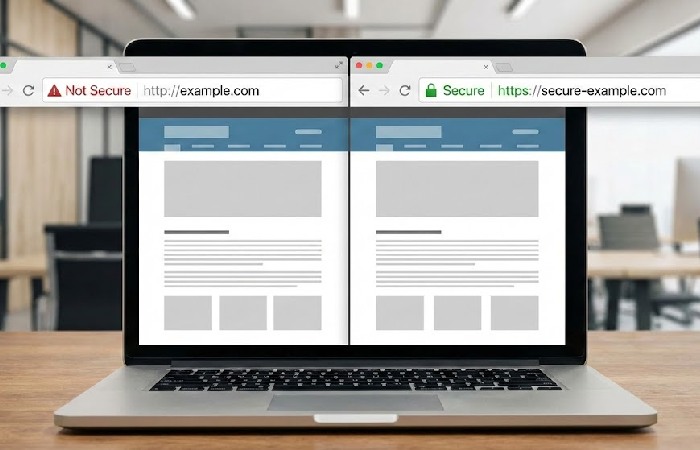
1. Install an SSL Certificate and Firewall
SSL (Secure Socket Layer) is non-negotiable. It creates an encrypted link between a web server and a browser, ensuring all data passed remains private.
-
SSL: Solves the Man-in-the-Middle problem by making intercepted data unreadable.
-
Firewall: Acts as a barrier between your internal network and incoming traffic from the internet, filtering out malicious packets before they reach your system.
2. Use Strong Passwords and Multi-Factor Authentication (MFA)
Weak passwords are the “open doors” of the internet. However, even a strong password can be stolen.
Tips for better password hygiene:
-
Length over complexity: A long phrase is often harder to crack than a short, complex word.
-
Never reuse: Use a unique password for every single account.
-
Use a Manager: Use tools like Bitwarden, 1Password, or LastPass to store and generate complex keys.
Here are some tips for creating strong passwords:
- Never reuse old passwords.
- A password should be longer than ten characters.
- Use a combination of special characters, numbers, and uppercase and lowercase letters.
Regularly changing passwords can be a hassle, but you can use a password generator and manager, like Dashlane, LastPass, or 1Password.
Pro-Tip: Always enable Multi-Factor Authentication (MFA). It requires a second form of identification (like a code sent to your phone), making it significantly harder for hackers to gain access even if they have your password.
3. Deploy Robust Antivirus Software
Antivirus software isn’t just for “viruses” anymore; it protects against spyware, trojans, and adware. It monitors your system in real-time, comparing active processes against a database of known threats. This prevents unwanted code from entering your website’s backend or your personal computer.
4. Keep Systems Up-to-Date
Software updates often include “patches” for security vulnerabilities that hackers have recently discovered.
-
Operating Systems: Set your OS to update automatically.
-
CMS & Plugins: If you run a website (like WordPress), ensure your themes and plugins are always on the latest version to avoid “Zero-Day” exploits.
5. Use SFTP for File Management
Standard FTP (File Transfer Protocol) sends your login credentials in “plain text,” meaning anyone sniffing the network can see them. SFTP (Secure File Transfer Protocol) adds a layer of Secure Shell (SSH) encryption, ensuring that your file transfers—and your login details—are fully protected.
6. Implement DDoS and SQLi Prevention
Beyond a basic firewall, websites should use a Web Application Firewall (WAF).
-
DDoS Mitigation: Uses specialized scrubbing centers to filter out bot traffic while letting real customers through.
-
SQL Injection (SQLi) Prevention: Prevents hackers from inserting malicious code into your website’s database forms to steal or delete data.

To combat these threats, include a Web Application Firewall (WAF) and DDoS mitigation solutions on your website. This will protect your site from malicious traffic.
Employee Cybersecurity Checklist
To be distributed to all staff and posted in common areas.
-
[ ] Enable MFA: Ensure Multi-Factor Authentication is active on all work accounts.
-
[ ] Use a Password Manager: Store all passwords in [Company Tool Name]. Never write them down.
-
[ ] Hover Before You Click: Always hover your mouse over email links to see the real destination URL.
-
[ ] Lock Your Screen: Press
Win + L(Windows) orCmd + Ctrl + Q(Mac) every time you leave your desk. -
[ ] Update Daily: If you see a “System Update” notification, run it immediately.
-
[ ] Report Anomalies: If your computer acts strangely or you click a suspicious link, notify IT immediately.
Cybersecurity Policy Acknowledgment Form
Please sign and return this to the HR/IT Department.
Employee Name: ___________________________
Department: ______________________________
Date: ____________________________________
1. Purpose & Scope
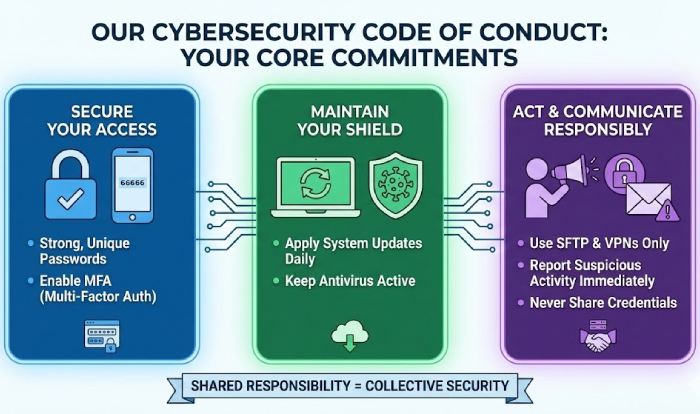
This acknowledgment confirms that I have received, read, and understood the Company Cybersecurity Policy and the “Employee Cybersecurity Checklist.” I understand that these protocols are in place to protect company data, client information, and our digital infrastructure.
2. Employee Commitment
By signing this document, I agree to:
-
Maintain strong, unique passwords and utilize Multi-Factor Authentication (MFA) on all business accounts.
-
Ensure my work devices remain updated with the latest security patches and antivirus software.
-
Use Secure File Transfer Protocol (SFTP) and VPNs as directed when handling company data.
-
Immediately report any suspicious emails, potential breaches, or lost/stolen hardware to the IT/Security Department.
-
Refrain from sharing login credentials or sensitive company data with unauthorized individuals.
3. Accountability
I understand that a failure to comply with these security protocols may result in the loss of network access and, in cases of gross negligence or intentional data mishandling, may lead to disciplinary action up to and including termination.
4. Signature
I acknowledge my responsibility to stay informed about security best practices and to conduct my digital activities in a safe and professional manner.
Signature: _________________________________________
Date Signed: _______________________________________
Knowledge Check Quiz
1. A website becomes unresponsive because it is flooded with artificial traffic. This is a:
-
A) Ransomware Attack
-
B) DDoS Attack
-
C) Man-in-the-Middle Attack
2. What is the main benefit of Multi-Factor Authentication (MFA)?
-
A) It makes the login process faster.
-
B) It provides a second layer of defense if a password is stolen.
-
C) It automatically deletes viruses.
3. Why use SFTP instead of standard FTP?
-
A) It is cheaper to maintain.
-
B) It encrypts login credentials and data during transfer.
-
C) It allows for larger file sizes.
4. What does an SSL certificate do?
-
A) It speeds up the computer.
-
B) It encrypts sensitive data passed between the user and the server.
-
C) It prevents physical theft of laptops.
5. If an email looks suspicious, what is the first thing you should do?
-
A) Click the link to see if it’s real.
-
B) Hover over the link to verify the URL and report it to IT.
-
C) Forward it to your entire team.
Answer Key: 1-B, 2-B, 3-B, 4-B, 5-B
Conclusion
The digital landscape is constantly shifting, but by staying proactive, you can significantly reduce your risk. By combining technical tools like SSL and SFTP with smart habits like MFA and regular updates, you create a multi-layered defense that is difficult to penetrate.
Monitor your systems regularly, stay informed on new threats, and remember: in cybersecurity, an ounce of prevention is worth a terabyte of cure.
- Distributed Denial of Service (DDoS) attacks
- Man-in-the-Middle attacks
- Ransomware
To deal with them, I’ve provided the six best internet security practices. Let’s recap:
- Install an SSL certificate and firewall.
- Create strong passwords.
- Install antivirus.
- Keep systems up-to-date.
- Use SFTP file management.
- DDoS and SQLi prevention.
Now you know the threats that lurk online and how to prevent them from entering your website or computer. Make sure to follow the best security practices and monitor your website for any suspicious activity.
Good luck!