
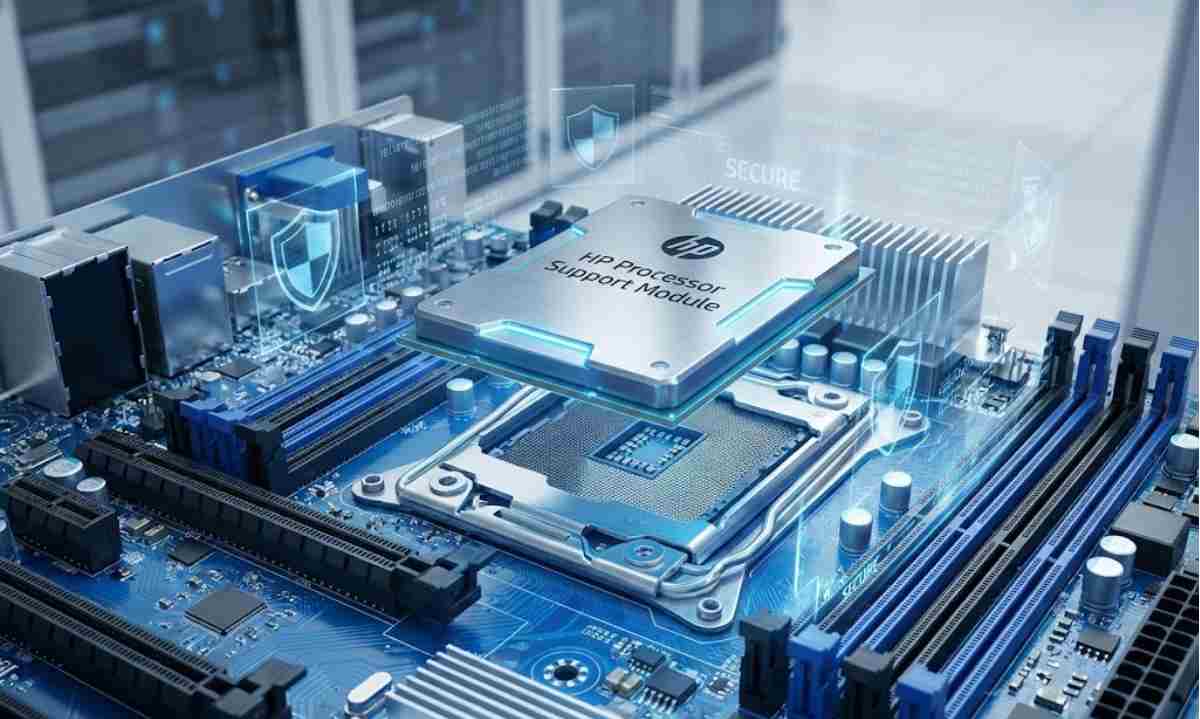
If you’re seeing something labeled “HP Processor Support Module” in system inventories, spare‑part listings, or on an older HP machine, it is understandable to wonder whether it is safe—or still needed at all. It is a legitimate HP term, often used for official processor support hardware modules in HP servers and workstations.
But legitimacy is not the same as necessity. On modern Windows systems, many OEM‑specific processor and power utilities behave like legacy middleware: they remain installed or referenced even after the operating system has absorbed most of their original role. Industry best practices around reducing software attack surface show why unnecessary components should be treated cautiously even when they are not outright malicious.
Table of Contents
What “HP Processor Support Module” actually refers to
The phrase “HP Processor Support Module” appears in multiple HP and reseller catalogues as a genuine hardware module used in specific HP/HP9000‑class systems and servers. Examples include:
-
HP Processor Support Module A6799A, listed as a processor support board for certain HP servers.
-
HP Processor Support Module A5168A and similar parts, sold as official HP hardware spares.
This confirms that the name itself is tied to legitimate HP technology, not to any particular malware strain.
However, because malware can masquerade as trusted names, any executable or Windows process using this label should still be checked for digital signatures and scanned with reputable security tools, rather than trusted on name alone.
For fundamentals on verifying that a product or component is authentic and correctly identified, general guidance such as Microsoft’s best practices for code signing and verification helps explain why names alone are not enough.
For fundamentals on verifying that a product or component is authentic and correctly identified, general guidance such as Microsoft’s best practices for code signing and verification of software can help you understand why names alone are not enough.
Why OEMs shipped processor and power utilities
Historically, operating systems didn’t expose every needed control for power, thermal behavior, or firmware communication in a uniform way. OEMs like HP shipped additional tools and modules so their systems would run predictably under different workloads and hardware configurations.
These utilities typically aimed to:
-
Fine‑tune CPU power states and performance profiles beyond basic OS sliders.
-
Coordinate fans and thermal limits specific to a chassis or server model.
-
Bridge proprietary firmware options (or management controllers) and what the OS could see.
-
Standardize behavior across many SKUs without relying only on generic ACPI behavior.
In that context, these components were infrastructure rather than “bloat”—they were part of how HP ensured that its hardware met power and performance targets in real deployments.
The HPE UEFI System Utilities and Server Management documentation describes how power profiles and processor settings are often tuned via vendor utilities in addition to what the OS provides. That gives important context for why these utilities existed and how they relate to broader UEFI firmware standards.
How Windows and firmware changed the landscape
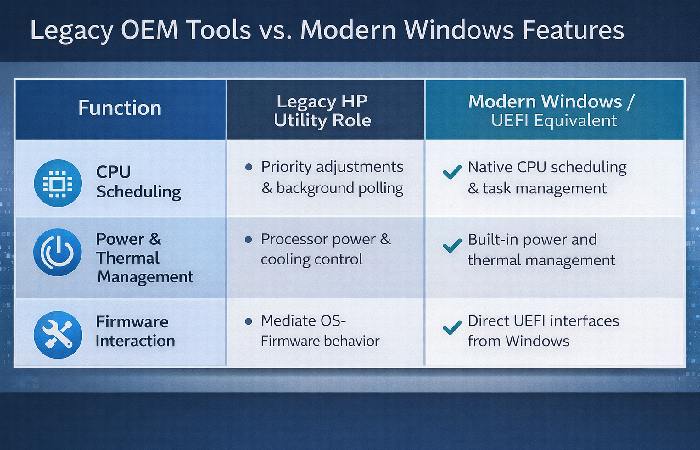
Modern Windows (10/11) and contemporary firmware have significantly expanded what they can manage natively:
-
Power and CPU management: Windows now offers advanced power plans, processor power state controls, and modern standby, integrating closely with ACPI and UEFI.
-
Thermal and performance behavior: The OS can coordinate with firmware to manage thermals and performance via standardized interfaces, reducing reliance on proprietary shims.
-
UEFI‑based configuration: Many system and server settings that once required vendor software are now accessible via UEFI utilities or centralized management platforms.
As a result, some older OEM processor and power utilities no longer provide uniquely necessary functionality on modern builds. They may still work, but they often duplicate or lightly wrap behavior the OS already handles.
If you want a clearer view of what Windows already handles on its own, it helps to skim a dedicated guide to processor power management in Windows, then compare those native controls to what any HP utility still claims to do.
This is why many IT guides and system‑hygiene articles recommend reviewing preinstalled OEM utilities and keeping only those with clear, documented value. Microsoft’s own documentation on power management and processor states shows the breadth of native controls the OS already provides without extra OEM layers. For a practical,
Windows‑focused perspective, a walkthrough like the one in our Windows OEM bloatware and optimization guide applies the same “keep, audit, retire” logic to other bundled utilities on modern PCs.
How to think about “safe” vs “necessary”
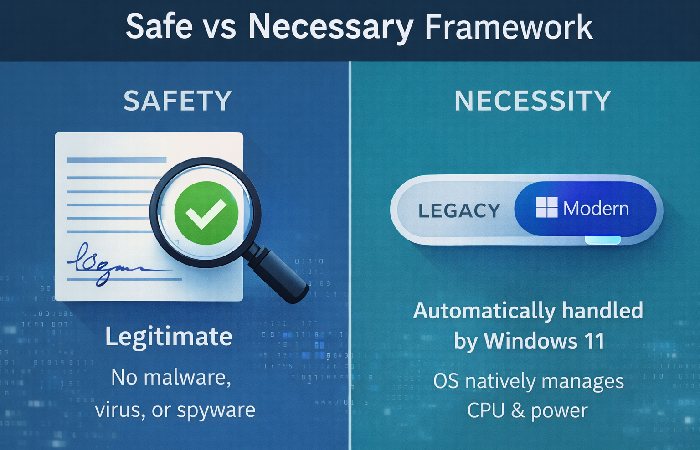
1. Safety (malware vs legitimate component)
-
The name “HP Processor Support Module” is associated with official HP hardware, not with any widespread malware family.
-
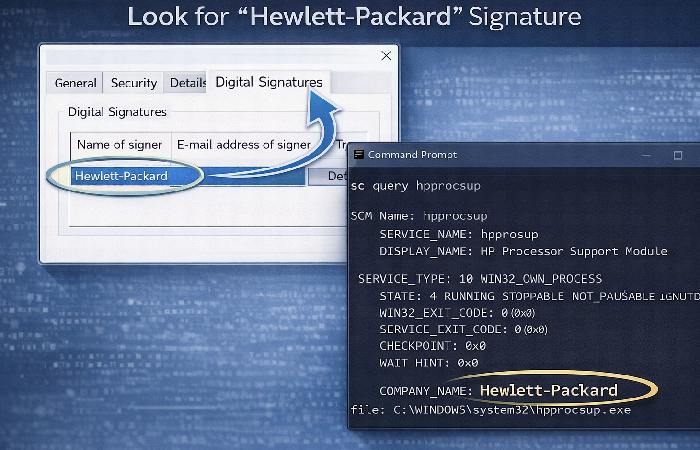
A Windows process using that label is not automatically malicious, but should still be checked like any other binary:
-
Confirm its file path (for example, under
C:\Program Files\HP\...vs an odd temp folder). -
Check the digital signature (HP or HPE signed, if present).
-
Scan it with reputable antivirus or endpoint‑protection software.
-
In other words, the label is a positive signal, not a guarantee.
2. Necessity (legacy vs useful)
Even when a HP processor or power utility is safe, it may be:
-
Essential on older hardware that relies on vendor‑specific controls.
-
Helpful but redundant on some systems.
-
Purely legacy on modern Windows builds where all functionality is covered by OS + firmware.
Software‑engineering and systems‑management literature consistently point out that unnecessary layers raise total cost of ownership (TCO) and complicate verification and updates. The same logic applies here: treat OEM utilities as dependencies that should be justified, not as unquestionable fixtures.
Practical guidance by user type
For IT admins and managed environments
In enterprise environments, HP‑branded processor and power components should be treated like any other infrastructure dependency:
-
Inventory: Identify all HP utilities and services in your base images and gold builds.
-
Document dependencies: Check whether any server‑management workflows, monitoring agents, or power‑profile policies explicitly rely on those utilities; HP’s own management suites (for example, HPE Insight Power Manager and its successors) sometimes assume specific components are present on certain generations.
-
Standardize where possible:
-
Prefer standardized Windows power profiles and centrally configured UEFI settings documented in HP/HPE server guides.
-
Remove or disable older utilities that no longer provide unique value on new generations of hardware.
-
This mirrors general TCO best practice discussed in comparative analyses of platform tooling and frameworks, which emphasize minimizing redundant layers to simplify verification and maintenance.
For power users and enthusiasts
Advanced users often care about:
-
Clean system images.
-
Predictable behavior under load.
-
Minimal background noise that interferes with monitoring and tuning.
If you encounter any HP processor or power utility (including something labeled similarly to “Processor Support”):
-
Look it up on official or reputable sites with descriptive queries (for example, “HP + exact utility name + support”).
-
Disable before uninstalling: Turn off the service or startup entry and test:
-
Temperatures and fans.
-
Sleep/wake and battery life (on laptops).
-
Performance under your typical workloads.
-
-
Remove only after verifying stability: If nothing breaks and OS tools give you all the control you need, you can safely treat it as legacy.
This stepwise approach is aligned with broader reliability practices: verify assumptions, make one change at a time, and monitor impact.
For general consumers
If you’re not technical, a simpler rule of thumb helps:
-
The presence of an HP‑named processor/module entry does not mean your system is infected.
-
It often reflects either:
-
An HP hardware part description (on server/workstation gear), or
-
A legacy utility that once helped manage performance and power.
-
-
On modern consumer PCs, Windows and HP’s up‑to‑date firmware already handle core power and CPU behavior in most cases.
If you are unsure:
-
Do not delete files manually.
-
Ask HP support or a trusted technician.
-
Use reputable antivirus to confirm the file is clean.
A simple decision framework: keep, audit, or retire
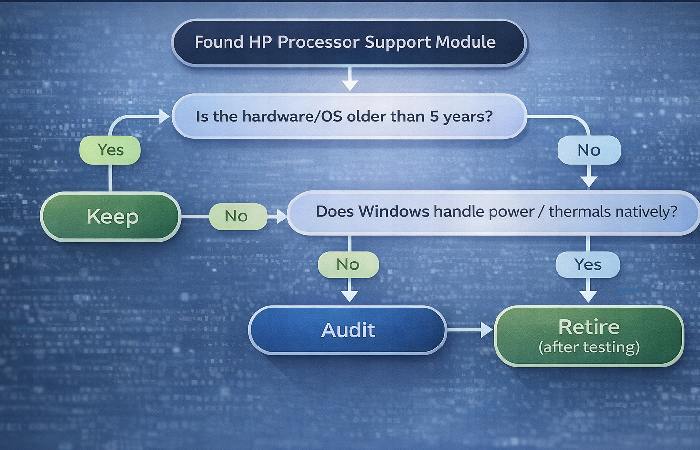
You can apply the same three‑step framework to any HP processor or power component:
Keep it if:
-
HP documentation or support specifically recommends it for your exact model and workload.
-
You are managing older servers or workstations where those modules are clearly documented as part of the supported configuration.
Audit it if:
-
You are on recent Windows 10/11 with current firmware.
-
You cannot find clear, up‑to‑date documentation explaining what extra capability the utility provides beyond OS power settings.
-
It introduces an extra background service or driver that appears in logs and diagnostic traces.
Retire it (after testing) if:
-
Windows and UEFI cover all needed processor and power features on your hardware.
-
Your testing shows no regression in performance, thermals, or power behavior after disabling it.
-
You want to reduce complexity and align with TCO and verification best practices that favor fewer, well‑understood layers.
For readers who want a more HP‑specific walkthrough of this decision process, there is also a focused explainer on HP processor support module legacy guidance that applies the same keep‑audit‑retire logic to real HP configurations.
Final takeaway
“HP Processor Support Module” is a legitimate HP label, especially for physical processor support modules used in HP and HPE systems, and is not a known malware identifier.
In the broader context of HP‑branded processor and power utilities on Windows, the crucial distinction is not just safe vs unsafe, but necessary vs legacy.
Modern Windows, UEFI, and HP’s own centralized management tools now cover much of the functionality older utilities once provided, and systems‑management and software‑engineering research consistently show that redundant components increase TCO and complexity over time.
Evaluating whether a given HP utility still offers unique value on your specific hardware—and retiring it when it does not—is the most reliable way to keep your system both lean and trustworthy.
Frequently Asked Questions (FAQs)
Is HP Processor Support Module a virus or malware?
No. HP Processor Support Module is legitimate software from HP. It is not malware or spyware. It’s an OEM component designed to support processor-level interactions on certain HP systems. The confusion arises because it runs silently in the background and is rarely explained to users.
Why is HP Processor Support Module using CPU?
The module may use CPU because it runs background checks related to processor behavior, firmware interaction, or system state monitoring. On modern Windows systems, this activity is often noticeable because similar responsibilities are already handled natively by the operating system, making the module’s background usage feel unnecessary or redundant.
Is it safe to disable or remove HP Processor Support Module?
It can be safe in some system contexts, but not universally. On older HP systems or enterprise-managed devices, removing it may affect firmware-level coordination. On newer systems with updated BIOS and modern Windows builds, it is often redundant. The correct approach is to audit first, not remove blindly.
Do I need HP Processor Support Module on Windows 10 or Windows 11?
In many cases, no. Modern versions of Windows already manage CPU scheduling, power states, and thermal behavior effectively. On fully updated systems, the module may persist as legacy software rather than a required component. Whether you need it depends on your hardware age and HP-specific dependencies.
Why does HP install this module if it’s no longer needed?
OEM software is often installed to ensure compatibility across a wide range of hardware configurations. Over time, operating systems evolve faster than preinstalled utilities are retired. As a result, some components remain installed even after their original purpose has been absorbed by the OS.
Will removing HP Processor Support Module improve performance?
Sometimes — but not always. If the module is causing persistent background CPU usage with no clear benefit, removing or disabling it may slightly reduce overhead. However, measurable performance gains are usually modest. The primary benefit is system clarity and reduced background complexity, not raw speed.
How do I know if other HP software depends on it?
The safest way is to observe system behavior after auditing or temporarily disabling it. If no HP utilities, power profiles, or firmware-related tools report errors and system stability remains unchanged, the module is likely not a dependency on your system. Enterprise environments should validate this through documentation or testing.
Why do antivirus tools sometimes flag HP Processor Support Module?
Some antivirus or security tools flag it due to:
-
Low visibility into its behavior
-
Background execution
-
Lack of user-facing documentation
These are typically false positives, not indicators of malicious activity.
What’s the difference between “safe” and “necessary” in this case?
“Safe” means the software is not harmful or malicious.
“Necessary” means the software provides a function your system actively needs.
HP Processor Support Module is generally safe — but on many modern systems, it may no longer be necessary.
Bottom-line FAQ takeaway
If you’re asking whether HP Processor Support Module is dangerous, the answer is no.
If you’re asking whether it still serves a purpose on your system, the answer depends on hardware age, firmware updates, and OS capabilities.
Disclosure
This article was created using a combination of publicly available and peer‑reviewed sources, with AI assistance used for drafting and language refinement, and has been reviewed and edited by a human author.
About the Author
Abdul Rahman is a professional content creator and blogger with over four years of experience writing about technology, health, marketing, productivity, and everyday consumer products. He focuses on turning complex topics into clear, practical guides that help readers make informed decisions and improve their digital and daily lives.