

Why FACEIT Won’t “Just Go Away”
You uninstall FACEIT, but it still pops up in Apps & Features, your startup list, or error messages when you launch other games. It feels like you removed the game but some hidden piece of FACEIT Anti‑Cheat is still watching your PC.
On top of that, uninstalling FACEIT from your computer does nothing to your FACEIT account or the personal details stored on their servers. This guide shows how to fully remove FACEIT from Windows, clean leftovers, fix stubborn issues, and, if you want, request deletion of your FACEIT data.
Table of Contents
When a “Simple Uninstall” Becomes a Problem
Most guides tell you to “go to Control Panel and uninstall,” but that’s where many users get stuck.
-
The FACEIT client and FACEIT Anti‑Cheat are separate entries, so you may uninstall one and leave the other without realizing it.
-
If you delete the FACEIT folder by hand before running the uninstaller, Windows can get stuck thinking FACEIT is installed but unable to remove it.
-
Even after a clean uninstall, FACEIT can still show up in Startup, or your account and personal data stay active on FACEIT’s systems.
If you care about performance, privacy, or just a tidy system, “half‑removed” FACEIT is not good enough.
Layer 1: Cleanly Uninstall FACEIT on Windows
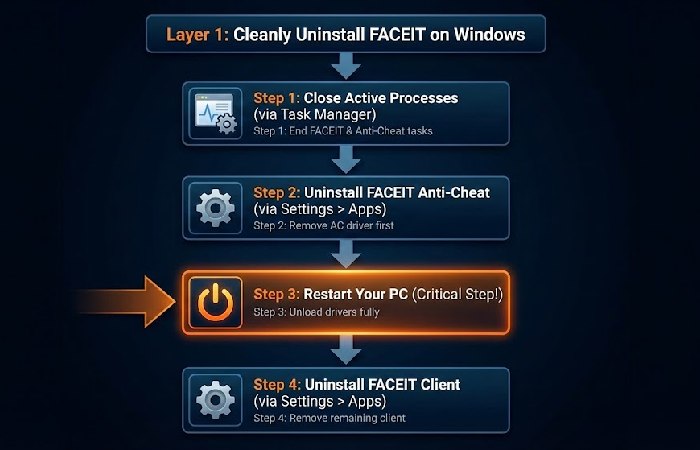
This first layer covers what most people need to fully uninstall FACEIT from the computer: close active processes, remove FACEIT Anti‑Cheat and the client, and reboot.
Close FACEIT Completely
-
Press Ctrl + Shift + Esc to open Task Manager.
-
Under Processes, end anything with FACEIT or FACEIT Anti‑Cheat in its name.
-
Check the system tray near the clock, right‑click the FACEIT icon, and choose Exit if it’s running.
Stopping FACEIT first prevents “file in use” errors during uninstall.
Uninstall FACEIT Anti‑Cheat and Client
-
Open Settings → Apps → Installed apps (or Apps & Features).
-
In the search box, type FACEIT.
-
Click FACEIT Anti‑Cheat → Uninstall → confirm and let it finish.
-
Restart your PC so Windows fully unloads the Anti‑Cheat driver and related components.
-
After the restart, go back to Settings → Apps, select the FACEIT client entry, and click Uninstall.
If you want to confirm you are using the correct Windows menu, compare these steps with Microsoft’s guide on uninstalling apps and programs in Windows.
Removing FACEIT Anti‑Cheat means you can’t join most FACEIT matches until you reinstall it.
Layer 2: Remove Leftover Files and Startup Entries
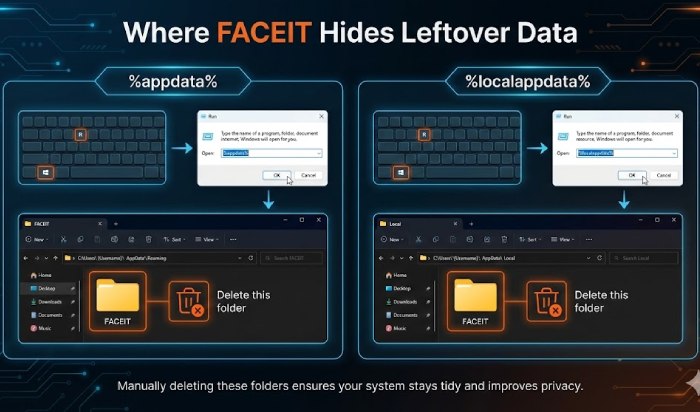
Once the main uninstall is done, you can clean up FACEIT’s leftover folders and disable any startup entries that remain.
Delete FACEIT Folders in AppData and Program Files
-
Press Windows + R, type
%appdata%, and press Enter. Delete any FACEIT folder you see. -
Press Windows + R again, type
%localappdata%, and delete any FACEIT folders there too. -
Open C:\Program Files and C:\Program Files (x86); remove any leftover FACEIT directories.
These folders store configuration files, logs, and caches that uninstallers commonly leave behind.
Disable FACEIT from Startup
-
Press Ctrl + Shift + Esc to open Task Manager.
-
Go to the Startup tab.
-
If a FACEIT entry is listed, right‑click it and choose Disable.
Disabling here is safer for most people than editing startup registry keys by hand and usually stops any lingering auto‑start behavior.
Layer 3: Advanced Fixes for Stubborn Issues
Use this layer only if you still see errors, FACEIT entries that won’t go away, or blue screens that mention FACEIT or its driver.
“Repair Then Uninstall” Trick
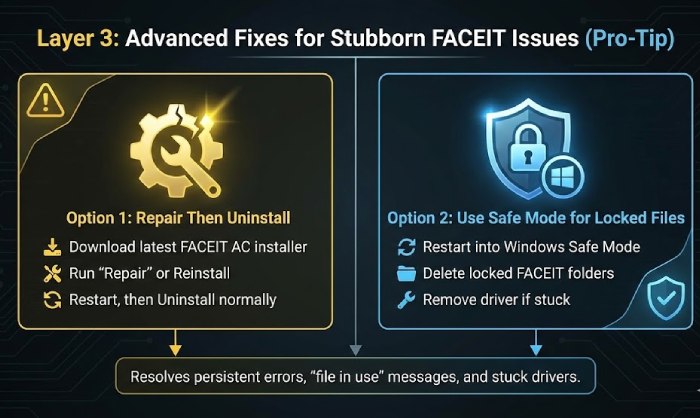
If uninstall fails or FACEIT doesn’t appear to remove cleanly, a common workaround is:
-
Download the latest FACEIT client and Anti‑Cheat installer, run it, and complete the installation or repair.
-
Restart your PC.
-
Repeat the normal uninstall steps from Settings → Apps for both the client and Anti‑Cheat.
This can restore a broken uninstaller so Windows can remove FACEIT properly.
Use Safe Mode for Locked Files or Blue Screens
FACEIT’s blue‑screen troubleshooting page specifically recommends using Safe Mode to remove Anti‑Cheat if your system cannot boot normally.
-
Hold Shift while clicking Restart in the Start menu.
-
Choose Troubleshoot → Advanced options → Startup Settings → Restart.
-
Press the key for Safe Mode.
-
In Safe Mode, confirm FACEIT and FACEIT Anti‑Cheat are gone from Settings → Apps and delete any leftover FACEIT folders in Program Files or AppData.
Safe Mode loads a minimal set of drivers, which makes it easier to delete files that were locked during normal boot.
You can also follow Microsoft’s official instructions for starting your PC in Safe Mode if any of the menu names look different on your version of Windows.
Remove a Stuck FACEIT Service (Advanced)
Some users report that a FACEIT service stays registered even after uninstall. Only do this if you are comfortable editing system services:
-
Press Windows + R, type
services.msc, and press Enter. -
Find any service with FACEIT in its name or description and double‑click it.
-
Note the Service name (the internal name).
-
Open Command Prompt as administrator and run:
-
sc delete <ServiceName>
-
Replace <ServiceName> with the exact internal name you recorded. Deleting the wrong service can break other software, so double‑check the name first; if you want more detail on the command itself, see Microsoft’s reference for the sc delete command.
Editing services and using command‑line tools is easy to get wrong, so only proceed if you’re confident in what you’re doing.
If not, stop at Layer 2; for most people, the standard uninstall and leftover file cleanup are all that’s needed.
Third‑Party Uninstaller or System Restore (Last Resort)
If Windows still thinks FACEIT is installed but no uninstaller works, general Windows repair guides suggest two last‑resort options:
-
Use a reputable third‑party uninstaller to remove the broken FACEIT entry and leftover registry keys.
-
If the uninstall coincided with serious system problems, consider using System Restore to roll back to a point before FACEIT was installed, if restore points exist.
These options are best for advanced users or when guided by a technician.
Note for Mac Users
This guide focuses on Windows, where FACEIT Anti‑Cheat and most competitive play take place. On macOS, you can generally:
-
Drag the FACEIT app from Applications to the Trash.
-
Remove any leftover FACEIT folders from ~/Library/Application Support and ~/Library/Preferences.
Check FACEIT’s help center or macOS‑specific guides if you need more detailed Mac instructions.
Optional: Delete Your FACEIT Account and Personal Data
Uninstalling FACEIT from your computer does not delete your account, ELO, or stored personal details. If you’re leaving the platform entirely, you may want to deactivate your account or request GDPR data deletion.
Deactivate vs GDPR Deletion

-
Deactivate account: FACEIT’s help center offers a deactivation option that makes your account inactive but keeps data in case you return.
-
GDPR deletion: To erase personal data, FACEIT’s GDPR article says you must submit a deletion request via the support form, choose the relevant GDPR/data removal option, and verify your identity (for example, with name and ID).
According to FACEIT’s GDPR FAQ, there is a 30‑day period where you can withdraw the deletion request; after that, personal data is anonymized and the account can no longer be used normally.
Conclusion
Uninstalling FACEIT from your computer is less about hacking deep into the registry and more about using the right steps in the right order.
By closing active processes, uninstalling both the client and Anti‑Cheat, cleaning leftover folders, and only using advanced tools when something is truly stuck, you can remove FACEIT without risking Windows stability.
If you also follow FACEIT’s GDPR deletion path, you are not just closing the app—you are deciding what happens to your FACEIT identity and stored data.
That combination of software cleanup and privacy control is what most quick uninstall guides skip, and it gives you full ownership of both your PC and your FACEIT footprint.
FAQs
1. Does uninstalling FACEIT Anti‑Cheat stop me from playing?
Yes. Without FACEIT Anti‑Cheat installed and running, you cannot queue for most FACEIT matches.
2. Why is FACEIT still in my startup apps after uninstall?
Windows can keep a startup entry even after the main program is removed; disable it via Task Manager → Startup tab → right‑click FACEIT → Disable.
3. Is FACEIT completely removed if I just delete its folder?
No. Deleting the folder alone can leave Windows thinking FACEIT is still installed but with no uninstaller; always uninstall from Settings → Apps / Control Panel first, then delete leftovers.
4. Is it safe to leave FACEIT installed if I don’t use it?
Generally yes; FACEIT Anti‑Cheat is built to protect matches, and its behavior and requirements are documented, but because it runs with elevated privileges, some users prefer to uninstall it when they’re not playing.
5. How do I delete my FACEIT account and personal data?
Uninstalling affects only your computer; to erase personal data, submit a GDPR deletion request through FACEIT support, verify your identity, and wait the 30‑day period before data is anonymized.
6. What if uninstalling FACEIT causes or doesn’t fix blue screens?
FACEIT’s blue‑screen guide recommends reinstalling Anti‑Cheat, then removing the driver in Safe Mode (for example from the FACEIT AC install directory) if Windows cannot boot; if crashes continue, check other drivers, disable overclocks, and contact FACEIT support.
Disclosure:
This guide is an independent, informational resource and is not affiliated with or endorsed by FACEIT. It was created using publicly available documentation, peer sources, and AI assistance, and is for informational purposes only; always follow these steps at your own risk and verify current uninstall and data‑deletion options in FACEIT’s official help center and privacy policy.
About the Author:
Abdul Rahman is a professional content creator and blogger with over four years of experience writing about technology, health, marketing, productivity, and everyday consumer products. He focuses on turning complex topics into clear, practical guides that help readers make informed decisions and improve their digital and daily lives.