
You are likely here because your Selenium tests are failing to find elements, or your locators keep breaking every time the UI changes. XPath will not magically fix every problem, but used correctly, it gives you a reliable way to point to “that exact thing” on a messy page.
While many tools exist, XPath in Selenium remains a top choice for automation developers because it allows for the efficient location of dynamic web elements—a critical requirement for modern, complex web applications.
In this guide, you will learn: what XPath really is, when to use it (and when not to), how to write simple and dynamic XPath, how to avoid brittle locators, and quick answers to common XPath questions.
Table of Contents
What exactly is XPath in Selenium?
XPath (XML Path Language) is a query language used to navigate through the HTML structure of a page. In Selenium, it is the most flexible locator strategy, allowing you to find elements based on their relationship to other elements or their specific text content.
1. Understanding the Syntax
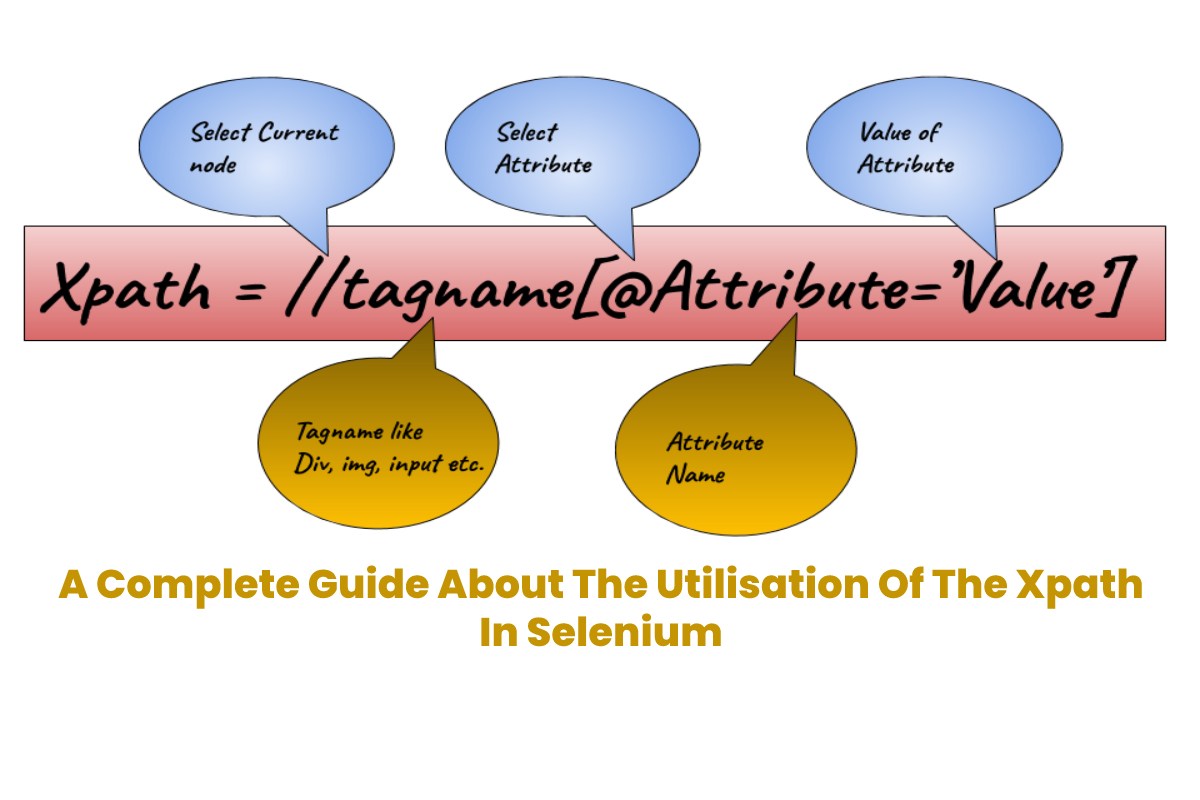
The basic anatomy of an XPath expression is: //tagname[@attribute='value']
-
//: Search the entire page (selection no matter where it is). -
tagname: The HTML element (e.g.,input,button). -
@attribute: The property you are looking for (e.g.,id,name).
Code Example (Java):
// Locating an email field by its ID attribute
WebElement emailField = driver.findElement(By.xpath(“//input[@id=’email’]”));
emailField.sendKeys(“test@example.com”);
When should you use XPath (and when should you not)?
Not every element needs a complex path. Following the industry-standard hierarchy of locator strategies helps keep your test suite fast and maintainable.
The Automation Hierarchy of Choice
| Priority | Locator Type | Why use it? |
| 1. Best | ID | Unique, fastest, and least likely to change. |
| 2. High | Name / Data-TestID | Custom attributes meant for automation. |
| 3. Good | CSS Selector | Cleaner syntax and faster performance than XPath. |
| 4. Last Resort | XPath | Use for text-based matches or complex tree navigation. |
Expert Habit: If you are writing an XPath that looks like a “train wreck” (e.g., //div/div/div/ul/li/a), it’s a signal to ask your developers to add a data-testid. This single habit can reduce your automation maintenance time by 50%.
Types of XPath: Absolute vs. Relative
Understanding the difference is the secret to writing tests that don’t break every time a developer moves a div.
| Feature | Absolute XPath | Relative XPath |
| Starts with | / (The root node) |
// (Anywhere in the DOM) |
| Example | /html/body/div[1]/form/input |
//form[@id='login']//input |
| Stability | Fragile. Breaks if any element moves. | Robust. Survives layout changes. |
| Usage | Avoid in professional tests. | The industry standard (99% of cases). |
Simple Patterns You Will Use Every Day
-
By Exact Attribute:
//button[@id='login']or//input[@name='password'] -
By Visible Text:
//a[text()='Forgot password?'] -
By Partial Attribute:
//button[contains(@class,'primary')]or//input[starts-with(@id,'user_')]
Using axes to reach “tricky” elements
Axes describe the relationship between elements, like parent, child, or sibling. This is essential when an element has no unique ID but is next to something that does.
-
Following-Sibling: Find an input next to a specific label:
//label[text()='Email']/following-sibling::input -
Parent/Ancestor: Find a container based on its child:
//span[text()='Price']/parent::div
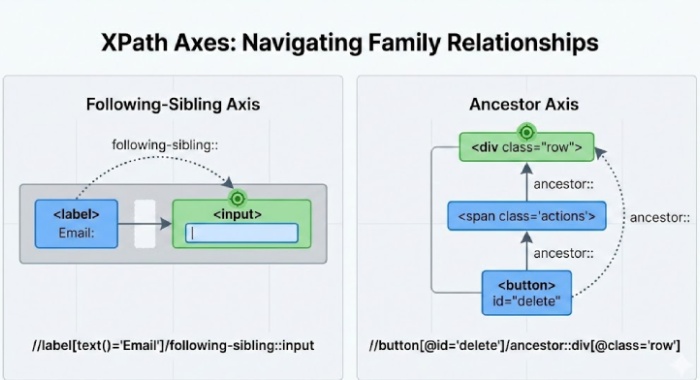 These let you handle UIs where the element itself has no helpful attributes, but something around it does.
The XPath Axes Cheat Sheet
When an element has no unique ID, use these “family” relationships to find it.
| Axis | Description | Example XPath |
parent:: |
Immediate parent of the node. | //span/parent::div |
ancestor:: |
All parents/grandparents up to root. | //input/ancestor::form |
following-sibling:: |
Elements at the same level after this one. | //label/following-sibling::input |
preceding-sibling:: |
Elements at the same level before this one. | //input/preceding-sibling::label |
descendant:: |
Selects all children and grandchildren. | //body/descendant::p |
Pro Tip: You can chain these! For example, //td[text()='User1']/parent::tr/descendant::button finds a “Delete” button located anywhere inside the same table row as the text “User1”.
Real pain points: why does my XPath keep breaking?
If your locator works in DevTools but fails in your test, you are likely facing one of these common issues:
-
The XPath is Too Long: Start from the nearest stable anchor and use a relative path.
-
Works in Browser, Fails in Selenium: This is usually a timing issue. Use Selenium Explicit Waits to ensure the element is loaded.
-
The Shadow DOM Trap: Standard XPath cannot “see” inside a Shadow DOM. If you see
#shadow-rootin DevTools, use CSS Selectors or JavaScript instead. -
Dynamic Attributes: Use
contains()to target the stable part of an ID (e.g.,id="btn_1738"→//button[contains(@id, 'btn_')]).
Bonus: Master XPath for Tables and Calendars
-
Finding a Table Row: Find a “Delete” button in the same row as “John Doe.”
//td[text()='John Doe']/parent::tr//button[@title='Delete'] -
Selecting a Calendar Date: Select “25” only within the active widget.
//div[contains(@class, 'datepicker-active')]//td[text()='25']
30-Second “Common XPath Mistakes” Checklist
-
Is it Absolute? If it starts with
/html, rewrite it as a Relative path (//). -
Missing the
@symbol? Attributes need the “at” sign:[@id='name']. -
Case Sensitivity: Remember that
text()='login'is not the same astext()='Login'. -
The “1 of 1” Rule: Test in DevTools. If it returns “1 of 5,” it isn’t unique enough.
-
Using
//inside a loop? Start with a dot (.//) to keep the search restricted to that specific element.
Conclusion: how to think about XPath
XPath in Selenium is not the hero or the villain; it is a specialized tool for hard‑to‑reach elements. Use simple locators first, save XPath for complex DOMs, write short and clear expressions, and validate them in the browser before committing them to your test suite.
If you follow these ideas, your tests break less when the UI changes and are easier for your future self and your teammates to understand.
FAQs
Q1. Is XPath always slower than CSS?
In modern browsers, the difference is negligible. Focus on readability and reliability first.
Q2. Can XPath handle dynamic IDs?
Yes, by using the contains() or starts-with() functions on the stable portion of the ID.
Q3. How do I handle iframes?
You must use driver.switchTo().frame() before your XPath can locate any elements inside that frame.