

When someone searches for “reportaproblem.apple.com login”, they are typically trying to reach Apple’s official Report a Problem page to sign in with their Apple ID — usually to view purchase history, report an issue, or request a refund.
Table of Contents
How to Sign In to Reportaproblem.apple.com and Use It
If you think you were charged for something you didn’t buy, want a refund, or need to check your Apple purchase history, the website reportaproblem.apple.com lets you do that by signing in with your Apple ID.
This page shows you where the official login is, what you’ll need, and how to use it safely.
What Report a Problem Is
reportaproblem.apple.com is Apple’s official web page for:
-
Seeing a list of your recent App Store, iTunes Store, Apple Books, and other Apple content purchases.
-
Reporting problems with purchases.
-
Requesting refunds for eligible purchases.
-
Checking the status of refund requests.
You must sign in with your Apple ID and password — the same credentials you use for iCloud, the App Store, and other Apple services.
⚠️ Important: This is not the place to reset your Apple ID password or contact Apple Support directly — but it is where you go to see purchases and refund requests once you’re signed in.
How to Reach the Correct Page— Step by Step
1. Open Your Web Browser
You can use Safari, Chrome, Firefox, or any modern, up-to-date browser.
2. Type the Address
In the address bar, enter:reportaproblem.apple.com
Make sure the domain is spelled correctly and starts with https:// — the “s” means it’s secure. A padlock icon in the browser bar also indicates a secure connection.
Step-by-Step: How to Log In
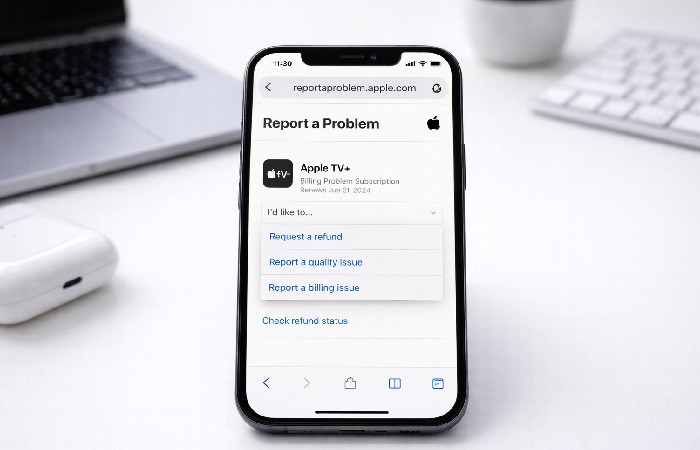
Once you’re on reportaproblem.apple.com:
-
Enter Your Apple ID Email
This is the email you use for Apple services. -
Enter Your Password
Make sure you type it correctly — passwords are case-sensitive. -
Complete Security Checks
If you have two-factor authentication (2FA) enabled, Apple will send a verification code to a trusted device or phone number. Enter this code when prompted. -
Wait for the Dashboard
After signing in, you’ll land on a page that lets you view recent Apple purchases and choose actions such as reporting a problem or requesting a refund.
You do not need any special codes or account numbers — just your Apple ID credentials and access to your device or phone number for verification if prompted.
What You Can Do After Signing In
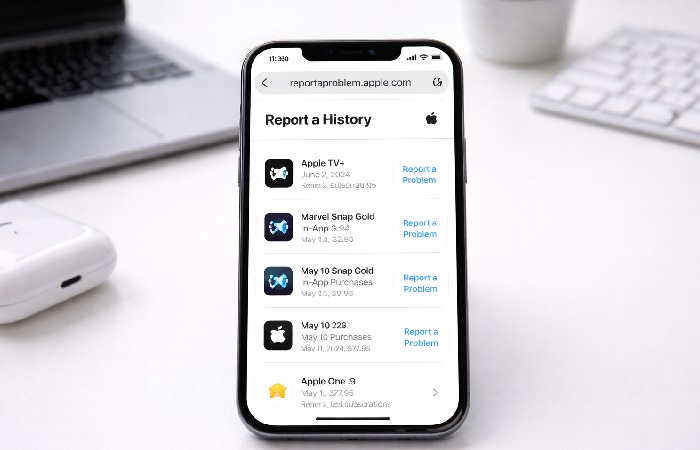
Once you’re logged in:
-
View Your Purchase History
You’ll see a list of apps, subscriptions, music, movies, and other content you’ve bought from Apple.
-
Report a Problem
Find the purchase you want help with and choose “Report a Problem.”
-
Request a Refund
In many cases, you can ask for a refund directly on this page. Choose “I’d like to” then “Request a refund.”
-
Check Refund Status
If you’ve already made a refund request, select “Check Status of Claims” to see whether it’s approved or pending.
What You’ll Need to Sign In
Before you start, make sure you have:
-
Your Apple ID email address
-
Your Apple ID password
-
Access to the device or phone number where Apple can send a verification code if 2FA is enabled
You do not need any special account number or billing statement before signing in — just your Apple ID credentials.
What to Do If You Can’t Sign In
If the page won’t let you log in:
-
Check Your Apple ID
Make sure your email address and password are correct. If you forgot your password, go to iforgot.apple.com to reset it using your Apple-verified recovery options.
-
Enable Two-Factor Authentication
If you use 2FA, make sure you have access to your trusted device or phone number to get the verification code.
-
Try a Different Browser
Sometimes switching browsers or clearing your browser’s cache can help.
-
Wait a Few Minutes and Try Again
Occasionally the server may be busy or unavailable temporarily (some users report errors saying the site isn’t processing requests).
If you still can’t sign in after several attempts, you can contact Apple Support for help with your account (not the purchase problem workflow itself).
Safety Tips for Using reportaproblem.apple.com
Your privacy and security are important. Here are a few quick safety tips:
Always Check the URL
Make sure the address in your browser is exactly:
This shows you’re on Apple’s official, secure domain. Avoid clicking similar links in emails or messages unless you’re sure they are from Apple. (Many phishing scams mimic this domain to steal credentials.)
Avoid Clicking Links in Unverified Emails
If you receive a message about a “charge” or “refund” that contains a link, don’t click the link directly. Instead, type reportaproblem.apple.com in your browser yourself.
Use a Strong Password
Make sure your Apple ID password is unique and strong. Avoid re-using passwords across multiple services.
Turn on Two-Factor Authentication
2FA helps protect your Apple ID from unauthorized access even if someone else knows your password.
When to Contact Apple Support
If you were unable to sign in due to account issues like forgotten password, compromised ID, or unauthorized access, contact Apple Support directly through the official support channels. They can guide you through account recovery or resolving issues with your Apple ID.
-
Go to support.apple.com/contact
-
Select your device or product
-
Choose Account & Billing or Apple ID
-
Follow the steps to reach chat or phone support
Note: If you don’t see the purchase or charge you are looking for after signing in, make sure you signed in with the correct Apple ID — some people have more than one Apple account tied to different email addresses.
FAQs
Q1. Is reportaproblem.apple.com the real Apple site for reporting problems?
Yes. It’s Apple’s official page for reviewing purchases and requesting refunds using your Apple ID — not a third-party or scam site. Look for https://reportaproblem.apple.com and a padlock in the browser bar before entering your login.
Q2. Do refund rules differ by region or country?
Yes. Eligible refund options and how long you have to request them can vary depending on local consumer protection laws and Apple Media Services terms for your country or region. Apple notes these regional differences in its support documentation.
Q3. Can I request refunds for App Store charges made in another country or region?
You need to sign in with the Apple ID used for that purchase. If the purchase was billed through a different Apple account or an alternate payment system outside your region’s App Store, you may need to check that account’s region-specific history.
Q4. How do I know if an email about an Apple bill or refund is legitimate?
Check the sender and domain carefully. Apple typically sends receipts from addresses like @apple.com, but phishing emails often mimic these. Don’t click email links; instead type reportaproblem.apple.com into your browser to sign in safely.
Q5. What languages and regions does reportaproblem.apple.com support?
The site adapts to many languages and regional settings based on your Apple ID’s country or language preferences, showing localized refund options and notifications. (Apple support pages and URLs reflect this international design.)
Q6. Can I check the status of a refund from anywhere?
Yes — once you’re signed in with your Apple ID, the “Check Status of Claims” option shows pending or completed refund updates regardless of where you’re located. Processing times and how refunds appear on statements can vary by payment method and region.
Key Takeaways
-
Clear Intent: This page satisfies navigational intent for users wanting the official Report a Problem login and refund path, minimizing confusion about phishing or scam sites.
-
AEO Benefit: By joining concise login steps with actionable refund instructions and safety notes, this content aligns with Answer Engine Optimization — directly answering common questions users actually search for (e.g., “reportaproblem.apple.com refund”, “is this real?”, “how to sign in on iPhone/Mac”).
-
Geographic Relevance: Regional refund eligibility and variations are acknowledged, helping content show up better for international users.
-
Safety Emphasis: Explicit safety tips about URLs and phishing build trust and reduce bounce/risk signals for search engines.
-
Structured for SEO: Short headings, clear steps, and FAQ schema-friendly Q&A support findability for key navigational queries tied to Apple billing and support tasks.
Conclusion
The term “Reportaproblem.apple.com login” generally means people want to reach Apple’s official Report a Problem page and sign in with their Apple ID so they can view their purchase history, report an issue, or request a refund.
To do this safely and effectively, go directly to https://reportaproblem.apple.com, enter your Apple ID credentials, and follow the on-screen steps to see your charges and use the available refund options. After signing in, you can choose “Request a refund” or “Check Status of Claims” based on what you need to do. Always verify the URL and avoid suspicious links to protect your account details.
Author Bio
Technologyford content is written to be practical and easy to understand across topics like health, technology, business, marketing, and lifestyle. Articles are based mainly on reputable, publicly available information, with human editors using AI tools only to help research, organise, and explain topics more clearly so the focus stays on real‑world usefulness rather than jargon or unnecessary complexity.
Disclaimer
This support content is based on publicly available information from Apple’s official documentation and user-oriented guidance as of the latest update. reportaproblem.apple.com and related processes (refund eligibility, purchase history access) may vary by geographic region and local consumer protection laws. Apple’s terms and site design can change, so always verify your experience directly on Apple’s official support site. This content is written to help users complete common navigational tasks safely and is not a substitute for legal or professional advice.