
Quick Answer
To reset your Xbox Live (Xbox Network) password, go to the official Microsoft password reset page at https://account.live.com/password/reset, choose “I forgot my password,” verify your identity with a code sent to your email or phone, and create a new password. You can do this from a browser, your Xbox console, or a mobile device. If you cannot receive verification codes, use the Microsoft account recovery form and provide as many accurate account details as possible.
📌 What You’ll Learn
-
How to reset your password on web, console, or mobile
-
What to do if you can’t access recovery options (email/phone)
-
Common error messages and what they actually mean
-
A quick troubleshooting block you can try before recovery
-
Steps to secure your account after resetting
Table of Contents
## What Is Xbox Live Password Reset?
Your Xbox login is tied to your Microsoft account, so “Xbox Live password reset” really means resetting your Microsoft account password, which also controls access to Xbox services. There is no separate Xbox‑only password system, and all official resets run through Microsoft’s account tools.
## 1) Reset Password via Web (Browser Method)
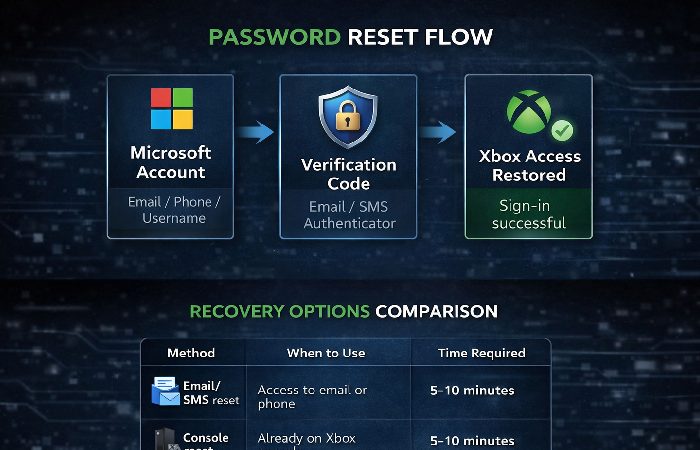
This is the standard method and works on PC, laptop, tablet, and mobile browsers and follows Microsoft’s own guidance for a forgotten Microsoft account password.
-
Visit the official reset page
-
Go to
https://account.live.com/password/reset.
-
-
Select “I forgot my password”
-
This starts the Microsoft account “forgot password” helper.
-
-
Enter your account details
-
Type the Microsoft account email or phone number that is linked to your Xbox profile.
-
-
Choose how to get your verification code
-
Select email or SMS (and follow any masking hints like
j***@gmail.comor******1234).
-
-
Enter the code and create a new password
-
Type the code you received and then enter your new password twice.
-
Make sure the password meets Microsoft’s rules (length and character requirements may be enforced).
-
This browser method works the same way on desktop and mobile browsers and is the most direct path for most users.
## 2) Reset Password on Xbox Console
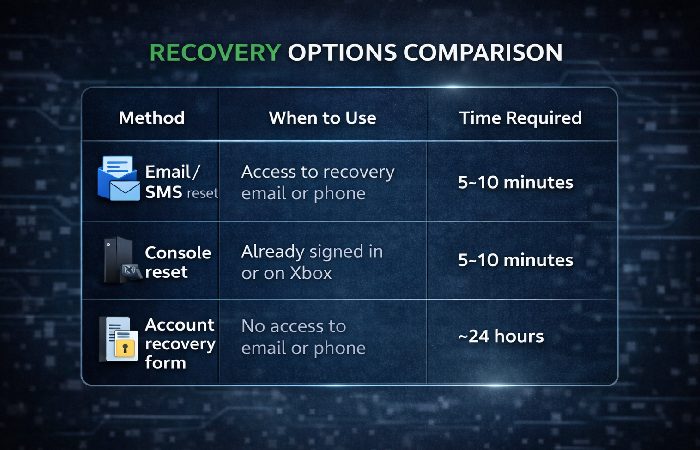
If you’re already on your Xbox and don’t want to switch devices, you can start the same reset process from the console.
-
Open the Xbox sign‑in screen
-
On your Xbox Series X/S or Xbox One console, go to the sign‑in prompt.
-
-
Select “I forgot my password”
-
Choose your Microsoft account and select the “I forgot my password” option to launch the reset flow.
-
-
Complete the CAPTCHA and pick verification
-
Enter the on‑screen characters to prove you’re not a bot and choose whether to get a code via email or phone.
-
-
Enter the code and set a new password
-
Use the code you receive to finish the reset, then sign in again with your new password.
-
Use this when you’re already at your console and have access to your email or phone on another device.
## 3) Reset via Mobile / Xbox App
You can reset your password using the Xbox app or any mobile browser.
-
Open the Xbox app or your phone browser.
-
Go to
https://account.live.com/password/reset. -
Follow the same steps as the browser method:
-
Select “I forgot my password,” enter your email/phone, choose a code method, verify, and create a new password.
-
## 4) What to Do If You Can’t Access Email or Phone
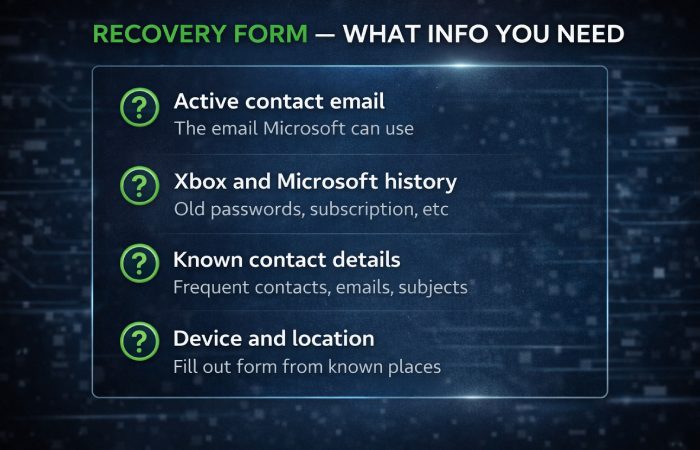
When you no longer have access to your recovery email or phone, normal reset options will fail. In this case, Microsoft provides an account recovery form that tries to verify you with extra information about how you’ve used the account, similar to what is described in Microsoft’s own guidance on the Microsoft account recovery form.
### How to Complete the Microsoft Account Recovery Form
-
Use a working contact email
-
You must enter an active email address so Microsoft can send you the result of your recovery request (this can be your own new email or a trusted friend/family member’s address).
-
-
Gather account details
-
Answer as many questions as possible with accurate information, for example:
-
Old passwords you remember using
-
Microsoft services you used (Outlook/Hotmail, Xbox, OneDrive, etc.)
-
Frequently contacted email addresses or message subjects
-
Xbox console hardware IDs or devices you used to sign in
-
-
The more correct detail you include, the better your chance of a successful recovery.
-
-
Submit from a familiar device or location
-
If you can, fill out the form from a device and internet connection you previously used with this account (this can help Microsoft’s systems trust the request more).
-
-
Wait for Microsoft’s response
-
Microsoft reviews submissions and usually sends a result within about 24 hours, though complex cases can take longer. The form currently allows up to two submissions per 24 hours, and each new submission overwrites the previous one, so take time to gather accurate details before you re‑submit.
-
If your request is declined, wait for a full 24‑hour window, then try again with more precise information instead of sending many forms back‑to‑back in a short time.
-
Microsoft support cannot directly change your password or send you a special reset link; they can only guide you through these official tools.
When filling out the form, details like your Xbox Gamertag, console or device IDs, previous passwords, recent Xbox Game Pass or game purchases, and the last 4 digits plus billing postcode of a payment card on file can act as strong proof that you are the legitimate owner.
### Finding Your Xbox Console and Device IDs
When Microsoft asks for hardware details, these are the most important pieces of information:
- **Xbox Network Device ID / Device ID**: On Xbox Series X|S or Xbox One, go to Profile & system > Settings > System > Console info.
- **Console ID and Serial Number**: Also shown under Console info, and printed on a label on the back or bottom of the console.
- **If you can’t sign in**: Check the physical sticker on the console for the serial number, or visit your Microsoft account’s device page on another signed‑in device to view registered consoles.
## 5) Common Reset & Recovery Errors (Edge Cases)
Users often see the same few messages during reset and recovery.
-
❗ “Account doesn’t exist”
-
Usually means the email or phone entered is not linked to a current Microsoft account, or there is a typo.
-
Double‑check spelling, try known aliases, or confirm whether the account might have been closed.
-
-
❗ “Too many verification attempts” / “Too many requests”
-
This appears when many code requests or verification attempts happen in a short period.
-
Wait about 24 hours before trying again to allow the system to clear the temporary lock.
-
-
❗ No verification method works
-
Codes do not arrive, or they are not accepted.
-
First try clearing your browser cache, switching to a different browser/device, or using a private/incognito window.
-
If you still cannot receive or use codes, you may need to move on to the Microsoft account recovery form.
-
Repeated failed attempts can extend lockouts, so give the system time between tries instead of constantly resubmitting.
## 6) Quick Troubleshooting Block (Try These First)
Before you jump into the full recovery form, try these simple checks:
-
Look for verification codes in spam, junk, promotions, or “Other” folders.
-
Switch the verification method (for example, use SMS instead of email or vice versa).
-
Use a different browser or device if the reset page seems stuck or errors repeat.
These small changes fix many reset issues without a long recovery process.
## 7) After Reset: Secure Your Account
Once you regain access, take a few minutes to harden your account so you don’t have to repeat this process by following best practices similar to Microsoft’s tips to help keep your Microsoft account safe and secure.
For a broader view of how verification methods, recovery options, and account protection work together, this modern internet security guide explains the best practices that help keep online accounts secure beyond just password resets.
-
Update recovery info
-
Check that your primary email and phone number in Microsoft security settings are current and accessible.
-
-
Enable multiple verification methods
-
Add at least two options (for example, phone plus an authenticator app) so you’re not locked out if one method stops working.
-
-
Generate and store a Microsoft recovery code
-
Microsoft lets you create a one‑time 25‑digit account recovery code that can help if you lose access to other methods; store it offline in a safe place.
-
These steps make future resets easier and reduce the chance of losing your Xbox and Microsoft account access again.
If you run into ongoing sign‑in issues after a reset, Microsoft’s Sign‑in Helper tool can walk you through tailored troubleshooting for problems like locked accounts or unrecognized recovery info. Be aware that accounts left completely inactive for long periods may eventually be closed and become unrecoverable, so it’s worth signing in occasionally even if you do not play often.
## 8) Frequently Asked Questions
### Q: Can I reset my Xbox password without verification codes?
If you cannot receive codes to any email or phone on the account, your only route is to submit the Microsoft account recovery form and try to prove ownership with detailed information.
### Q: What if Microsoft says my recovery form failed?
You can try submitting the form again later with more complete and accurate details, and you may also contact Microsoft support for guidance on what kind of information to include, though they cannot override the system result.
### Q: How long does recovery take?
Most people receive an email response to their recovery form within about 24 hours, but some cases will take longer depending on the information provided and system checks.
### Q: What is the 25‑character Microsoft recovery code?
It’s a one‑time backup code you generate in your Microsoft security settings and store offline. If you lose access to email and phone, you can use this code once to prove ownership and reset your password.
### Q: Will resetting my password affect my games or saves?
Resetting your Microsoft account password does not delete games, achievements, or saved data; it only changes how you sign in.
Author Bio
TechnologyFord is an independent technology blog focused on making complex digital topics—such as Xbox and Microsoft account security, gaming platforms, and everyday troubleshooting—simple and practical. Articles draw on official documentation, reputable industry sources, and AI‑assisted research to provide clear, step‑by‑step guidance that’s easy for non‑technical users to follow.
Disclaimer
This guide is for general educational purposes and is not official Microsoft or Xbox advice. Always confirm critical steps on Microsoft’s official support pages, and never share your passwords or security codes with anyone.