
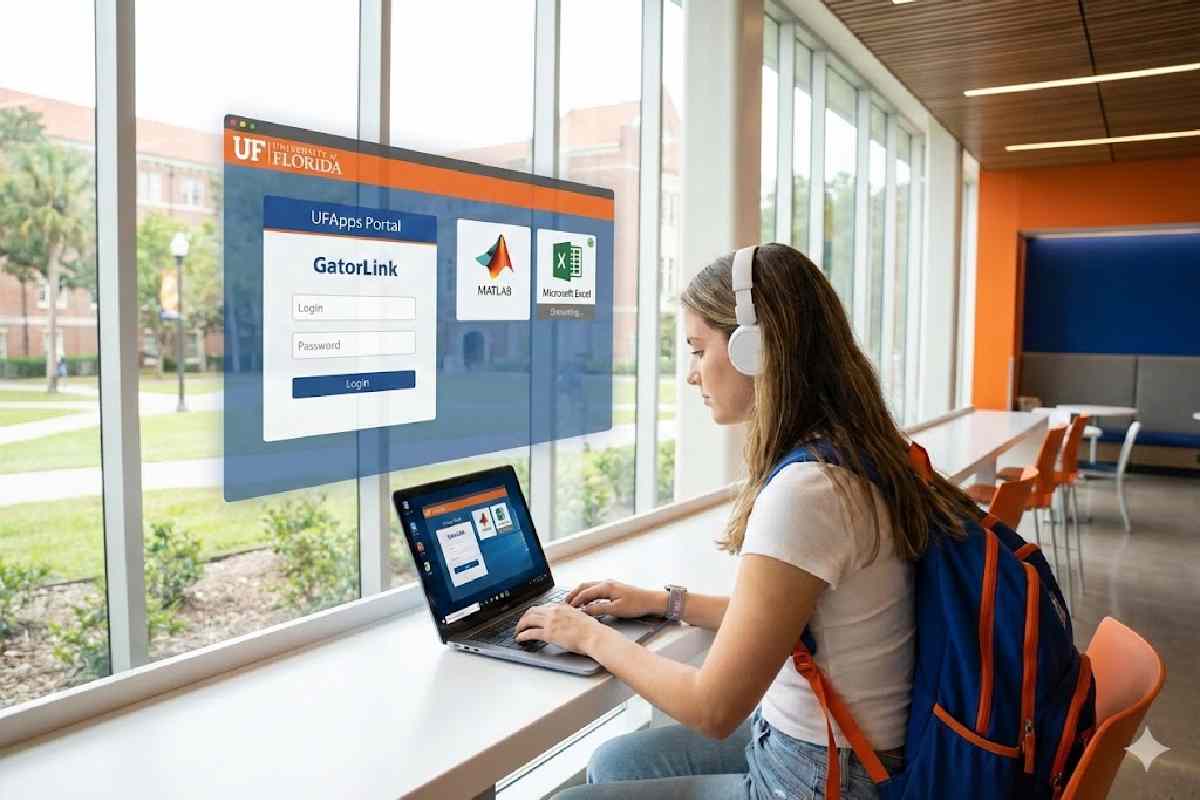
You sit down to finish a MATLAB lab or run SPSS…and instead get hit with lag, random errors, or files that seem to vanish. UFApps is supposed to feel like a campus lab PC you can reach from your dorm or apartment, not another obstacle between you and your deadline.
UFApps is the University of Florida’s virtual application platform that lets students and faculty stream Windows-based academic software from UF servers to almost any device — laptops, desktops, tablets, and phones — without installing it locally. The service is managed by UF Information Technology (UFIT) and uses virtualization to provide secure, on‑demand access to class software wherever you have a solid internet connection.
Table of Contents
Quick Answers to Common UFApps Problems
“UFApps is painfully slow — how can I speed it up?”
-
Initial application launches take longer because your virtual environment is being prepared; after the first run, the same apps usually open faster.
-
A stable, fast internet connection matters more than having a powerful laptop, because all the compute happens on UF’s servers, not your device.
-
For heavy tools like MATLAB, ArcGIS, large SAS jobs, or big SPSS datasets, use the VMware Horizon Client instead of just a browser; it generally delivers smoother performance and better responsiveness.
“I saved my file, but now it’s gone — what did I do wrong?”
-
Inside UFApps, the M: drive is your persistent workspace; files saved only to the virtual desktop, temp folders, or random local paths can disappear when the session ends.
-
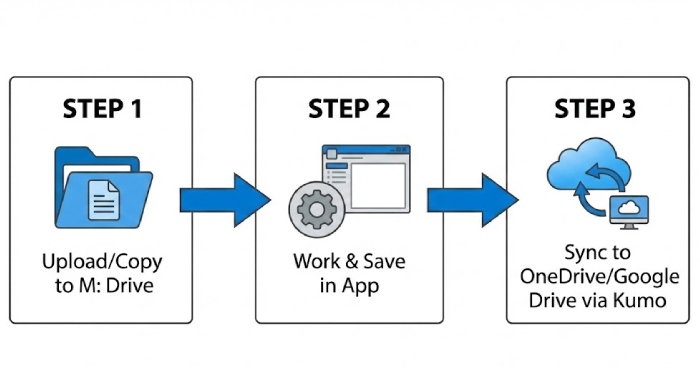
The officially recommended workflow is to store active work on the M: drive during your session and keep long‑term copies in OneDrive or Google Drive via Kumo, which UF highlights as preferred cloud storage for UFApps.
Safe file workflow:
-
Copy the files you need into the M: drive at the start of your session.
-
Open and work from M:, saving regularly.
-
When you’re done, back up final versions to UF OneDrive or Google Drive using Kumo so they’re safe and accessible outside UFApps.
“Apps won’t launch or I see weird errors — what now?”
-
Make sure your browser allows pop‑ups from the UFApps site, since blocked pop‑ups can prevent applications from launching.
-
If an app refuses to open, switch browsers (Chrome/Firefox/Edge), or flip between browser access and the Horizon Client; this solves many launch issues UF lists in its UFApps troubleshooting FAQ.
-
If problems persist, check the official UFApps troubleshooting page for app‑specific guidance on launching applications and handling error messages.
“Duo or login keeps failing — how can I actually get in?”
-
Confirm that your Duo method (push, SMS code, phone call) is active and that your phone has network access when you try to log in.
-
In a browser, clear cookies and cache or try an incognito window, then go back to the UFApps portal and sign in again with GatorLink and Duo.
-
In the Horizon Client, fully close the client and reconnect to
portal.apps.ufl.edu; if you still cannot sign in, UFIT’s Help Desk and the main UFApps FAQ hub are the next stops.
What UFApps Is and Why It Matters
UFApps gives you remote access to a large catalog of academic and productivity software for coursework, projects, and research — whether you are on campus, in an off‑campus apartment, or traveling.
Instead of installing and configuring dozens of specialized tools on your own device, you run them virtually through UFApps with UFIT handling licensing, updates, and compatibility.
This setup is especially useful in programs that depend on high‑end or licensed tools like MATLAB, SAS, SPSS, QGIS, RStudio, and JetBrains IDEs, which UF lists among its published UFApps applications for students and faculty.
It also creates a more consistent lab‑like environment across different devices so your homework setup matches what instructors and lab computers expect.
How to Access UFApps
Option 1 — Web Browser (Quick and Easy)
Use browser access when you want the fastest entry or are on a shared/locked‑down machine.
-
Open a modern browser such as Chrome, Firefox, Edge, or Safari.
-
Go to the UFApps portal at
portal.apps.ufl.edu, where UF’s first‑time use guide lets you choose between web and client access. -
Choose Horizon HTML Access for browser‑based UFApps.
-
Log in with your GatorLink credentials and verify with Duo multi‑factor authentication.
-
Click the application or virtual desktop you need and wait for it to load.
Browser access works on almost any internet‑connected device and is ideal for quick edits, light apps, or times when installing software is not possible.
Option 2 — VMware Horizon Client (Better Performance)
Use the Horizon Client when you expect long sessions, larger datasets, or graphics‑intensive tools.
-
From the UFApps portal, download the VMware Horizon Client for Windows or macOS.
-
Install it on your computer following the prompts.
-
Open the client and add the server
portal.apps.ufl.eduto connect. -
Log in with your GatorLink username, password, and Duo verification.
-
Launch your UFApps desktop or specific applications from within the client.
UF and VMware documentation both highlight that the full client can provide better graphics and responsiveness than HTML access, especially over solid networks. For many students, the Horizon Client feels closest to sitting at a physical campus lab machine.
What You Can Run in UFApps
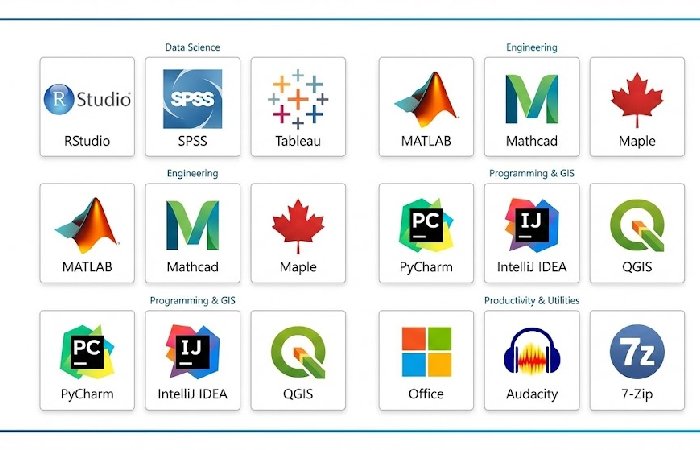
UFApps hosts a broad set of academic tools across disciplines, documented on UF’s published applications list. Examples include:
-
Math & Engineering: MATLAB, Mathcad, Maple, Wolfram Mathematica.
-
Programming & Development: JetBrains IDEs (PyCharm, CLion, IntelliJ), RStudio, Python tools.
-
Statistics & Data: SAS, SPSS, Tableau Desktop & Prep.
-
GIS & Mapping: QGIS Desktop and supporting utilities.
-
Productivity & Utilities: Microsoft Office apps, Audacity, VLC Media Player, 7‑Zip, FileZilla, and more.
Some applications carry special permissions or licensing notes, which UF flags in the regular applications catalog, so always double‑check there if you cannot see a tool you expect.
Browser vs Client: Which Should You Use?
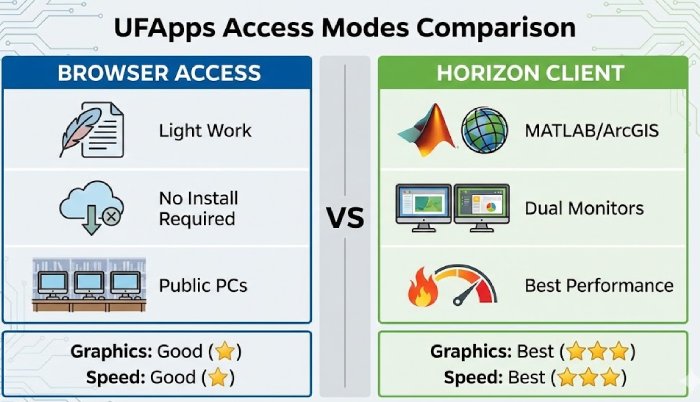
You can think of UFApps access modes like two doors into the same virtual lab.
When browser access makes sense:
-
You just need quick access for a homework edit or small dataset.
-
You are on a shared, lab, or library computer where you cannot install software.
-
You are using a tablet or Chromebook for light tasks.
When the Horizon Client is the better choice:
-
You are working with heavy software such as MATLAB, SAS, or ArcGIS.
-
You expect to keep a session open for a long time or use multiple monitors.
-
You want the smoothest graphics and overall performance your network can support.
In practice, many students keep browser access as a backup and rely on the Horizon Client as their main entry point for anything graded or complex.
Working With Files, M: Drive, and Cloud Storage
The biggest “gotcha” with UFApps is saving files in places that do not persist or are hard to find later.
The M: Drive — Your UFApps Workspace
UF’s documentation strongly recommends using the M: drive as your primary workspace while you are actively working on files in UFApps. The M: drive lives in a UF data center and is designed to be quickly accessible from UFApps sessions so your files are there the next time you log in.
Best practices:
-
Treat M: as your default “working folder” for any project you open in UFApps.
-
Periodically clean up old or unneeded files, since storage is not unlimited and keeping only current work there improves performance.
Cloud Storage via Kumo — Long‑Term Safety
For long‑term storage and access across devices, UF recommends using OneDrive @ UF and Google Drive rather than treating the M: drive as permanent storage. The Kumo integration for UFApps lets you map OneDrive and Google Drive into your virtual environment so they appear like drives alongside M:, similar to the way other universities describe Kumo cloud storage mapping for virtual lab environments.
Typical workflow:
-
Link your UF OneDrive and Google Drive accounts in the Kumo portal, which UF explains in its Kumo help pages.
-
In UFApps, open the desktop or app and you will see mapped cloud drives (for example W: for OneDrive) in addition to M:.
-
Save final or important files to those cloud drives so you can open them later from your own device without logging back into UFApps.
If you need to pull files directly to your PC or Mac, UF’s saving to your computer from the desktop client instructions show how to use the Z: drive and file‑sharing options in Horizon to move content off UFApps.
Performance Tips That Actually Help
UF’s own usage notes and troubleshooting pages confirm that some slowdown is expected, especially on first launch, but a few habits make a big difference.
-
Expect a slower first start for each app; the virtual environment is spinning up, but subsequent launches are usually noticeably faster in the same session.
-
Use wired Ethernet or the strongest Wi‑Fi you can, since latency and packet loss have more impact than your laptop’s CPU once you are in UFApps.
-
Use the Horizon Client for heavy, graphics‑intensive apps or big data; VMware and UF both point to the full client for optimal performance under supported settings, and VMware’s own Horizon performance best practices guide explains why the native client usually delivers a smoother experience.
-
Close extra browser tabs, streaming apps, or bandwidth‑intensive services on your device so your network connection to UFApps stays as clean as possible.
Troubleshooting: Launch, Files, and Login
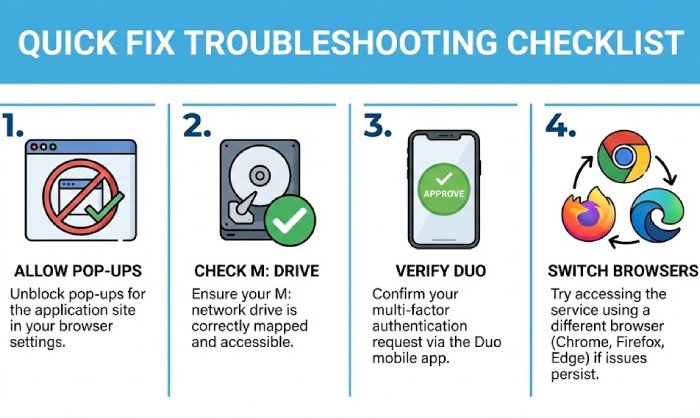
The UFApps troubleshooting section groups most common issues into categories such as launching applications, opening and saving files, and registration pop‑ups.
Launch issues:
-
Allow pop‑ups in your browser for UFApps URLs and make sure any script‑blocking extensions are disabled for the portal.
-
Try a different browser, or switch between web access and the Horizon Client if a specific mode keeps failing.
File issues:
-
Ensure the Horizon Client has permission to access local drives if you plan to move files between your computer and UFApps; UF’s file‑access guide explains how to adjust these settings.
-
Save active work to the M: drive and mapped cloud storage instead of temporary folders or only the virtual desktop, following the saving guidance in the UFApps files FAQ.
Login and Duo problems:
-
Confirm Duo factors are working and that your phone or hardware token is available with network access.
-
Clear browser cache or restart the Horizon Client if you see stale sessions, then relaunch UFApps from the portal.
-
If you still cannot resolve it, the UFApps FAQ hub and UFIT Help Desk can walk you through account, MFA, and access issues.
UFApps vs Local Installs: When to Use What
Use UFApps when:
-
Your machine is older, low‑spec, or not running Windows.
-
You need course software that is only licensed through UF and already configured by UFIT.
-
You want your setup to match campus labs and instructor expectations closely.
Use local installs when:
-
You need to work offline, such as on a plane or without reliable internet.
-
You require maximum performance from your own hardware.
-
You want deep customizations not supported in UF’s centralized UFApps image.
For many students, a hybrid approach works best: UFApps for structured coursework, exams, and shared lab environments, and local installs for personal projects or offline experimentation.
For a broader view of how technology choices affect day‑to‑day operations, you may also like this article on top tips on choosing the right technology for your business.
Final Call to Action
To make UFApps a tool, not a mystery:
-
Bookmark the UFApps portal so you can always reach your virtual lab quickly.
-
Review UF’s Using UFApps guide once to understand how M: drive, Kumo, and access modes fit together.
-
Skim the official UFApps FAQ and troubleshooting pages so you know where to look when something breaks five minutes before a deadline.
Once you know how to access UFApps, where to save, and what to do when things glitch, the platform becomes what it was meant to be: a virtual UF lab you can reach from almost anywhere.
Conclusion
Once you know how to log in, where to save, and when to use the browser or Horizon client, UFApps stops being a headache and becomes a reliable virtual UF lab you can reach from almost anywhere. Combine the M: drive for active work with OneDrive/Google Drive via Kumo for backups, and most “slow,” “missing file,” and “I can’t log in” problems become manageable instead of panic moments
Important UFApps FAQs
How do I access UFApps for the first time?
Go to portal.apps.ufl.edu, choose Horizon HTML (browser) or download the Horizon Client, then sign in with your GatorLink and Duo as outlined in UF’s first‑time use guide.
Which is better: browser or VMware Horizon Client?
Use browser access for quick, light tasks and shared machines; use the Horizon Client for longer sessions, heavy apps like MATLAB or SAS, and the best performance.
Where should I save my UFApps files so they don’t disappear?
Save work to the M: drive during your session, then copy important files to OneDrive or Google Drive via Kumo for long‑term, device‑independent access.
Why does UFApps feel slow the first time I open an app?
The first launch initializes your virtual environment, so it’s slower; later launches in the same environment are typically much faster.
What should I try if an app won’t launch?
Allow pop‑ups, switch browsers, or switch between browser and Horizon Client, then check UF’s troubleshooting page for app‑specific guidance.
How can I fix Duo or login failures with UFApps?
Verify your Duo method and network, clear browser cache or restart the client, and, if issues persist, follow the login steps in the UFApps FAQ or contact UFIT Help Desk.