
Table of Contents
Summary
- What is PDFBear? → A free online PDF tool offering conversion, editing, merging, compressing, and more.
- Is it free? → Yes — with a Pro plan at around $4.99/month or ~$45.99/year (pricing may vary; confirm on pdfbear.com).
- Best use case? → Quick PDF conversions and management without installing any software.
- Is it safe? → Files are encrypted in transit and are auto-deleted from servers about 60 minutes after processing, with longer storage only if you choose cloud saving on a Pro account.
- Who should use it? → Students, remote workers, and small business users with occasional-to-moderate PDF needs.
What Is PDFBear File Converter?
How PDFBear Works
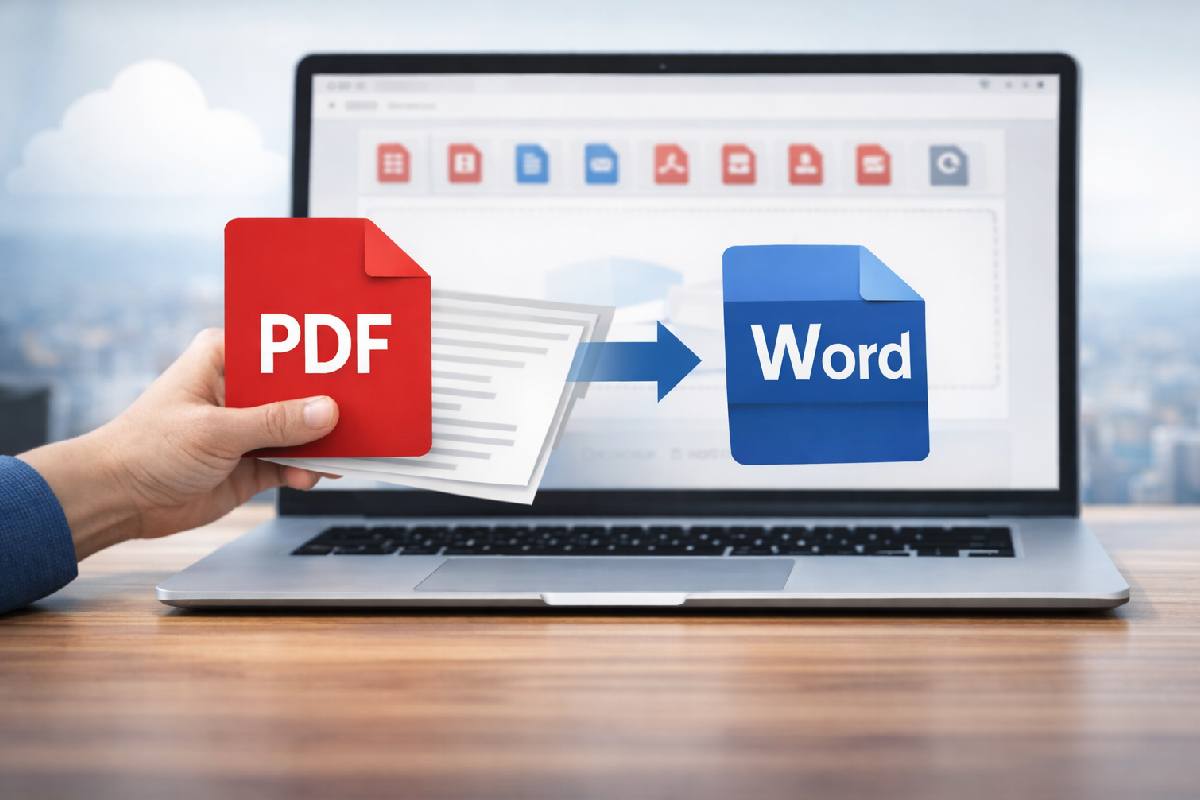
- Visit pdfbear.com and select a tool (e.g., “PDF to Word”).
- Upload your file via drag-and-drop or file browser.
- PDFBear processes the conversion on its secure servers.
- Download the converted file.
- Your uploaded file is automatically deleted from PDFBear’s servers within 60 minutes.
Key Features of PDFBear
PDF Conversion Tools
- Word (DOCX) to PDF
- Excel (XLSX) to PDF
- PowerPoint (PPTX) to PDF
- JPG / PNG / BMP / TIFF / GIF to PDF
- HTML to PDF
- PDF to Word
- PDF to Excel
- PDF to PowerPoint
- PDF to JPG / PNG
PDF Editing and Annotation
- Add and edit text directly within a PDF
- Insert, resize, and reposition images
- Add shapes, highlights, underlines, and sticky notes
- Fill interactive PDF forms
- Add electronic signatures (eSign)
- Redact sensitive content permanently
You can also edit PDF files directly in your browser using PDFBear’s dedicated edit tool, which lets you remove pages and make quick changes without installing any software.
Merge, Split, and Compress
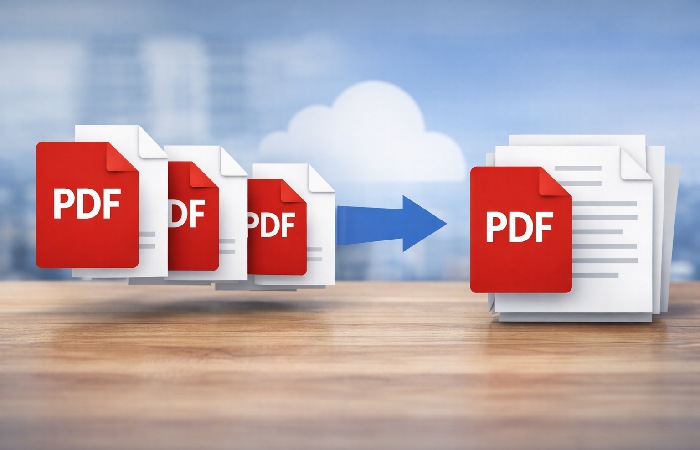
- Merge PDF: Combine multiple PDF files into one with drag-and-drop reordering.
- Split PDF: Divide large PDFs into individual pages or specific page ranges.
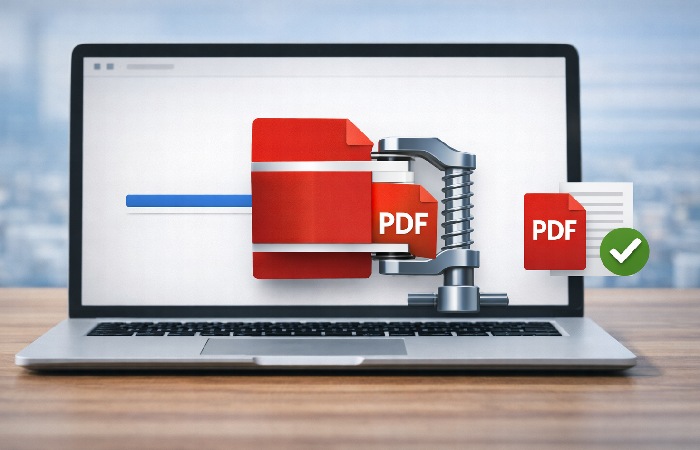
- [Compress PDF files](https://[your-site]/compress-pdf/): Reduce file size while preserving readable quality — ideal for email attachments or web uploads.
- Delete Pages: Remove specific pages from a PDF.
- Rotate Pages: Correct orientation for individual or all pages.
Security and eSignature Features
- Password Protect PDF: Add encryption to restrict access.
- Unlock PDF: Remove password protection (requires the existing password).
- eSign PDF: Add legally acceptable [digital signatures](https://[your-site]/esign-pdf/).
- Watermark PDF: Add custom text or image watermarks.
PDFBear Free vs. Pro — What’s the Difference?

| Feature | Free Plan | Pro Plan around $4.99/mo |
|---|---|---|
| PDF Conversion | ✅ (daily caps apply — see pdfbear.com for current limits) | ✅ Unlimited |
| Merge & Split | ✅ (daily caps apply) | ✅ Unlimited |
| Compress PDF | ✅ | ✅ |
| Edit PDF | ✅ | ✅ |
| eSign PDF | ✅ | ✅ |
| OCR (text recognition) | ❌ | ✅ |
| Batch processing | ❌ | ✅ (up to 50 files) |
| File upload size | Limited | Up to 2GB |
| Cloud storage | ❌ | ✅ Cloud file manager for saved documents (marketed as unlimited) |
| Ads | Yes | No |
| Processing speed | Standard | High-speed |
| Customer support | Basic | Priority |
Should you upgrade to PDFBear Pro?
- Convert PDFs more than 3–4 times per week? → **Upgrade**
- Need OCR or batch processing (50+ files)? → **Upgrade**
- Only need PDFs a few times a month? → **Stay on free**
- Handling highly sensitive documents regularly? → **Consider a desktop-only tool instead**
How to Use PDFBear to Convert a File (Step-by-Step)
- Step 1: Go to pdfbear.com and click **”PDF to Word”** from the tool menu.
- Step 2: Click **”Select File”** or drag and drop your PDF onto the upload area.
- Step 3: PDFBear uploads and begins processing your file. Wait for the progress bar to complete.
- Step 4: Once done, click **”Download”** to save the converted Word file.
- Step 5: Pro users can also save directly to PDFBear cloud storage for later access.
PDFBear vs. Competitors
| Feature | PDFBear | Smallpdf | iLovePDF |
|---|---|---|---|
| Free tier | ✅ (daily caps) | ✅ (2 tasks/day) | ✅ (limited) |
| Base Pro price | ~$5.99/mo | ~$9/mo | ~$6/mo |
| OCR | Pro only | ✅ | ✅ |
| Batch processing | Pro only | ✅ | ✅ |
| Desktop app | ❌ | ✅ | ❌ |
| Mobile app | ❌ | ✅ | ✅ |
| Cloud storage | Pro only | ✅ | Limited |
| Ease of use | ⭐⭐⭐⭐ | ⭐⭐⭐⭐⭐ | ⭐⭐⭐⭐ |
| Feature breadth | ⭐⭐⭐ | ⭐⭐⭐⭐⭐ | ⭐⭐⭐⭐ |
| Price-to-value | ⭐⭐⭐⭐⭐ | ⭐⭐⭐ | ⭐⭐⭐⭐ |
When to Choose PDFBear Over Alternatives
- You need straightforward core PDF tasks at the lowest cost.
- You don’t want to pay $9–$20/month for features you rarely use.
- You’re comfortable with a browser-only experience.
- Budget matters more than feature breadth.
Is PDFBear Safe to Use?

Encryption and File Deletion Policy
PDFBear secures file transfers using SSL/TLS encryption, similar to the 256-bit standards commonly used by banking and e‑commerce sites, and in line with general best practices described in NIST’s transport layer security guidelines.
According to PDFBear’s privacy policy, uploaded files are typically deleted from its servers about 60 minutes after processing, while Pro users can optionally keep files longer in their PDFBear cloud file manager as part of the cloud storage feature.
For everyday business documents, invoices, research papers, or general contracts — this level of protection is usually reasonable.
Limitations to Know
- Online-only: Your file does leave your device for server-side processing. Not suitable for highly confidential materials.
- Ads on the free tier: Some users perceive the ad presence as a distraction or security concern.
- Customer support concerns: A small number of user reviews have reported slow support response times — worth knowing before committing to a long-term subscription.
- Lifetime plan reliability: Some users have reported issues with lifetime subscriptions not functioning as expected. Monthly or annual plans are the safer choice.
Pros and Cons of PDFBear
| ✅ Pros | ❌ Cons |
|---|---|
| No software download required | Online-only — no desktop or offline option |
| Works on any OS and browser | Free tier has daily limits and ads |
| 20+ PDF tasks in one platform | Fewer advanced features vs. Smallpdf |
| Affordable Pro plan (~$5.99/mo) | Customer support quality concerns reported |
| Files auto-deleted within 60 minutes | Not ideal for highly confidential documents |
| Clean, easy-to-use interface | No dedicated mobile app |
| Unlimited cloud storage (Pro) | Lifetime plan reliability issues reported |
Who Should Use PDFBear?
Best For
- Students — Converting assignments, compressing files for submission, merging research PDFs.
- Remote workers and freelancers — Quick conversions without subscribing to enterprise tools.
- Small business owners — Managing invoices, contracts, and reports without heavy investment.
- Occasional users— Those who need PDF tools a few times per month, not daily.
- Budget-conscious users — Users wanting Smallpdf-level features at a lower price point.
Not Ideal For
- Enterprise teams — No team collaboration, advanced workflow integration, or admin controls.
- High-volume processors— Users converting hundreds of files daily may outgrow even Pro limits.
- Offline workers — No offline functionality; requires consistent internet access.
- Users handling classified or regulated data — A locally-installed tool is the correct choice here.
- Mobile-first users — No dedicated app; mobile browser experience may feel limited for frequent use.