
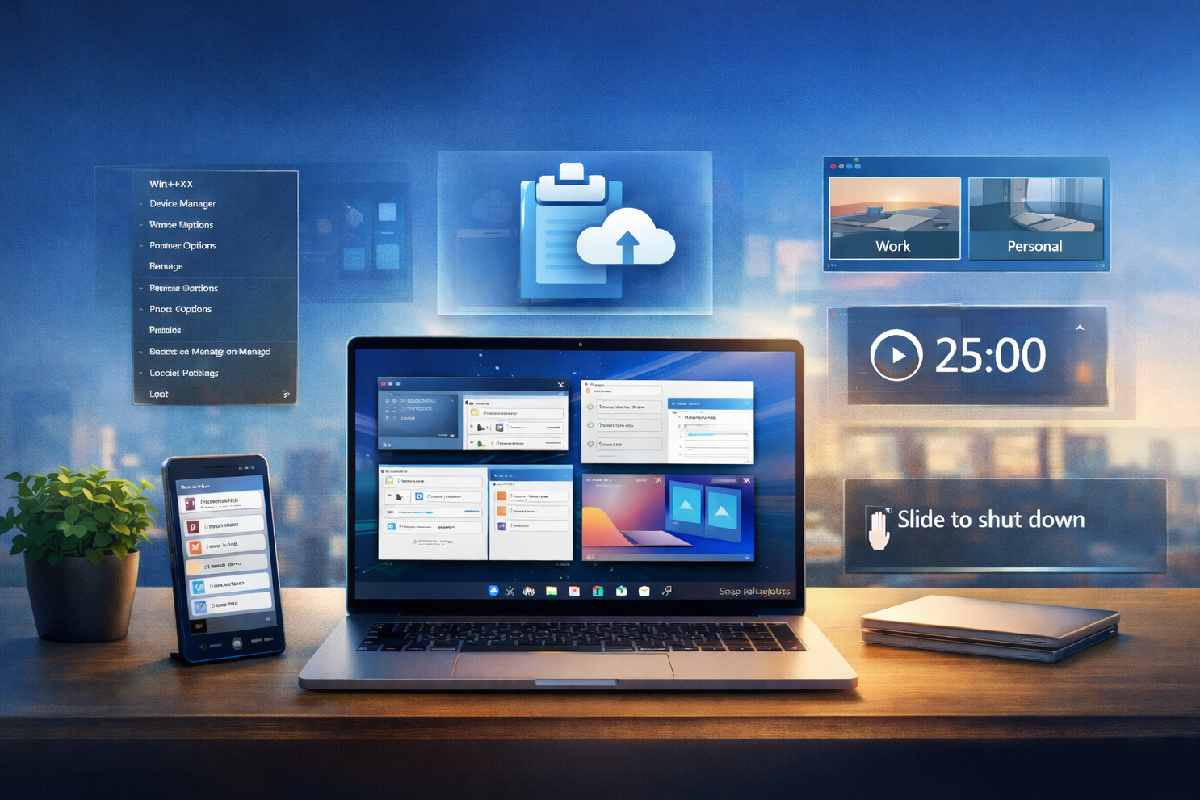
Windows 10 and Windows 11 power hundreds of millions of PCs worldwide. While most users rely on familiar tools like the Start menu, File Explorer, and Taskbar, both operating systems include official, built-in features that remain underused or misunderstood.
These are not hacks or third-party tweaks. They are supported Windows features designed to improve navigation, multitasking, and everyday productivity—but many users never discover them.
This guide explains what these hidden features are, how they work, and when they actually help, with clear steps and practical examples.
Table of Contents
Quick Answer
Windows 10 and Windows 11 include several powerful but often overlooked features—such as the Win+X (Secret Start Menu), Virtual Desktops, Cloud Clipboard, and Slide-to-Shut-Down—that can significantly improve productivity, multitasking, and system navigation when used correctly.
Key Takeaways
-
“Hidden” Windows features are official tools, not experimental or unsafe tweaks
-
Many productivity gains come from shortcuts and workflow features, not new apps
-
Most features work on both Windows 10 and Windows 11, with minor UI differences
-
Learning just a few of these tools can reduce clutter, save time, and simplify daily work
What Are “Hidden Features” in Windows?
Windows 10 and Windows 11 include built-in tools such as the Win+X menu, Virtual Desktops, Clipboard History (Cloud Clipboard), Snap features, Focus Assist, and Slide-to-Shut-Down that are not prominently displayed in menus.
Hidden features are built-in Windows tools that are not obvious in the default interface or are buried inside menus, shortcuts, or optional settings. They are:
-
Fully supported by Microsoft
-
Already installed on your system
-
Safe to use and reversible
They are “hidden” simply because Windows prioritizes simplicity for new users, leaving advanced or productivity-focused features out of plain sight.
Secret Start Menu (Win+X): Faster System Access
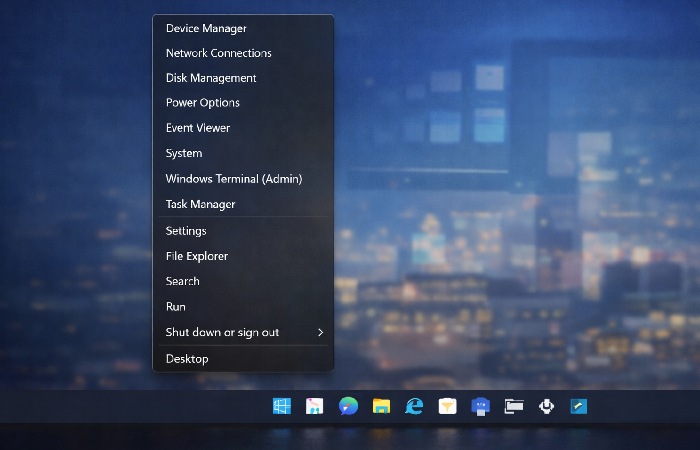
The standard Start menu focuses on apps and search. However, Windows also includes a text-based power menu designed for quick system access.
How to Open the Secret Start Menu
-
Right-click the Start button
-
Or press Windows key + X
What You’ll Find There
-
System
-
Device Manager
-
Disk Management
-
Power Options
-
Network Connections
-
Settings
-
Shut down / Restart
Why This Is Useful
Instead of navigating through multiple menus, Win+X provides direct access to system tools in one place. This is especially helpful when troubleshooting, managing devices, or adjusting power settings.
Virtual Desktops: Work Without Screen Clutter
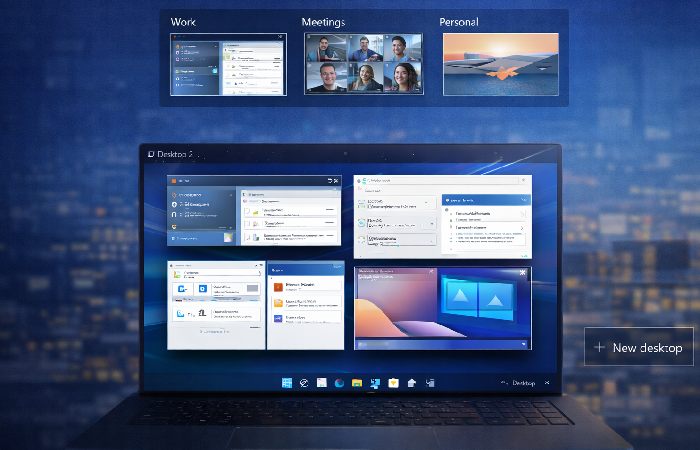
Virtual Desktops let you create multiple desktop environments on the same PC, each with its own apps and windows.
How Virtual Desktops Work
-
Open Task View (Windows key + Tab)
-
Click New Desktop
-
Move apps between desktops as needed
Practical Examples
-
One desktop for work apps (email, browser, documents)
-
One desktop for meetings or presentations
-
One desktop for personal use or entertainment
Why This Improves Productivity
Instead of minimizing dozens of windows, Virtual Desktops let you separate tasks mentally and visually, reducing distraction and improving focus.
Windows PCs are used by individuals and businesses all over the world, and many teams rely on Windows 10 and 11 every day for their internal work. Many organizations work with partners that provide ongoing support, such as IT support services in London, to help employees get more from these built-in tools. If you use your Windows machine for tasks like email, documents, calls, and remote collaboration, these lesser-known features can make your day-to-day workflow more straightforward and easier to organize.
Slide to Shut Down: A Hidden Windows Utility
Windows includes a small utility called SlideToShutDown.exe. It is not enabled by default, which is why many users assume it doesn’t exist.
What It Does
When launched, a panel slides down from the top of the screen. Dragging it fully down shuts down the PC.
When It’s Useful
- Touch-screen laptops and tablets
- Users who enjoy visual shortcuts
- Custom shutdown workflows
This feature is optional and not essential for productivity, but it highlights how Windows includes built-in utilities that are simply not exposed in menus.
Cloud Clipboard: Copy and Paste Across Devices
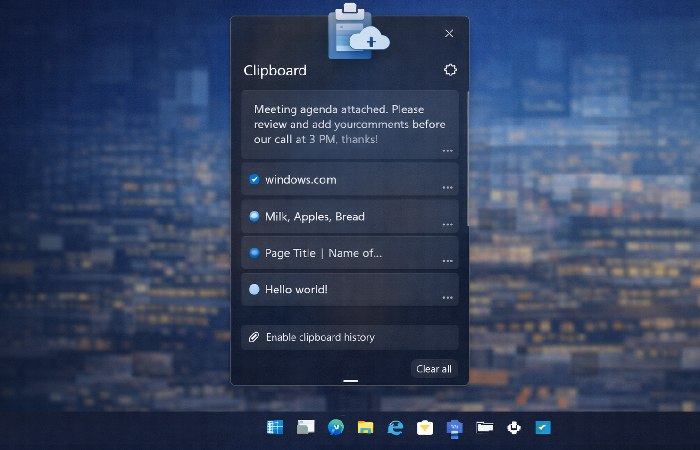
Copy-paste is one of the most used actions on any computer. Windows extends this with Clipboard History and Cloud Sync.
What Cloud Clipboard Can Do
- Store a history of copied text and images
- Let you paste older items anytime
-
Sync clipboard content across devices signed into the same Microsoft account when enabled, similar to how Microsoft describes cross‑device experiences in its Windows Clipboard documentation
How to Access It
- Press Windows key + V
When It’s Most Usefulf
- Working across a laptop and desktop
- Reusing snippets, links, or formatted text
- Avoiding repeated copy-paste actions
Clipboard sync is optional and can be disabled at any time in Settings.
Other Useful Windows Features Many Users Miss
Snap Layouts and Window Snapping
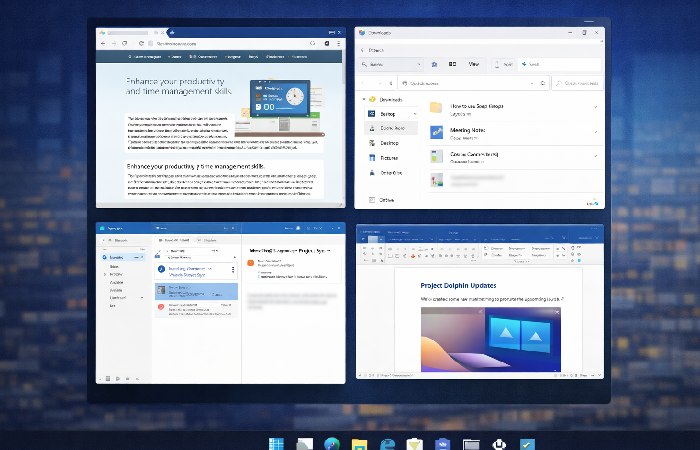
Snap features let you quickly arrange multiple windows without dragging and resizing everything by hand. On Windows 10, you can snap windows side‑by‑side or into corners using drag‑and‑drop or Windows key + Arrow keys. On Windows 11, hovering over the Maximize button opens Snap Layouts, which offer ready‑made grids for two, three, or four windows at once and are explained in more detail in Microsoft’s Snap layouts overview. This is especially helpful on large or ultrawide monitors, where you want a clear, repeatable layout for work, browsing, and communication.
Focus Assist
Focus Assist helps reduce interruptions by temporarily limiting notifications during meetings, presentations, or deep work sessions. You can enable it manually from the Action Center in Windows 10 or Quick Settings in Windows 11, or set automatic rules based on time, app usage, or display duplication. When configured properly, Focus Assist prevents pop-ups and alerts at critical moments without permanently disabling notifications.
Built-in Search Shortcuts
The Start menu search is one of the fastest ways to access system tools and settings. Instead of navigating through multiple menus, you can type terms like “Device Manager,” “Bluetooth,” or “Power & Sleep” directly into search and open them instantly. The same search box also locates apps, files, and system utilities, often making it quicker than browsing through folders or settings pages.
Focus Sessions (Windows 11)
Windows 11 introduces Focus Sessions through the Clock app, offering a simple, built-in way to work in timed focus blocks. You can set a duration, reduce notifications, and optionally connect tasks or background audio. This feature turns Windows into a lightweight productivity timer, helping reduce distractions without relying on third-party focus apps.
Comparison Table: Hidden Windows Features at a Glance
| Feature | Windows 10 | Windows 11 | Main Benefit | Setup Difficulty |
|---|---|---|---|---|
| Win+X Menu | Yes | Yes | Faster system access | Very Easy |
| Virtual Desktops | Yes | Yes | Better multitasking | Easy |
| Cloud Clipboard | Yes | Yes | Cross-device copy/paste | Easy |
| Slide to Shut Down | Yes | Yes | Touch-friendly shutdown | Medium |
| Snap Layouts | Limited | Enhanced | Window organization | Easy |
Common Mistakes and Misunderstandings
“Hidden features are unsafe”
False. These tools are official Windows components, not registry hacks.
“They slow down my PC”
Most of these features have no measurable performance impact when used normally.
“I can’t find them, so they must not exist”
Many features rely on keyboard shortcuts or optional settings, not visible buttons.
Final Thoughts
Windows 10 and Windows 11 are far more capable than they appear at first glance. Many productivity improvements come not from installing new software, but from learning the tools already built into the operating system.
By understanding and using these hidden features, you can work more efficiently, reduce clutter, and get more value from your Windows PC—without changing how you already use it.
FAQs
1) What hidden features are available in Windows 10 and Windows 11?
Windows 10 and 11 include built-in tools like the Win+X menu, Virtual Desktops, Clipboard History, Snap layouts, and Focus Assist that aren’t prominently shown in menus.
2) Are hidden Windows features official or experimental?
They are official, supported features developed and maintained by Microsoft, not experimental or beta tools.
3) Why are some Windows features hidden by default?
Windows hides advanced features to keep the interface simple for new users while still offering power tools via shortcuts and optional settings.
4) Do hidden Windows features work on all PCs?
Yes, if the PC meets Windows 10 or Windows 11 system requirements. Availability may vary slightly by version or build.
5) Are hidden Windows features safe for work or business PCs?
Yes, though some features (like cloud syncing) may restricted by company IT policies on managed devices.
Author Bio
TechnologyFord covers multiple categories such as gadgets, technology, and automation, publishing clear, helpful guides for everyday readers. Our content is created using publicly available information and AI assistance to keep it current, accurate, and easy to understand.
Disclosure
This article was created using publicly available, authoritative sources and official Microsoft documentation. AI assistance was used to help organize, verify, and simplify technical details, but all guidance is intended for general information only and not as professional advice.