
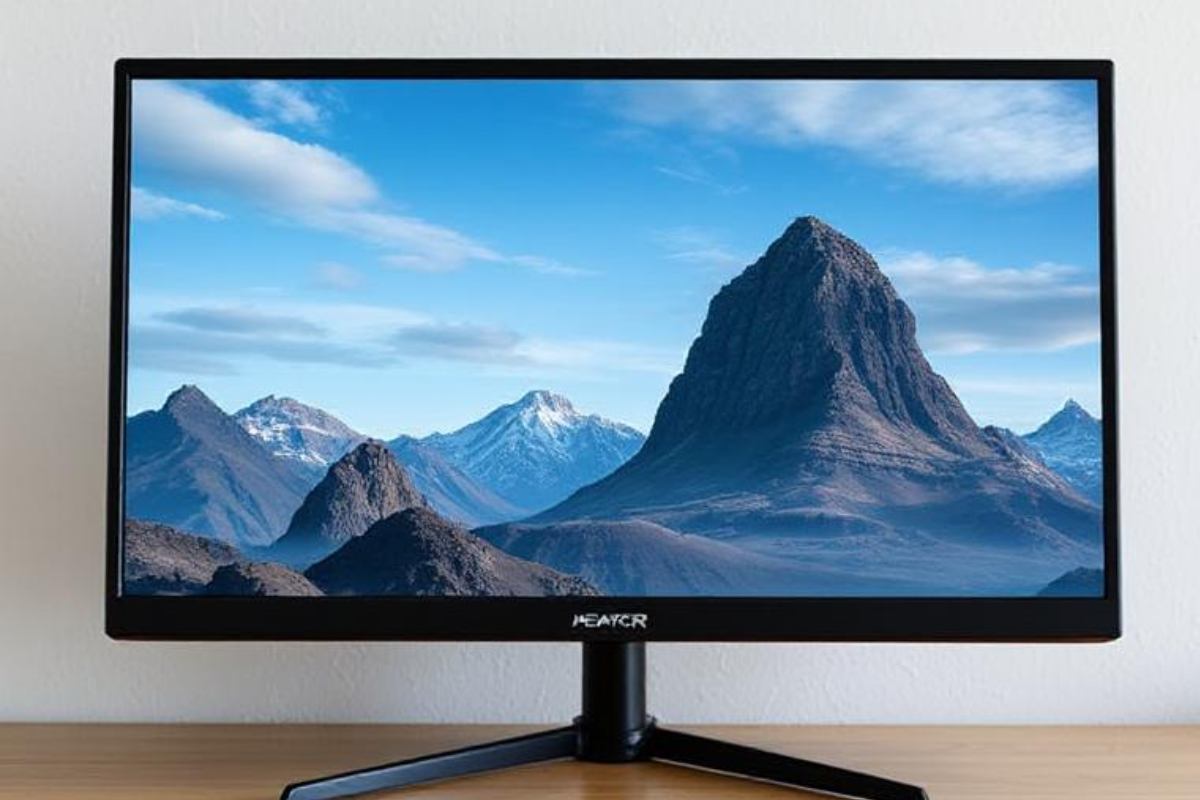
“Unboxing your new 27” Acer Predator XB273K is exciting, but its true potential is unlocked through proper setup.
This guide moves beyond the basics, helping you configure everything from 4K@160Hz gaming on PC to 120Hz HDR on consoles.
We’ll also explore unique features like the DFR mode, all to help you master this high-performance monitor. You can always verify the core specs, like its HDMI 2.1 ports and 1ms response time, on the official Acer Predator XB273K specifications page.”
Table of Contents
Part 1: Decoding the Connectivity Puzzle – It’s All About the Right Port
The back panel has both DisplayPort and HDMI, but using the wrong one will cap your performance. Here’s what you need to know from a practical standpoint:
-
For Peak PC Gaming (4K @ 160Hz with HDR): You must use the DisplayPort 1.4 input with DSC (Display Stream Compression). In my setup, without DSC enabled, the highest refresh rate I could select was 120Hz. Enabling it was the key.
-
How to Enable DSC: It’s not just a monitor setting. First, ensure your graphics card drivers are updated. Then, open your GPU control panel (NVIDIA Control Panel or AMD Radeon Software). Look for a “Display” or “Resolution” section; the option to enable DSC is often here. Finally, dive into your monitor’s OSD menu—navigate using the handy joystick—and find the “DP Format” setting. Switch it to “1.4+DSC.” The screen will flicker momentarily, and 160Hz should now be available.
-
For PlayStation 5 or Xbox Series X (4K @ 120Hz with HDR): You must use the HDMI 2.1 port. Expert reviews, such as the one from Windows Central, have confirmed that newer revisions of the XB273K now include this crucial port, which was a noted limitation in earlier models and is great news for console gamers. Always use the ultra-high-speed HDMI cable that came with your console.”
Part 2: Console Setup Made Foolproof
Connecting your console might seem plug-and-play, but to unlock the full visual fidelity, a few specific settings are non-negotiable. I’ve found these configurations deliver the best balance of performance and image quality.
-
For Xbox Series X:
-
Navigate to Settings > General > TV & display options.
-
Set Resolution to 4K UHD and Refresh rate to 120 Hz.
-
Go to Advanced > Video fidelity & overscan. Set Color depth to 10-bit and Color space to Standard. If you encounter any intermittent signal issues, try enabling “Allow 4:2:2.”
-
Crucially, enable Variable Refresh Rate (VRR) in this menu and ensure FreeSync is turned on in your monitor’s OSD under the ‘Game’ settings.
-
-
For PlayStation 5:
-
Go to Settings > Screen and Video > Video Output.
-
Set Resolution to Automatic, VRR to Automatic, and 120Hz Output to Automatic.
-
The “4K Video Transfer Rate” setting is key. Leave it on “Automatic.” If you notice any flickering or instability in 120Hz HDR games, change it to “-1“. This applies chroma subsampling, freeing up bandwidth—a practical trick that solved flickering for me in titles like Call of Duty.
-
Part 3: Calibration & The Hidden Menu (Proceed with Extreme Caution)
Out of the box, the image can feel a bit flat. Here are safe starting points you can adjust in the standard OSD, based on principles that align with the professional calibration analysis from Tom’s Hardware:
-
Picture Mode: Start with the ‘User’ mode for full control.
-
Contrast: Try reducing it from the default 50 to around 40. This often prevents bright highlights from looking “blown out.”
-
Gamma: The 2.2 setting can feel a bit dark. Switching to Gamma 1.8 usually makes the image pop more vibrantly in games.
⚠️ A Word on the Hidden Service Menu
Yes, there’s a hidden menu. It’s accessed by holding specific buttons (like the power joystick) during power-up. Strongly advise against entering it. The risks far outweigh the rewards. You can brick your monitor, void your warranty, or get lost in settings that have no consumer benefit. Every meaningful setting for performance and picture quality is accessible in the standard OSD. Let’s keep your investment safe.
Part 4: Solving Real-World Problems
-
“My screen flickers at 160Hz!” This is almost always a cable or DSC issue. First, ensure you’re using the certified DP 1.4 cable that came with the monitor. Then, double-check the DSC steps in Part 1. A driver update for your GPU can also work wonders.
-
“HDR looks washed out on my PC/Console.” This is common. First, ensure HDR is enabled in both the Windows/console system settings and the monitor’s OSD (in the HDR section). If it still looks off, revisit the calibration tips in Part 3. HDR amplifies both good and bad settings.
-
“Is the fan supposed to be audible?” The monitor has an internal fan for cooling. In a silent room, you might hear a faint whirr. In my experience, it’s drowned out by standard PC case fans and is not a cause for concern—it’s noted in detailed reviews like the one on PC Monitors.
Conclusion: From Box to Beast
Configuring the Acer Predator XB273K isn’t just about checking boxes in menus. It’s about understanding how these technologies work together to create a seamless experience.
By following these steps—prioritizing the right port, meticulously setting up your console, applying sensible calibrations, and steering clear of dangerous hidden menus—you’re not just configuring a monitor. You’re unlocking the premium experience you paid for.
Your next step? Now that the basics are mastered, consider diving deeper into game-specific optimizations. Try the NVIDIA Reflex Analyzer if you have a compatible mouse, or explore how different in-game HDR sliders interact with your monitor’s capabilities. The journey to perfect image quality is ongoing, but now you have a fantastic foundation.
I hope this guide, rooted in practical experience and authoritative knowledge, transforms your setup process. If you have a specific tweak you discovered, share it with the community—the best insights often come from fellow enthusiasts.